Reading on your phone? Send it to your laptop.
You'll get the guide and every prompt in one email.
Guide 004
How to ask Claude Code for work so it gets it right
You need
- Claude Code installed and logged in
- A project folder to practise in
- A small task in mind, such as a webpage or a fix to one you have
Step 1 of 15
Know how Claude works on a request
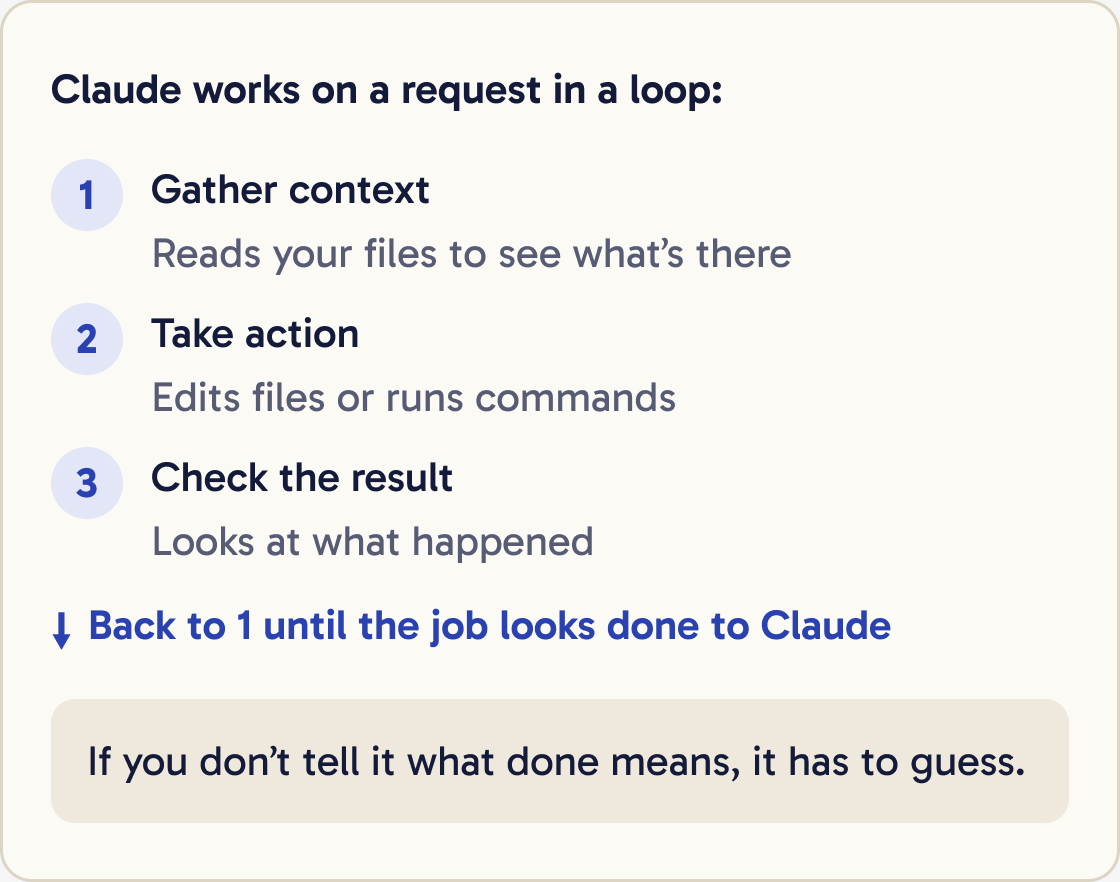
Claude works on a request in a loop. It reads files to gather context, edits files or runs commands, then checks the result. It repeats this until the job looks done to it.
If you don't tell it what done means, it has to guess.
Your first message doesn't have to be perfect. Look at the result and ask for changes, the same as in a chat.
Did that work?
Still stuck? Send me a DM on Instagram at @maxbuilds.ai and I'll help.
Step 2 of 15
Say what you want and what done looks like
Anthropic's best practices say the more precise your instructions, the fewer corrections you'll need.
I want [WHAT YOU WANT]. It goes in [FILE OR PAGE]. It's done when [HOW I WILL KNOW IT WORKS]. Don't change [ANYTHING TO LEAVE ALONE].Name the thing, where it goes and how you'll know it works. Compare these two requests.
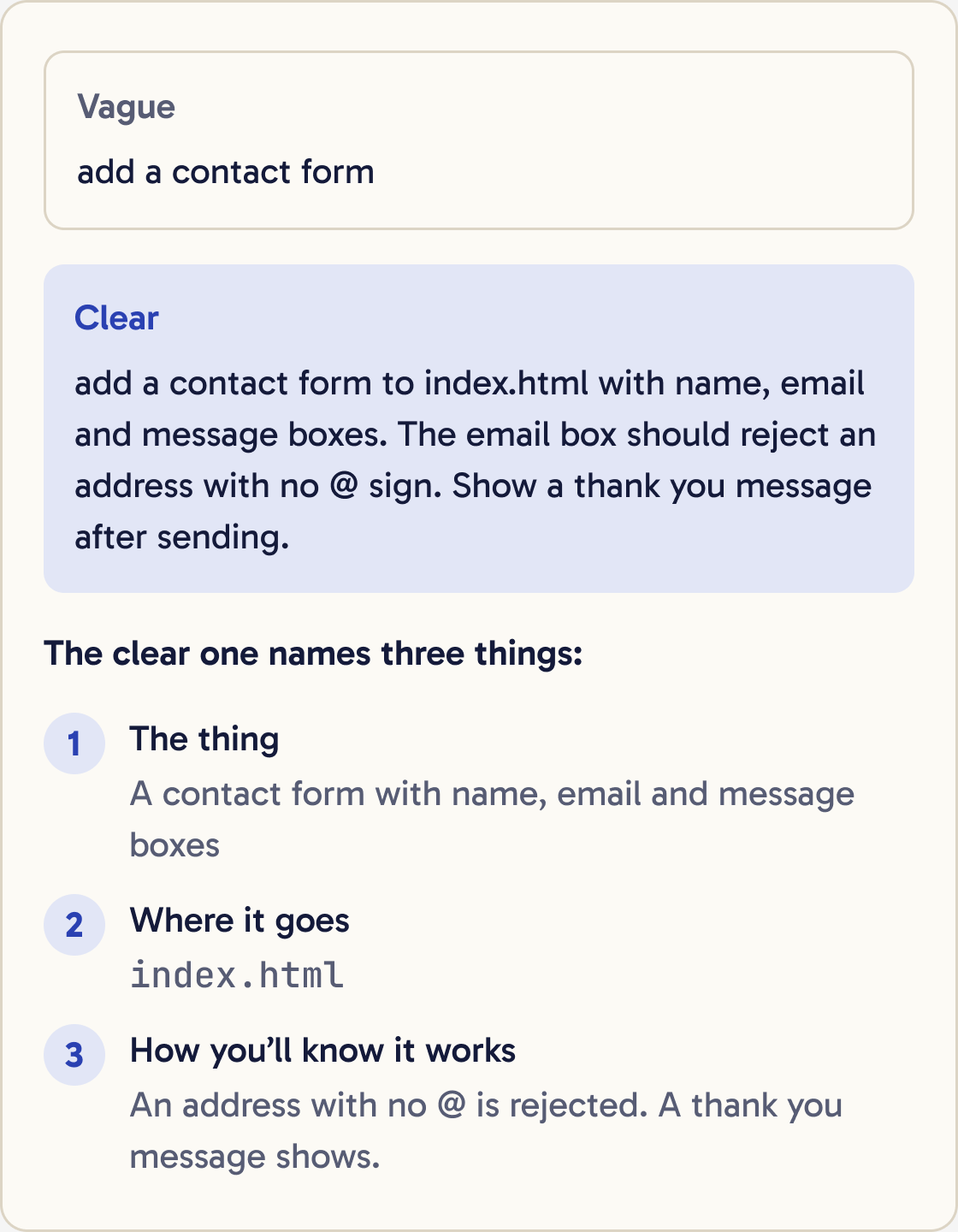
Vague: add a contact form.
Clear: add a contact form to index.html with name, email and message boxes. The email box should reject an address with no @ sign. Show a thank you message after sending.
Step 3 of 15
Give it context
Claude reads your project by itself. Tell it the things that aren't in the files, such as who the page is for or what you tried already.
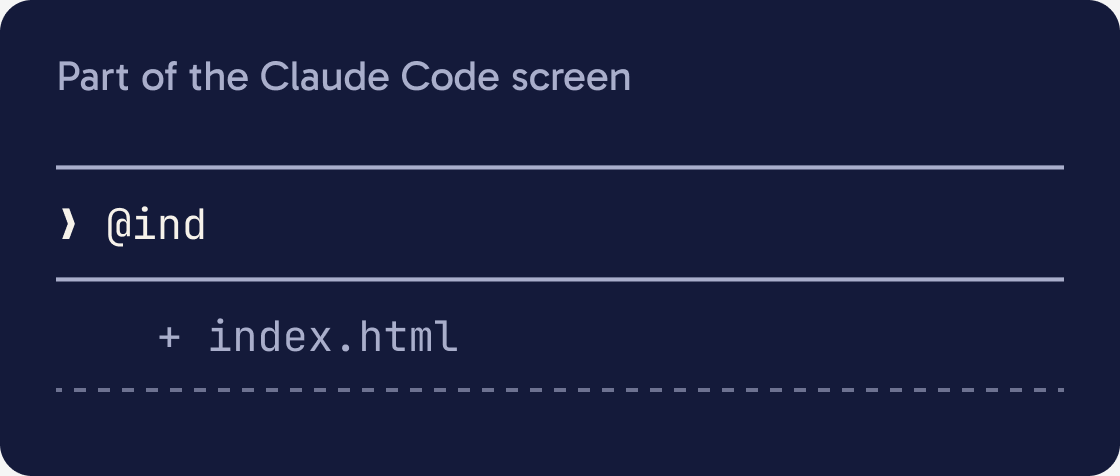
When I click the Send button on @index.html nothing happens. I expected the thank you message to appear. Here is the error from the browser: [PASTE ERROR]. Find the cause and fix it. Don't just hide the error.Point to a file by typing @ and the file name, such as @index.html. Claude reads that file before it answers.
Paste error messages in full. To paste a screenshot, copy it, then press Ctrl + V on a Mac or Alt + V on Windows.
Give a link to documentation if the task uses a tool or service.
Describe a problem in three parts: what goes wrong, where it happens and what fixed looks like.
Step 4 of 15
Point to an example
If your project already has something like what you want, say so. Claude follows the same pattern, so the new part matches the old ones.
Look at how the About section is built in @index.html. Add a new Pricing section that follows the same layout and styles. Use no new libraries.Step 5 of 15
Use plan mode for anything bigger
In plan mode Claude reads your files and writes a plan. It doesn't change any files, so you read the plan before any work starts.
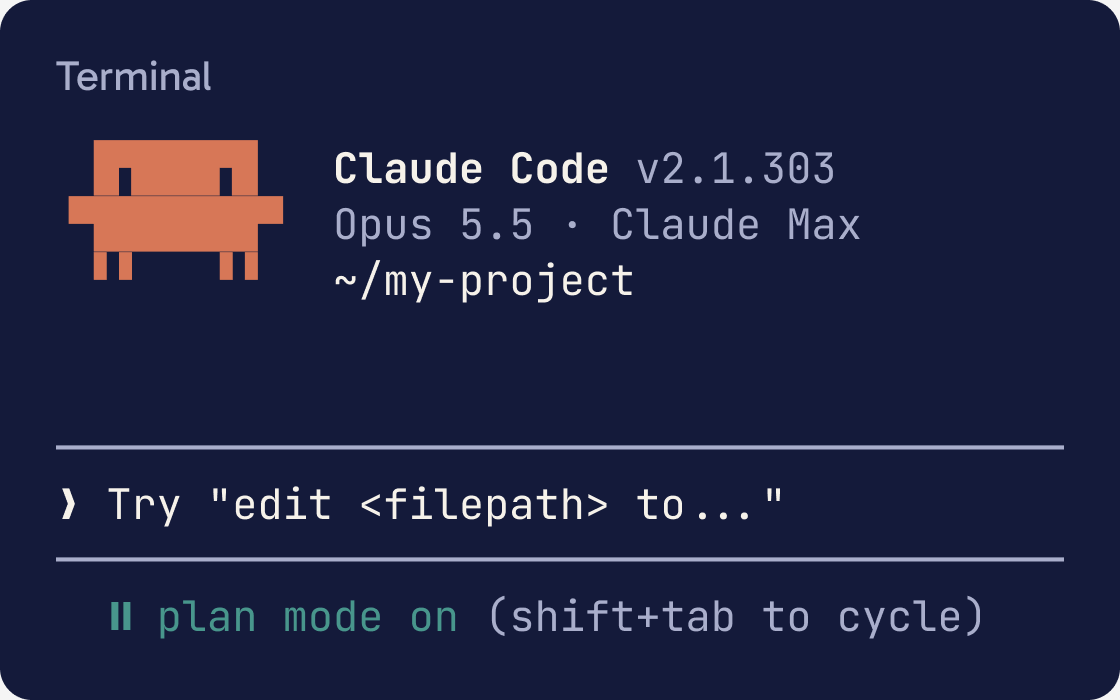
I want to add a page where people can book a call. Read the project first. Then write a short plan: which files you'll change, what each change does, and anything you're unsure about. Don't write any code yet.To turn it on, press Shift + Tab until the status bar under the input box shows plan mode on. Press it again to leave.
You can also start a message with /plan, for example /plan add a contact form. Or start Claude Code in plan mode with:
claude --permission-mode plan
In the desktop app, choose Plan in the mode selector next to the send button. In VS Code, click the mode indicator at the bottom of the prompt box and choose Plan.
Step 6 of 15
Approve, change or reject the plan
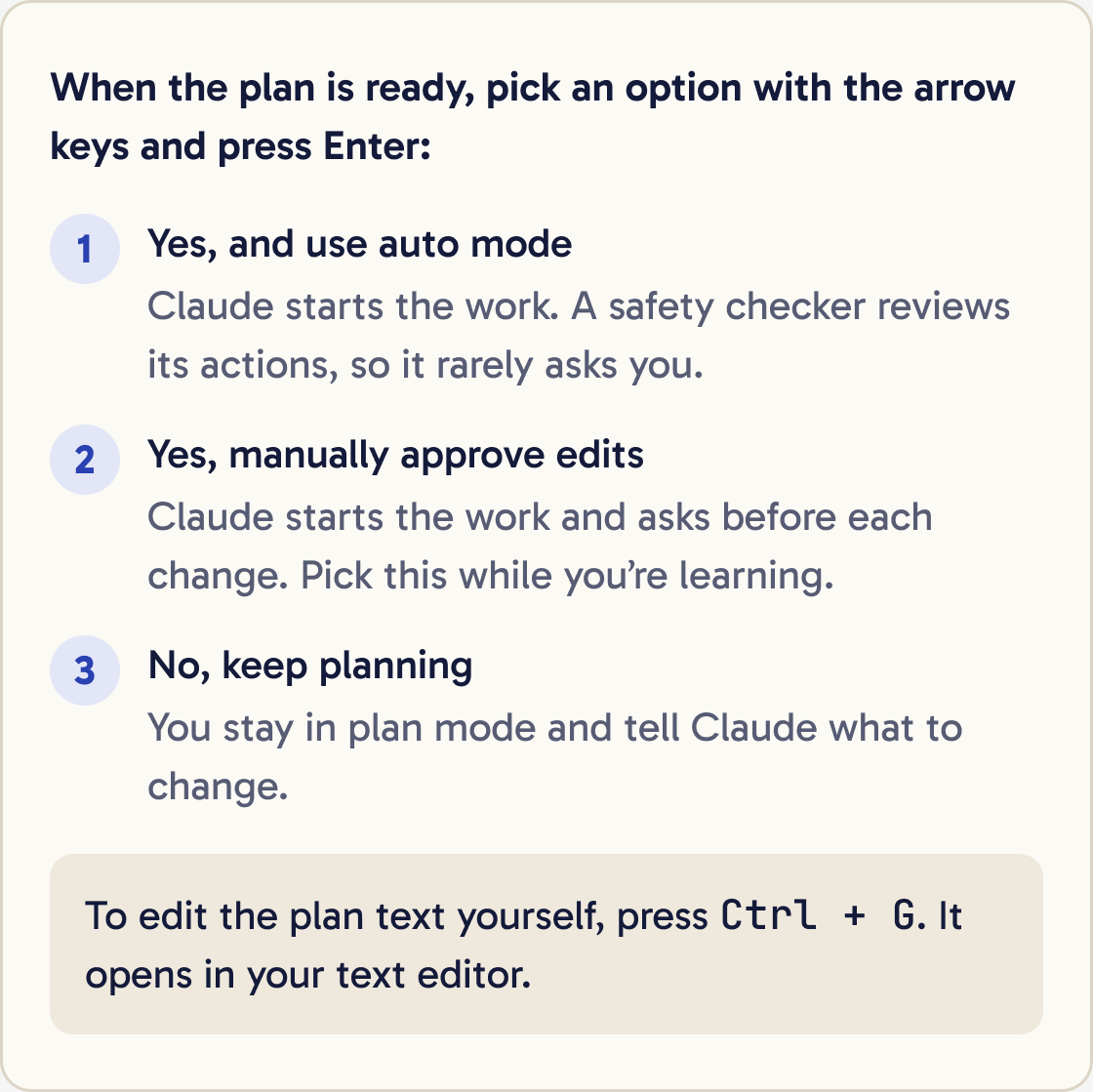
When the plan is ready, Claude shows it and asks how to go on. Use the arrow keys to pick an option and press Enter.
Keep planning. Make the plan smaller: only do the booking form for now, with no emails. Tell me what you would leave for later.Yes, and use auto mode: Claude starts the work, and a safety checker reviews its actions so it rarely asks you.
Yes, manually approve edits: Claude starts the work and asks before each change. Pick this while you're learning.
No, keep planning: you stay in plan mode and tell Claude what to change.
To edit the plan text yourself, press Ctrl + G. It opens in your text editor.
Step 7 of 15
Let Claude interview you
For a bigger idea, have Claude ask you questions before it plans. It asks about things you might not have thought of.
I want to build [BRIEF DESCRIPTION]. Interview me in detail using the AskUserQuestion tool. Ask about how it should work, how it should look, edge cases and tradeoffs. Skip obvious questions. Keep going until we have covered everything, then write a complete spec to SPEC.md.Anthropic suggests saving the answers as a written spec, then starting a fresh session to build it. A spec is a short document that says exactly what to build.
Step 8 of 15
Work in small steps
Break a big job into numbered steps. Ask for one step, check it, then ask for the next.
Here is the plan: 1. build the booking form, 2. save each booking to a file, 3. show a list of bookings on a separate page. Do step 1 only, then stop and tell me how to check it.Small steps are easier to check and to undo. If step 3 goes wrong, steps 1 and 2 still work.
Step 9 of 15
Give Claude a way to check its own work
Anthropic's top tip is to give Claude a check it can run. That could be a test, a build, or a screenshot to compare.
Write a function that checks if an email address looks valid. Test it with these cases: user@example.com is valid, invalid isn't valid, user@.com isn't valid. Run the tests and show me the results.Before you say this is done, run it and show me the output. If anything failed, fix the cause and run it again.With a check, Claude runs it, reads the result and fixes problems before it hands the work back. Without one, you have to spot every mistake yourself.
Ask for evidence. Ask Claude to show you the command it ran and what it returned, or a screenshot of the result.
Step 10 of 15
Check the work yourself
Look at the result every time. Open the page, click the buttons and use it the way a visitor would.
Explain every change you just made in plain English, file by file. Tell me anything that could break or that I should test.Use a subagent to review the changes you just made against what I asked for. Report only problems that would make it wrong or broken. Skip style preferences.Type /diff to review the changes in your folder, including every edit Claude has made.
If the change touches something important, ask Claude to explain it in plain English.
Step 11 of 15
Steer it while it works
If Claude heads the wrong way, correct it early.
Stop. That's the wrong page. I meant the booking page. Undo the home page change and do it on booking.html.Press Esc to stop it. It keeps the work so far and waits for you.
Or type a correction and press Enter without stopping it. Claude reads your message after its current step and adjusts.
Step 12 of 15
Undo when it goes wrong
Press Esc twice with an empty input box, or type /rewind. Pick an earlier message and choose Restore code, or Restore code and conversation.
You can also type: undo that.
Rewind only covers edits Claude made with its file editing. It can't undo files changed by a command it ran, such as a delete.
Step 13 of 15
Say what it must not do
Tell Claude your limits in plain words, such as don't delete any files, or don't publish anything until I check it.
Don't delete or move any existing files. Don't install anything new. If you think you need to, stop and ask me first.In auto mode, the safety checker reads limits you state in the conversation and blocks actions that break them.
Limits in the chat can be lost when a long conversation gets summarised. For rules that matter every time, put them in CLAUDE.md, covered below.
Step 14 of 15
Keep each conversation on one task
Claude remembers everything in the current conversation, and that memory has a limit. Old messages about other tasks make it worse at the new one.
Type /clear when you switch to an unrelated task.
In a long session on one task, type /compact to shrink the conversation into a summary. You can add a focus, such as /compact keep the booking form decisions.
To ask a side question without adding it to the conversation, type /btw and your question.
Step 15 of 15
Save your rules in CLAUDE.md
CLAUDE.md is a file in your project that Claude reads at the start of every session. Put rules there that you would otherwise repeat each time.
Add this rule to CLAUDE.md: explain every change in plain English when you finish, and always ask before deleting any file. Keep the file short.Type /init and Claude writes a starter CLAUDE.md based on your project. Then edit it.
Keep it short. Anthropic warns that Claude ignores parts of a long CLAUDE.md. For each line, ask whether Claude would make mistakes without it.
Did that work?
Still stuck? Send me a DM on Instagram at @maxbuilds.ai and I'll help.
Common mistakes
- Asking for something vague like make it better. Say what to change and what done looks like.
- Asking for a big feature in one message. Plan it first, then build it in small steps.
- Accepting work without checking it. Open it, test it, and ask Claude to show proof that it works.
- Correcting the same mistake over and over. After two tries, type /clear and write one clearer request.
- Keeping one endless conversation for everything. Type /clear between unrelated tasks.
- Writing a very long CLAUDE.md. Keep only rules Claude would get wrong without them.
Want the next guide?
I'll email you each new guide as I share it, with new tutorials and prompts too.