Reading on your phone? Send it to your laptop.
You'll get the guide and every prompt in one email.
Guide 023
Let Claude Code test your site in a real browser
You need
- Claude Code installed and signed in on a paid plan or a Claude Console account.
- Node.js 18 or newer. Check with `node --version`.
- A website project that runs on your computer, usually with `npm run dev`.
- A test account for any sign in pages. Don't use your personal logins.
Step 1 of 11
Know what Playwright MCP does
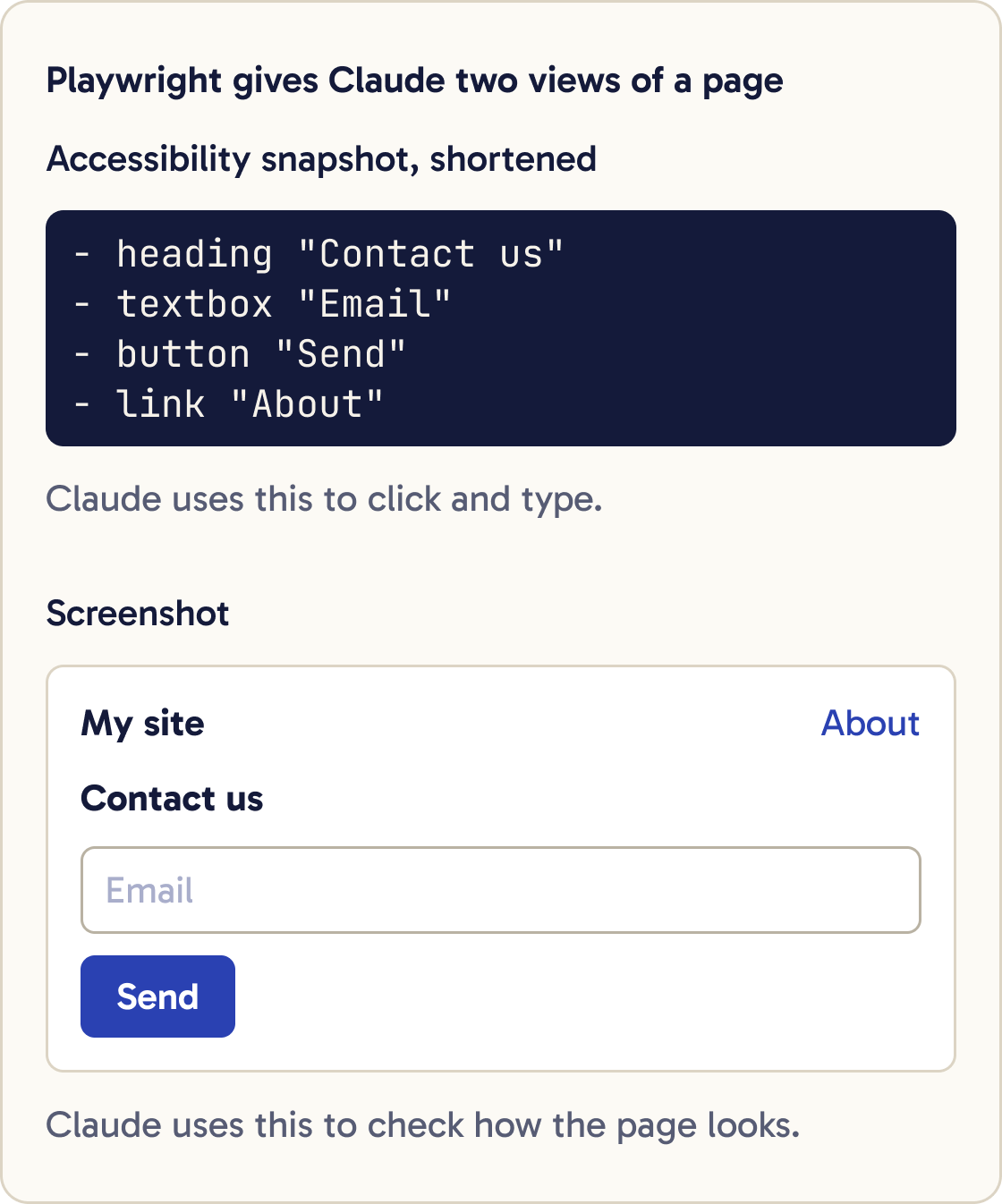
Playwright is Microsoft's tool for controlling a web browser with code. Playwright MCP is an MCP server that gives Claude those controls, so it can open a page, click, type, take screenshots and read what's on screen.
It reads the page as an accessibility snapshot. That's a structured list of everything on the page, such as buttons, links, headings and form fields, each with a label Claude can click by name.
Screenshots are for checking how the page looks. Playwright's docs say Claude should use the snapshot for clicking and typing.
Did that work?
Still stuck? Send me a DM on Instagram at @maxbuilds.ai and I'll help.
Step 2 of 11
Install the server
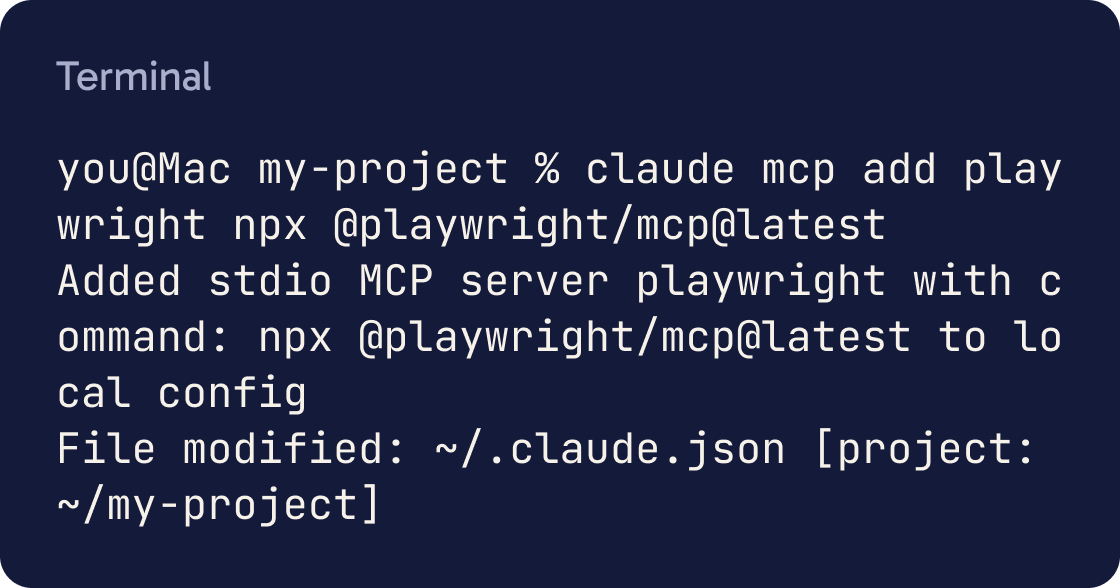
Run this command from Playwright MCP's official page in the terminal, in your project folder:
claude mcp add playwright npx @playwright/mcp@latest
Claude Code prints an Added line. By default this adds the server to the current project only, and keeps it private to you. To use it in every project, add --scope user:
claude mcp add --scope user playwright -- npx @playwright/mcp@latest
The -- separates Claude Code's own options from the command that starts the server.
Step 3 of 11
Check it connected
List your MCP servers:
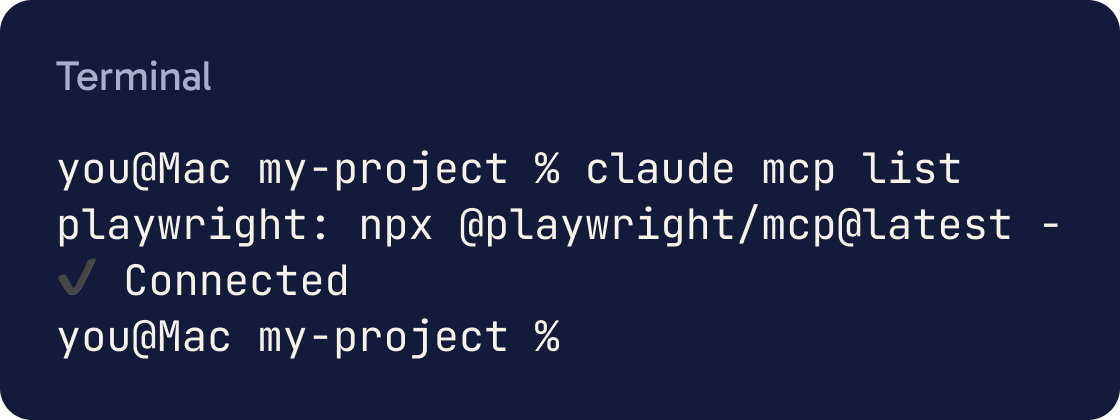
claude mcp list
You should see playwright with ✔ Connected next to it. Inside Claude Code, type /mcp to see the same list and each server's tools.
Step 4 of 11
Start your site
Claude needs your site running before it can visit it. Ask Claude to start your dev server in the background, so the server keeps running while Claude works.
Start this project's dev server in the background. Tell me the exact local address it's running on, and confirm the home page loads without errors in the server output.A dev server is the program that serves your site on your own computer, at an address like http://localhost:5173. The number at the end is the port, and it depends on your framework.
Step 5 of 11
Make the first visit
Ask Claude to open your site with Playwright and describe what it finds. A browser window opens on your screen so you can watch.
Use the Playwright MCP to open [YOUR LOCAL ADDRESS]. Take a snapshot and list the main headings, every link and button, and any form fields. Then check the browser console for errors and list any you find. Don't change any code yet.Claude Code asks permission the first time each Playwright tool runs, so approve it. To stop the prompts for this server, type /permissions and add an allow rule for mcp__playwright__*, which matches every Playwright tool.
Step 6 of 11
Take screenshots and review them
Ask Claude to take a full page screenshot and then look at it. The screenshot tool can capture the visible part or the whole scrolling page.
Use Playwright to take a full page screenshot of [PAGE ADDRESS] and save it as screenshots/[NAME]-desktop.png. Look at the screenshot and list visual problems: overlapping or cut off text, images that don't load, uneven spacing, low contrast text, and anything that looks broken. Give each problem a location on the page. Don't fix anything yet.If you don't give a file name, Playwright saves screenshots in its output folder with names like page- followed by a timestamp. Give a file name so you can find them, such as screenshots/home-desktop.png.
Ask for specific problems. "Does it look good?" gets a vague answer, and "List overlapping text and buttons smaller than a finger" gets a useful one.
Step 7 of 11
Check phone and tablet widths
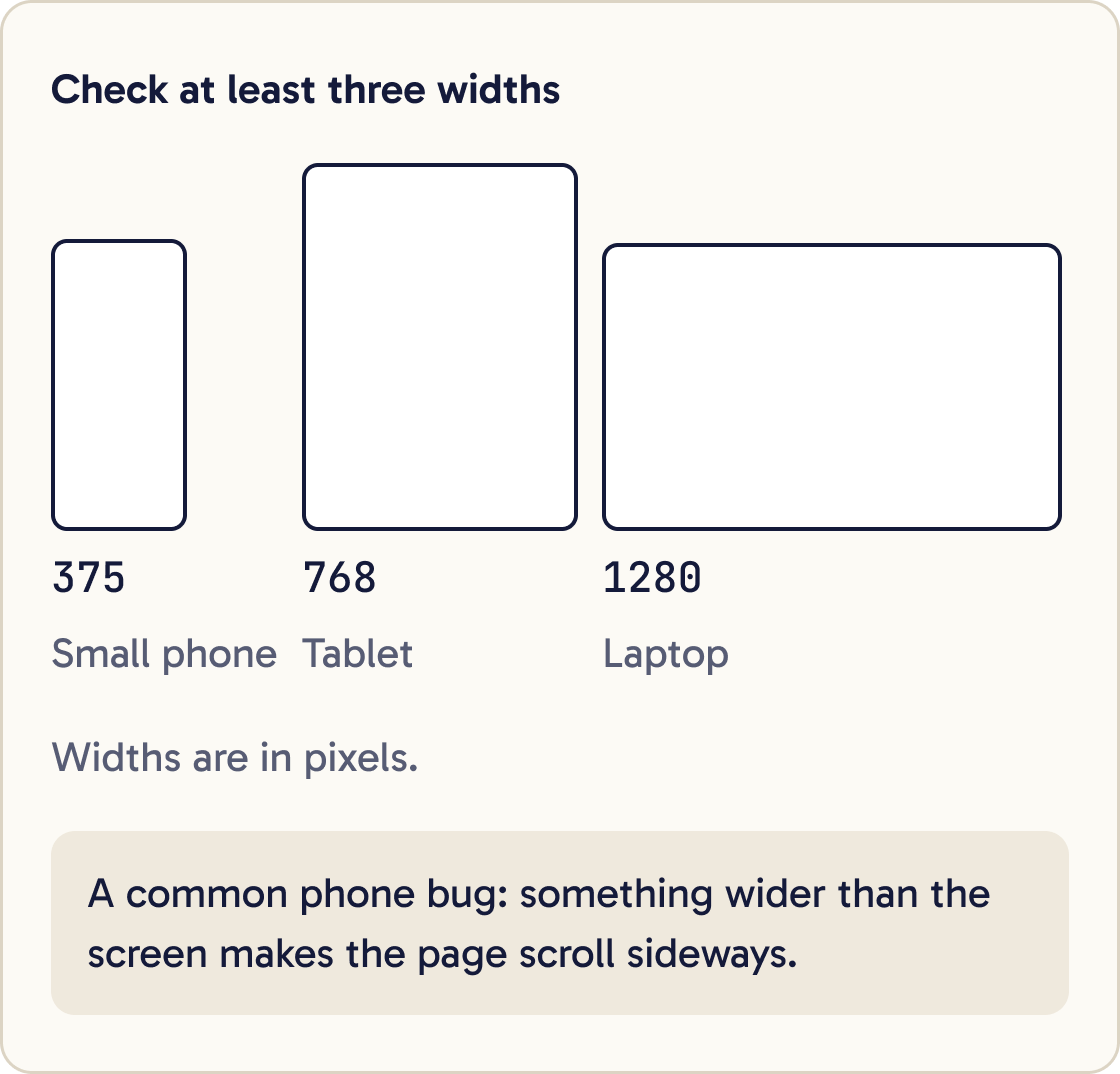
Most visitors arrive on a phone. Playwright can resize its browser window to any width and height in pixels.
Use Playwright to check [PAGE ADDRESS] at three sizes: 375 by 812, 768 by 1024, and 1280 by 800. At each size: resize the browser, take a full page screenshot saved as screenshots/[NAME]-[WIDTH].png, and check whether the page scrolls sideways by comparing document.documentElement.scrollWidth with window.innerWidth. List every problem with the width it appears at. Don't fix anything yet.Check at least three sizes. Common choices are 375 pixels wide for a small phone, 768 for a tablet and 1280 for a laptop.
A common phone bug is sideways scrolling, where something is wider than the screen. Claude can measure this with a short script in the page that compares the page width with the window width.
Step 8 of 11
Click through a real flow
A flow is a set of steps a visitor takes, such as filling in a contact form or signing up. Ask Claude to go through it the way a visitor would.
Use Playwright to test the form on [PAGE ADDRESS]. First submit it empty, then with an invalid email, then with valid test details: name Test User, email test@example.com, message Hello. After each attempt, take a snapshot and report what message the page shows. Then list any console errors and any network requests that failed. Don't change code yet.Ask it to try the unhappy path too: an empty form, a bad email address, a double click on submit. People often forget to check these by hand.
Playwright can also list the browser's console messages and network requests. A network request is each call the page makes to load data or send a form, and failed requests often explain a broken button.
Step 9 of 11
Fix what it finds
Ask Claude to fix the problems one at a time. After each fix, it should run the same check again and show you the new screenshot.
From the problems you found, fix the most serious one first. Then repeat the exact Playwright check that found it, save a new screenshot with -fixed at the end of the name, and tell me whether the problem is gone. Stop after each fix so I can review it before the next.Anthropic's docs recommend this loop for UI work: take a screenshot of the result, compare it with what you wanted, list the differences and fix them.
Review each fix yourself in your own browser before you commit.
Step 10 of 11
Save the checks as a skill
Once your checks work, save them as a skill so you can rerun them with one command. A skill is a SKILL.md file of instructions Claude follows when you call it.
Create a skill at .claude/skills/site-check/SKILL.md. Frontmatter: name site-check, a description saying it checks this site in a real browser with Playwright at phone, tablet and laptop widths, and disable-model-invocation: true so it only runs when I type /site-check. The body should list the pages to check, the three sizes, the sideways scroll check, the form test, and say to save screenshots to screenshots/ and report problems without fixing them. Use the exact checks we ran in this session.Ask Claude to write one at .claude/skills/site-check/SKILL.md. Then type /site-check whenever you change the design.
Step 11 of 11
Keep it safe
Playwright's own page says the server is not a security boundary. The browser is real, so it can visit any website and submit any form.
Web pages can contain text written to trick Claude into doing something else. This is called prompt injection. Point Claude at your own site, and keep approving actions on sites you don't control.
By default the browser keeps a saved profile, so logins persist between sessions. On a Mac it lives in ~/Library/Caches/ms-playwright/. Add --isolated when you add the server to start clean every time.
Did that work?
Still stuck? Send me a DM on Instagram at @maxbuilds.ai and I'll help.
Common mistakes
- Asking "does it look good?" Ask for specific problems with a location and a width.
- Testing only at desktop width. Check 375 pixels wide every time.
- Letting Claude fix everything in one go. Fix one thing, recheck, review, then the next.
- Logging the test browser into your personal accounts. Use test accounts, or `--isolated`.
- Trusting a screenshot from the wrong page. Ask Claude to name the address it took each screenshot of.
- Forgetting the dev server. Start it in the background before asking Claude to visit.
Want the next guide?
I'll email you each new guide as I share it, with new tutorials and prompts too.