Reading on your phone? Send it to your laptop.
You'll get the guide and every prompt in one email.
Guide 028
Build your own MCP server and connect it to Claude Code
You need
- Claude Code installed and working. You've used it on a real project before.
- Node.js 20 or newer to build the server, and Node.js 22.19 or newer for the current MCP Inspector. Check with `node --version`.
- Enough TypeScript or JavaScript to read a 30 line file.
- A terminal open in the folder where you keep your projects.
Step 1 of 13
Decide if you need your own server
MCP stands for Model Context Protocol. It's an open standard that lets Claude call tools that live in other programs.
An MCP server is a small program that offers those tools. Claude Code connects to it, reads its list of tools and calls one when a task needs it.
Build your own when nothing already exists for the job, such as an internal API, a private database or a script only you use. You probably need one if you keep pasting data from another tool into the chat.
Check what exists first. The Anthropic Directory at claude.ai/directory lists reviewed connectors, and many services publish their own server.
If a command line tool already does the job, such as gh for GitHub, Claude can run it directly. The Claude Code docs say command line tools use less context than MCP servers, because they add no list of tools.
Did that work?
Still stuck? Send me a DM on Instagram at @maxbuilds.ai and I'll help.
Step 2 of 13
Know what a server can offer
A server can offer tools, resources and prompts. Tools are functions Claude can call. Resources are file-like data a client can read. Prompts are ready-made templates.
Most servers you build for Claude Code offer tools. This guide builds one tool called count_words, which takes some text and returns how many words it has.
The example is small so you can get it working end to end. Once it works, you can swap in a real API call.
Step 3 of 13
Pick a language and the official SDK
An SDK is a library that handles the protocol for you. The MCP project publishes official SDKs in tiers. TypeScript, Python, C#, Go, Rust and Ruby are Tier 1, the most complete. Java is Tier 2. Swift, PHP and Kotlin are Tier 3.
This guide uses TypeScript and the package @modelcontextprotocol/server, which was at version 2.3.1 on 19 October 2026.
For Python, the official tutorial uses uv, a Python package manager, and adds the SDK like this:
uv add "mcp[cli]"
The Python server class is MCPServer, imported from mcp.server. Testing, connecting and security work the same way in both languages.
Step 4 of 13
Set up the project
Make a folder and install the SDK, Zod and TypeScript. Zod is a library that describes the shape of data, and the SDK uses it to describe each tool's inputs.
Create a file called tsconfig.json in this folder with exactly this content, then show me the file:

{
  "compilerOptions": {
    "target": "ES2022",
    "module": "Node16",
    "moduleResolution": "Node16",
    "types": ["node"],
    "outDir": "./build",
    "rootDir": "./src",
    "strict": true,
    "esModuleInterop": true,
    "skipLibCheck": true,
    "forceConsistentCasingInFileNames": true
  },
  "include": ["src/**/*"],
  "exclude": ["node_modules"]
}
mkdir notes-server && cd notes-server
npm init -y
npm install @modelcontextprotocol/server zod
npm install -D @types/node typescript
Tell Node to use modern modules and add a build script:
npm pkg set type=module scripts.build="tsc && chmod 755 build/index.js"
Start Claude Code in the folder with claude and paste the prompt below. It writes the TypeScript settings file.
Step 5 of 13
Write the tool
Paste the prompt below into Claude Code. It creates src/index.ts, which is the whole server.
Create the folder src and a file src/index.ts with exactly this content. Don't change anything, then show me the file:

import { McpServer } from "@modelcontextprotocol/server";
import { serveStdio } from "@modelcontextprotocol/server/stdio";
import { z } from "zod";

function createServer() {
  const server = new McpServer({ name: "notes", version: "1.0.0" });

  server.registerTool(
    "count_words",
    {
      description: "Count the words in a piece of text",
      inputSchema: z.object({
        text: z.string().describe("The text to count"),
      }),
    },
    async ({ text }) => {
      const count = text.trim().split(/\s+/).filter(Boolean).length;
      return { content: [{ type: "text", text: `${count} words` }] };
    },
  );

  return server;
}

serveStdio(createServer, {
  onerror: (error) => console.error("Server error:", error),
});
console.error("notes MCP server running on stdio");
registerTool takes the tool's name, a description with an input schema, and a handler. The input schema lists the inputs and their types. The handler is the function that runs when Claude calls the tool.
Claude reads the description to decide when to call your tool, so say plainly what the tool does.
The handler returns a content list. Each item has a type, and text items have a text field. Claude reads this as the tool's answer.
serveStdio runs the server over stdio. Stdio means the server talks through standard input and output, the same channel a terminal program uses for text. Claude Code starts the server as a process on your computer.
serveStdio takes a function that builds a fresh server every time. The official tutorial explains why: it may build one only to check which protocol version a client speaks, then throw it away.
Step 6 of 13
Keep stdout clean
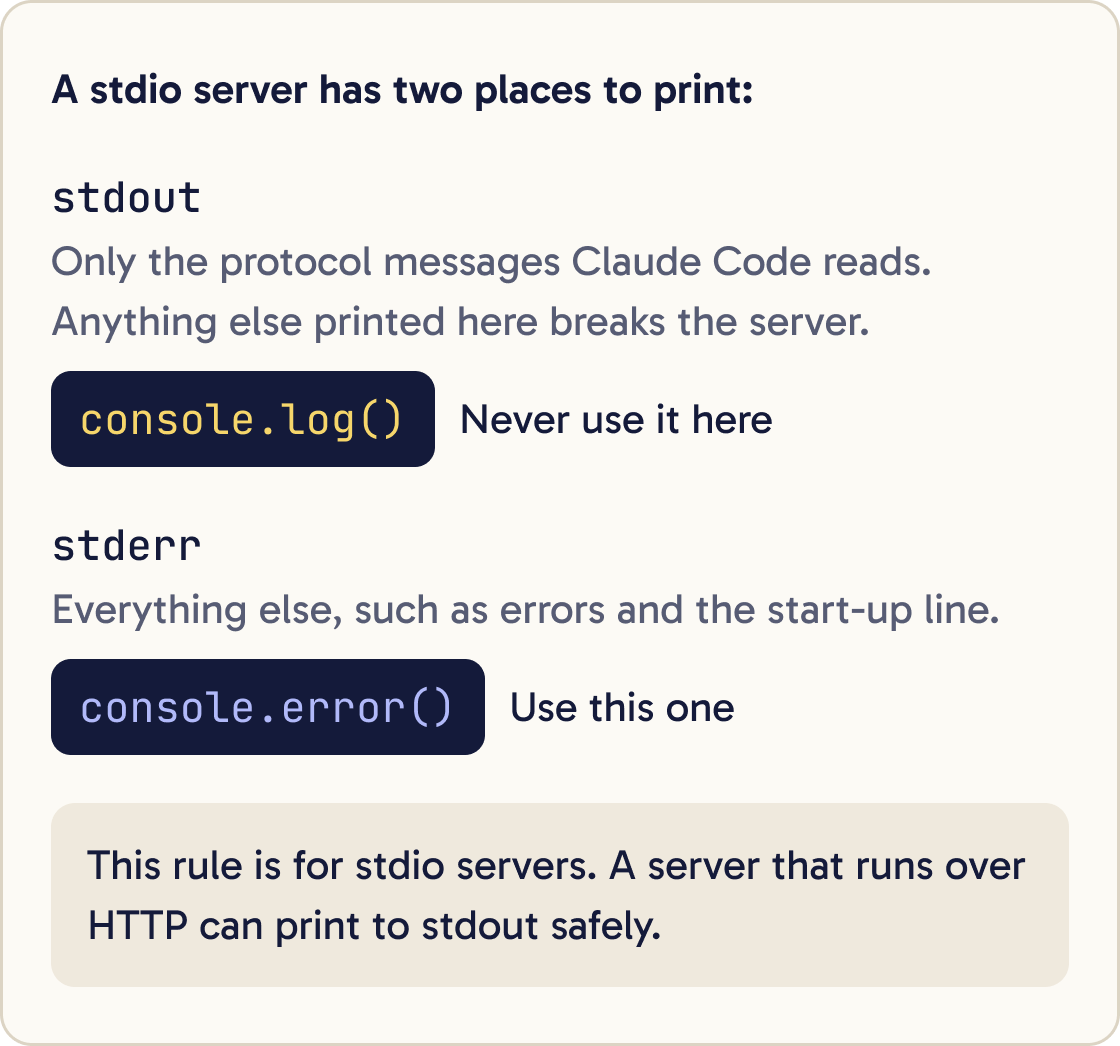
A stdio server sends its protocol messages on standard output, called stdout. Anything else printed there corrupts those messages and breaks the server.
Never use console.log() in a stdio server. Use console.error(), which writes to standard error, called stderr. That's why the example prints its start-up line with console.error.
This rule applies to stdio servers. A server that runs over HTTP can print to stdout safely.
Step 7 of 13
Build it
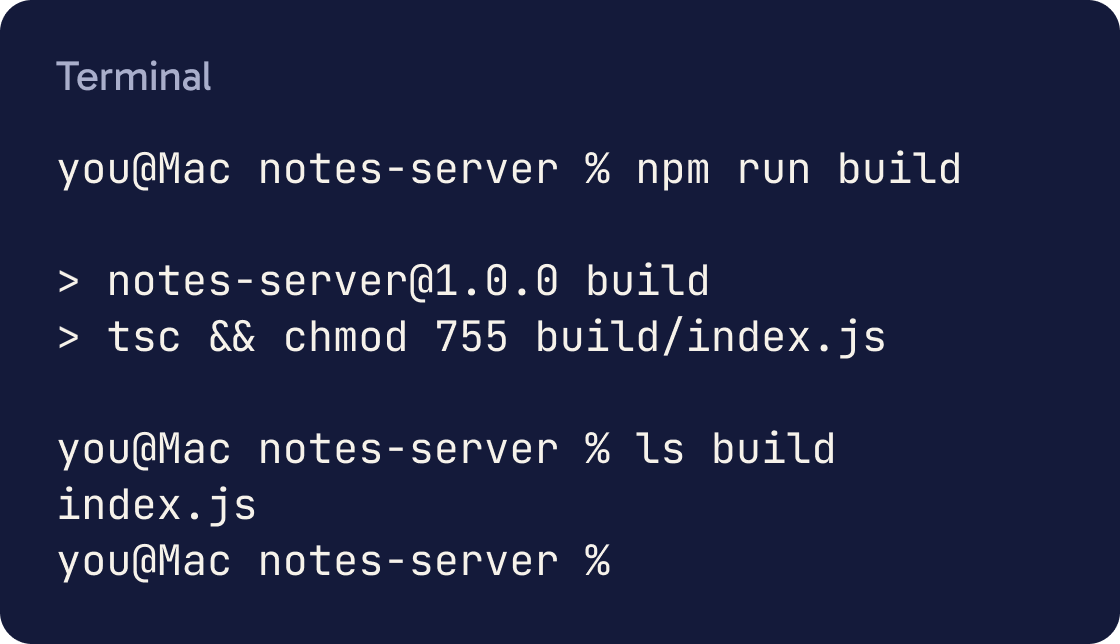
Run the build:
npm run build
This compiles src/index.ts into build/index.js and marks it as runnable. When it works, you see the two lines npm prints for the script and nothing else.
Check the result with ls build. You should see index.js.
Claude Code runs the built file in build/. Changes to src/ do nothing until you build again.
Step 8 of 13
Test it with the MCP Inspector
The MCP Inspector is the official tool for testing servers. It runs through npx, so there's nothing to install. It has a web view, a command line mode and a terminal view.
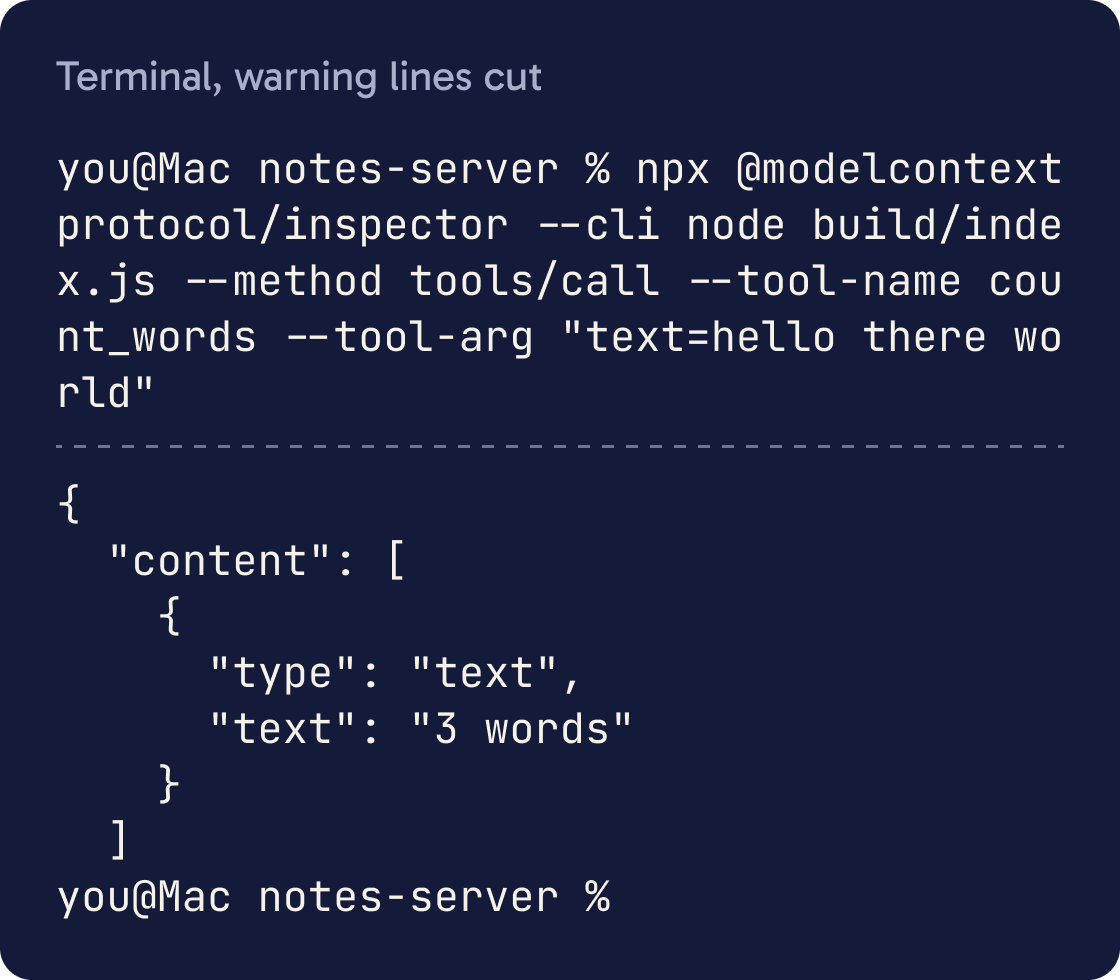
Call your tool from the command line with this command:
npx @modelcontextprotocol/inspector --cli node build/index.js --method tools/call --tool-name count_words --tool-arg "text=hello there world"
You should see JSON that contains "text": "3 words".
To list the tools, replace everything from --method onwards with --method tools/list. To click around in a browser, leave out --cli:
npx @modelcontextprotocol/inspector node build/index.js
It prints a web address with a one-time token and opens it in your browser.
MCP has a newer protocol revision dated 2026-07-28. Inspector version 2 tests the older handshake by default. Add --protocol-era modern to test the new one, then run again with --protocol-era legacy. Both should work, because serveStdio handles both.
Step 9 of 13
Connect it to Claude Code
You need the absolute path to your built file. An absolute path starts from the top of your drive, such as /Users/you/notes-server/build/index.js. Run pwd in the project folder to print the first part.
claude mcp add --transport stdio notes -- node /Users/you/notes-server/build/index.js
Replace the path with yours. The -- separates Claude Code's own options from the command that starts your server. Everything after it goes to the server untouched.
You'll see Added stdio MCP server notes and the name of the file it changed. Then check the connection:
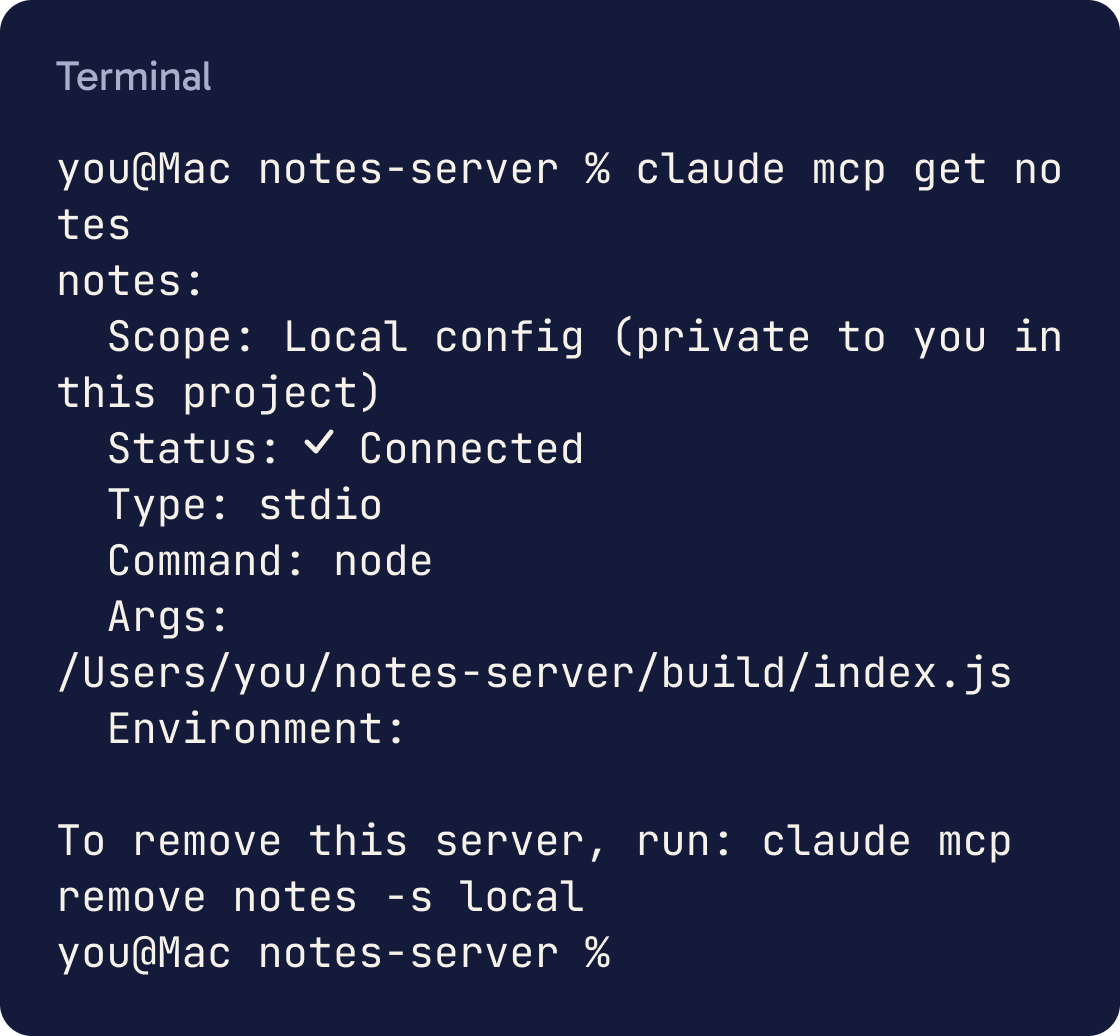
claude mcp get notes
The Status line should say Connected.
By default the server is saved at local scope, which means only you, only in this project. Add --scope user to use it in every project. Add --scope project to write it to a .mcp.json file you can commit for your team.
Step 10 of 13
Use the tool in a session
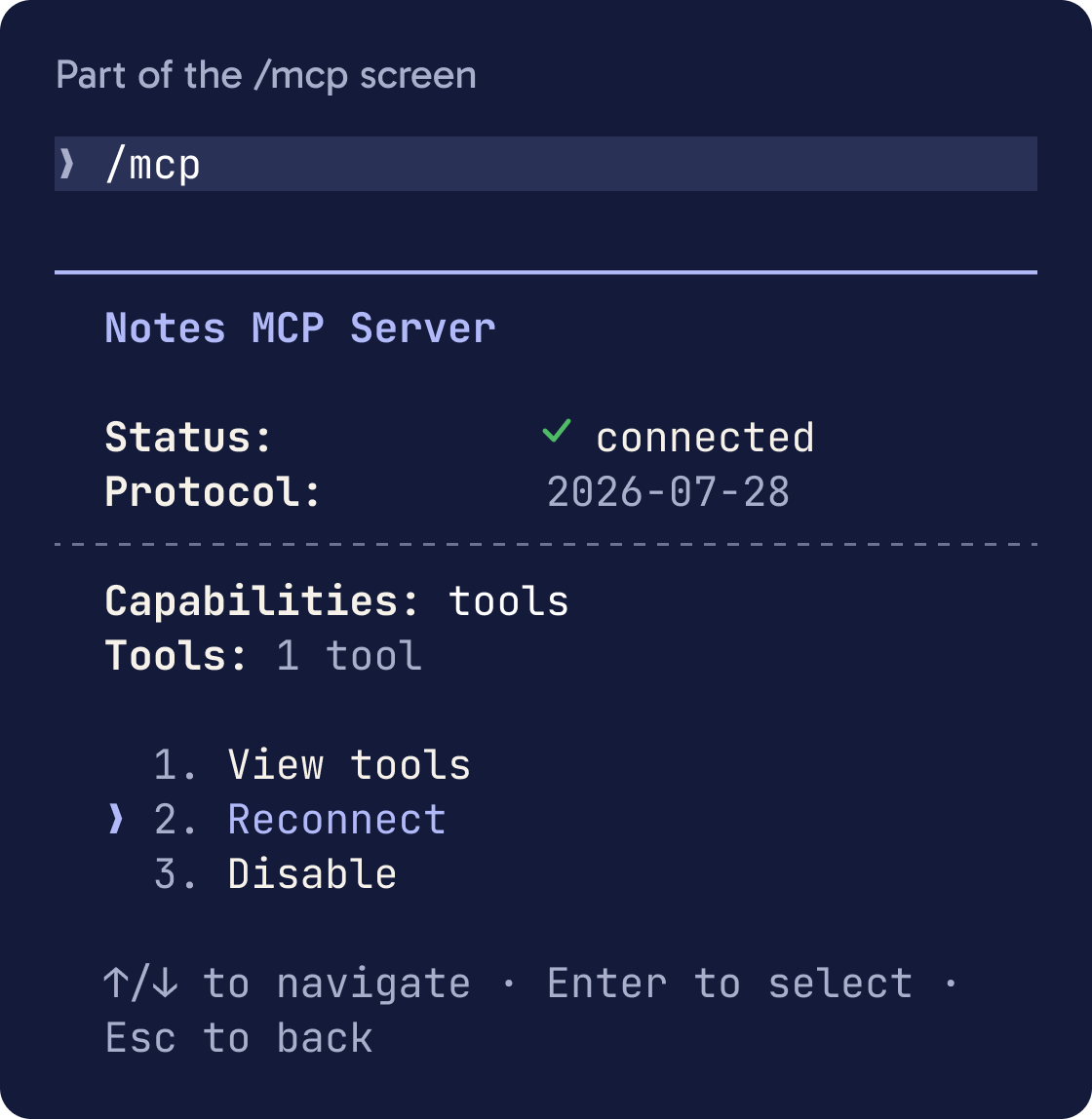
Start claude and run /mcp. Your server is listed with its tool count.
Use the count_words tool from the notes MCP server to count the words in README.md. Tell me the number and confirm which tool you used.Ask for something that needs the tool. Claude asks your permission the first time it calls it, and the answer shows the tool's result.
Inside Claude Code the tool's full name is mcp__notes__count_words. That's mcp__, then the server name, then two underscores and the tool name. Use this name in permission rules.
Step 11 of 13
Change it and reconnect
Edit src/index.ts, then run npm run build again.
Add a second tool to src/index.ts called [TOOL NAME] that [WHAT IT SHOULD DO]. Follow the same registerTool pattern as count_words. Give every input a .describe() note. Check the input values as well as their types, and return isError: true with a plain message when something fails. Never use console.log. Then run npm run build and show me any errors.Claude Code doesn't restart a local server for you. Run /mcp, pick notes and choose Reconnect. Starting a new session also works.
When a call fails, return a result with isError: true and a plain message about what went wrong. The MCP spec says these errors help the model correct itself and try again.
Use the prompt below to add your first real tool. Fill in the parts in square brackets.
Step 12 of 13
Keep tool output small
Claude Code warns when one tool result is over 10,000 tokens and cuts it off at 25,000 tokens by default. A token is a small chunk of text, often part of a word.
Return only what Claude needs: a summary, the matching rows or the first page of results. Large results also fill Claude's context, which leaves less room for the rest of the session.
If one tool really needs more, raise the limit before you start Claude Code:
export MAX_MCP_OUTPUT_TOKENS=50000
Step 13 of 13
Make it safe
A local server runs with your user account's permissions, so it can read any file you can. Only run servers whose code you've read or whose publisher you trust.
Review src/index.ts as a security reviewer. Check: every tool input is validated for type and value, file paths can't escape the folders the tool should use, no secrets are hard-coded or logged, nothing is printed to stdout, outputs are kept small, and errors return isError: true without leaking internal details. List each problem with the line number and a fix. Don't change the file yet.The MCP spec says servers must validate all tool inputs, control access, rate limit calls and clean their outputs. The Zod schema checks the shape. Check the values too, such as which folders a file path may point to.
Treat anything your tool fetches as untrusted. A web page, issue or email can contain instructions aimed at Claude. This is called prompt injection, and the Claude Code docs warn that servers which fetch outside content expose you to it.
Keep secrets out of your code. Pass an API key when you add the server:
claude mcp add --env API_KEY=your-key --transport stdio notes -- node /Users/you/notes-server/build/index.js
Give the server the least access it needs, such as a read-only database user or a key with narrow permissions. Then a leak exposes less.
Before you ship a remote server with sign-in, read the MCP Security Best Practices page. It forbids token passthrough, which means accepting a token issued for another service and passing it on to that service's API.
Did that work?
Still stuck? Send me a DM on Instagram at @maxbuilds.ai and I'll help.
Common mistakes
- Using `console.log` in a stdio server. It breaks the protocol, so use `console.error`.
- Forgetting `npm run build` after a change, then wondering why nothing changed.
- Giving `claude mcp add` a path like `build/index.js`. Use the full path that starts with `/`.
- Writing a vague tool description. Claude decides when to call a tool from its description.
- Returning huge results. Summarise inside the tool before you return.
- Hard-coding an API key in the source or in a committed `.mcp.json` file.
Want the next guide?
I'll email you each new guide as I share it, with new tutorials and prompts too.