Reading on your phone? Send it to your laptop.
You'll get the guide and every prompt in one email.
Guide 020
Automations: run Claude Code without sitting there
You need
- Claude Code installed and signed in (type `claude` in a terminal and it opens)
- A paid Claude plan: Pro, Max, Team or Enterprise, or a Claude Console account
- A project folder on your computer to practise in
- For the GitHub steps only: a free GitHub account and a project already on GitHub
Step 1 of 12
Know your five options
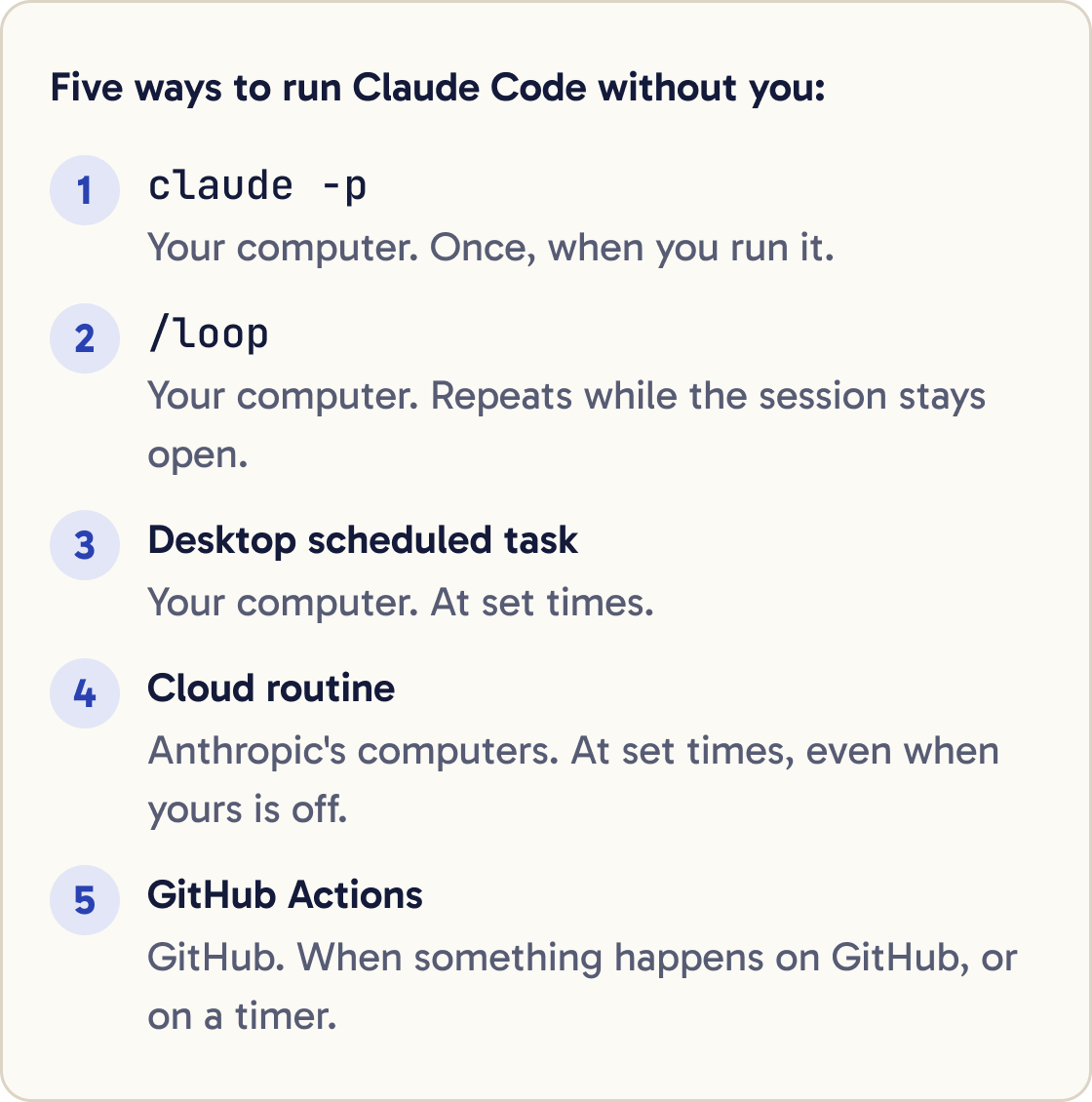
An automation is Claude Code doing a job without you typing each message. There are five official ways to do it.
One: claude -p runs a single job from the terminal and then stops. The terminal is the text window where you type commands.
Two: /loop repeats a prompt while a Claude Code session stays open. Three: a Desktop scheduled task runs on your computer at set times.
Four: a cloud routine runs on Anthropic's computers, even when yours is off. Five: GitHub Actions runs Claude when something happens on GitHub.
Start with claude -p. Every other option builds on the same idea.
Did that work?
Still stuck? Send me a DM on Instagram at @maxbuilds.ai and I'll help.
Step 2 of 12
Run your first one-shot job
Open a terminal. On a Mac, press Cmd and Space, type Terminal and press Enter. On Windows, open the Start menu, type PowerShell and press Enter.
claude -p "Summarise what this project does in 5 bullet points"claude -p "List the 5 most important files in this folder and say what each one does in one sentence"Move into your project folder with cd, which means change directory. For a folder called my-project on your Desktop, type this and press Enter:
cd ~/Desktop/my-project
Now type this and press Enter:
claude -p "Summarise what this project does in 5 bullet points"
The -p flag means print. Claude reads your folder, prints its answer and hands the terminal back to you. Nothing opens and nothing waits for you.
Step 3 of 12
Let it change files, but only the way you allow
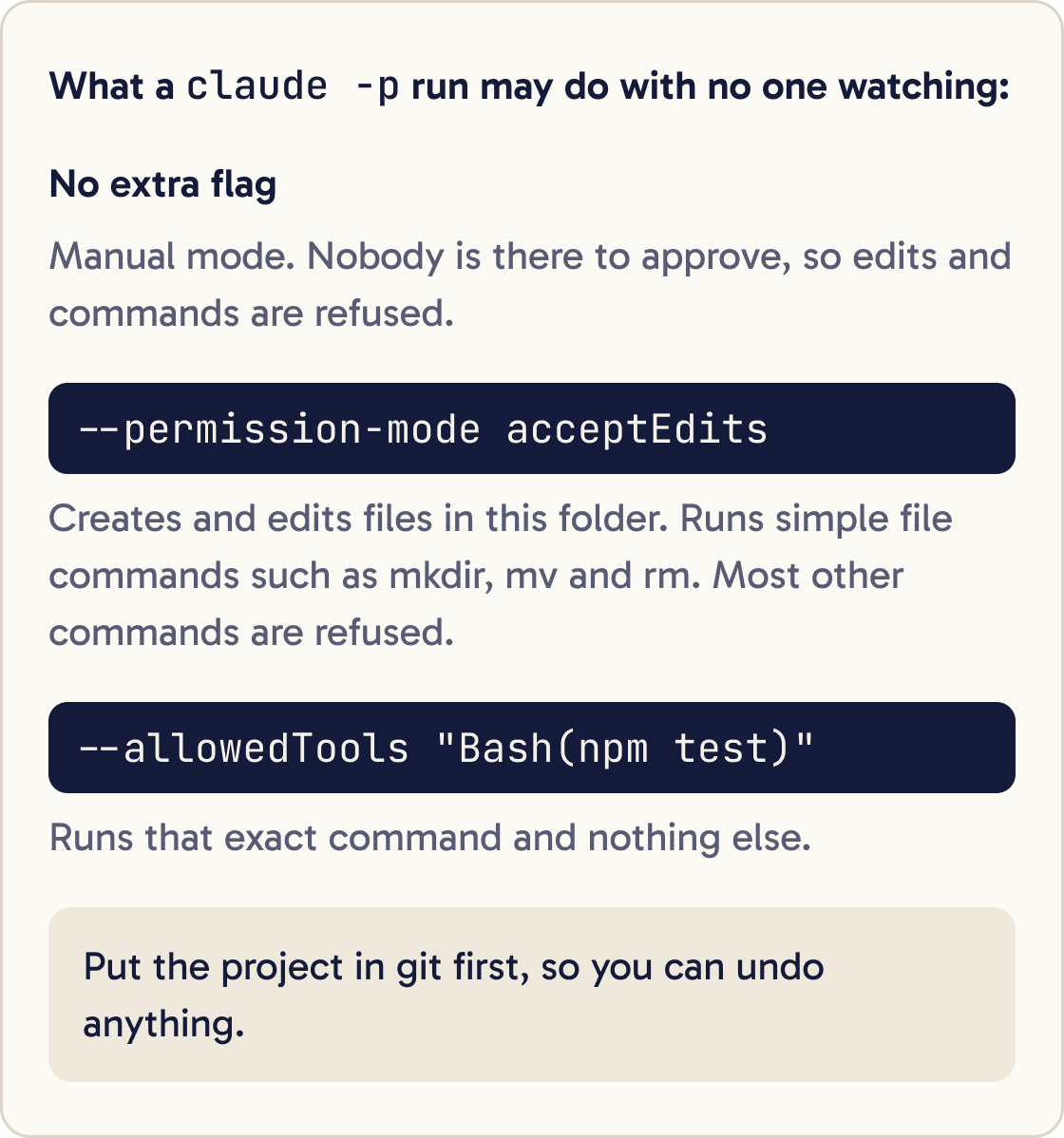
A claude -p run starts in Manual mode. Manual mode means Claude must get your approval to edit files or run commands. In a -p run nobody is there to approve, so Claude Code refuses those actions and carries on.
claude -p "Read this project and create TODO.md with the 10 most useful next tasks, smallest first" --permission-mode acceptEditsclaude -p "Rewrite README.md in plain English for someone who has never coded. Keep every command exactly as it is." --permission-mode acceptEditsTo let Claude create and edit files in this folder, add --permission-mode acceptEdits. This mode also allows simple file commands such as mkdir, mv and rm, which deletes files. Most other commands are still refused.
claude -p "Create a file called IDEAS.md with 5 ideas to improve this project" --permission-mode acceptEdits
To allow one exact command, list it with --allowedTools. This example lets Claude run your tests and nothing else:
claude -p "Run the tests and tell me which ones fail" --allowedTools "Bash(npm test)"
Open the folder afterwards. You should see the new IDEAS.md file.
Step 4 of 12
Cap how long and how much a run can do
Add --max-turns to limit how many steps Claude takes. The run stops with an error when it hits the limit.
claude -p "Fix the spelling in README.md" --permission-mode acceptEdits --max-turns 5
Add --max-budget-usd to stop the run once Claude Code's own cost estimate reaches that many US dollars. The estimate can differ from your real bill, and spend can go slightly past the cap, so set it a little lower than your true limit.
claude -p "Review this project for bugs" --max-budget-usd 1
Both flags only work with -p.
Step 5 of 12
Save the answer to a file
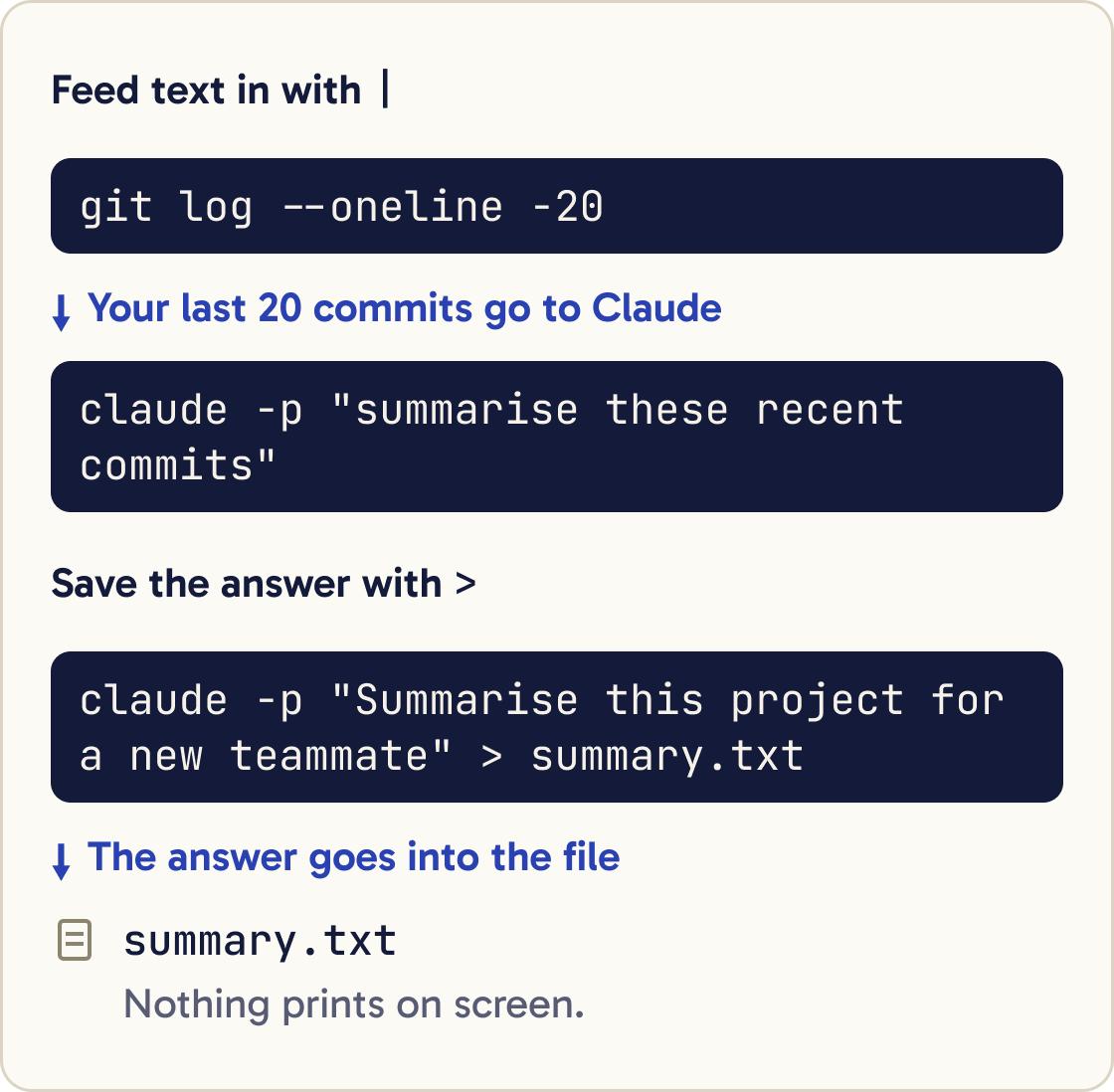
Add > and a file name to the end of a command. The answer goes into that file and nothing prints on screen.
git log --oneline -20 | claude -p "Summarise these commits in plain English for someone who doesn't code. Group them under Added, Fixed and Changed." > changes.txtclaude -p "Summarise this project for a new teammate" > summary.txt
You can also feed text into Claude with |, called a pipe. This sends your last 20 git commits to Claude. It only works in a folder that uses git.
git log --oneline -20 | claude -p "summarise these recent commits"
Step 6 of 12
Repeat a job while you work with /loop
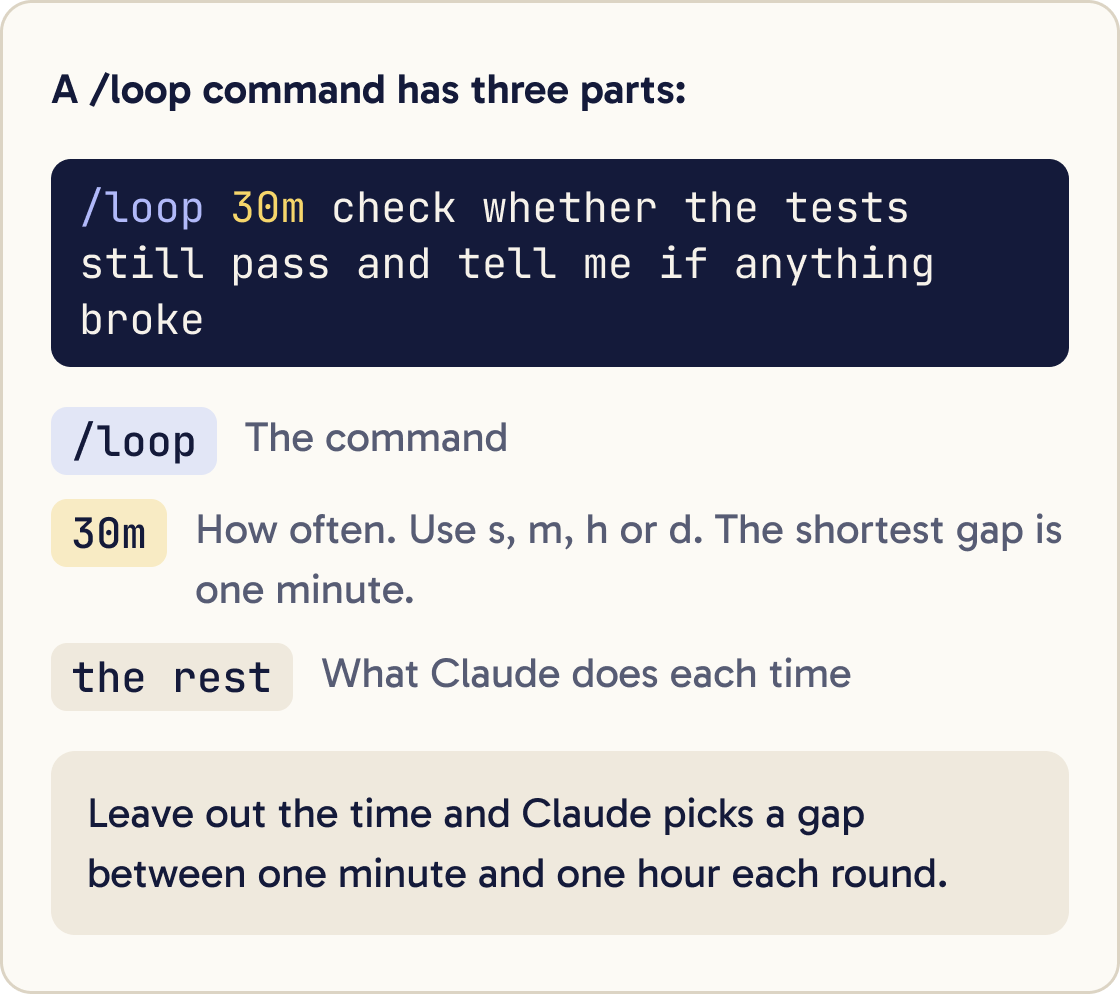
Start a normal session by typing claude and pressing Enter. Then type /loop, a gap, how often, and what to do:
/loop 30m run the tests. If anything fails, tell me which test and the likely cause in two sentences. If everything passes, just say all clear.in 45 minutes, remind me to commit my work/loop 30m check whether the tests still pass and tell me if anything broke
Units are s for seconds, m for minutes, h for hours and d for days. The shortest gap is one minute. Leave out the time and Claude picks a gap between one minute and one hour each round.
To stop a loop, ask Claude: what scheduled tasks do I have? and then cancel the test check job. Press Esc to stop a loop where Claude picks the timing.
Step 7 of 12
Schedule a job on your computer with the Desktop app
Use this when the job needs files on your computer. Open the Claude desktop app and go to the Code tab.
Look at the commits from the last 24 hours in this project. Write a short briefing in BRIEFING.md: what changed, what looks unfinished, and one suggested next task. If nothing changed, write that in one line.Click Routines in the sidebar, or find it in the sidebar's More menu. Click New routine, then choose Local.
Fill in the Name, a short Description and the Instructions, which are the prompt Claude runs. Under the instructions, pick the permission mode, the model, and your project folder.
Then pick a Schedule: Manual, Hourly, Daily, Weekdays or Weekly.
Click Run now straight away. Watch for permission prompts and choose always allow for each one you're happy with. Later runs then go ahead without stopping.
Each run appears under a Scheduled section in the sidebar. Open it to see what Claude did.
Step 8 of 12
Schedule a job in the cloud with a routine
A routine runs on Anthropic's computers, so it works when your laptop is closed. Routines are a research preview, which means they may change. They need a Pro, Max, Team or Enterprise plan and a project on GitHub.
Every Monday, read the open issues in this repository. Write a short list of the 3 most urgent ones and why, as a comment on the newest issue. Do not change any code.Go to claude.ai/code/routines and click New routine. Give it a name and a prompt, pick your GitHub repository, keep the Default environment, and choose a schedule: hourly, daily, weekdays or weekly.
Scroll to Connectors at the bottom. Remove every connector the routine doesn't need, because it can use them without asking. Then click Create, and click Run now to test it.
You can also type /schedule inside Claude Code, for example /schedule daily PR review at 9am. Claude asks you questions and saves the routine to your account.
Step 9 of 12
Connect Claude to GitHub with GitHub Actions
GitHub Actions is GitHub's built-in way to run jobs. With the Claude app installed, you can type @claude in an issue or pull request and Claude replies there and can push changes.
@claude read this issue, find the cause in the code, and open a pull request with the smallest fix. Explain the change in plain English.First install the GitHub CLI, a small tool that lets your terminal talk to GitHub. On a Mac with Homebrew, a free tool for installing apps from the terminal, run brew install gh.
On Windows, run winget install --id GitHub.cli --source winget. You can also download an installer from cli.github.com. Then sign in:
gh auth login
Open claude in your project folder and type:
/install-github-app
Follow the prompts. Claude Code installs the Claude GitHub App, saves a secret key in your repository, and opens a pull request with the workflow file. A pull request is a proposed change you can review before it goes in.
Merge that pull request. Then type @claude with a request in any issue to test it.
Step 10 of 12
Run a GitHub job on a timer
A workflow can also run on a schedule with no @claude needed. GitHub only runs scheduled workflows from your main branch. In public repositories, GitHub turns the schedule off after 60 days with no activity.
Create a GitHub Actions workflow at .github/workflows/daily-report.yml that uses anthropics/claude-code-action@v1. Run it every day at 09:00 UTC. Authenticate with the CLAUDE_CODE_OAUTH_TOKEN secret that /install-github-app already set up. The prompt should summarise yesterday's commits and open issues. Pass --max-turns 5 in claude_args, add a job timeout of 10 minutes, and give the job only the permissions it needs. Explain each line to me in plain English before I commit it.The easiest way is to ask Claude to write the file for you. Paste the prompt below into claude in your project, read the file it makes, then commit and push it.
Step 11 of 12
Keep your costs under control
Every automation uses the same allowance as your normal chats. Ten jobs at once use your allowance roughly ten times as fast as one.
Inside claude, type /usage to see how much you've used and when it resets. On claude.ai, the same numbers are at claude.ai/settings/usage.
Keep jobs small and specific. Add --max-turns to -p runs and GitHub workflows. Start with one schedule a day, check a week of results, then add more.
Step 12 of 12
Keep permissions tight
Give each automation the least it needs. Prefer --allowedTools with exact commands, such as Bash(npm test), over a broad mode.
For a run that should never ask and never go beyond your list, use --permission-mode dontAsk with your allowed tools. Anything not on the list is refused.
claude -p "run the test suite" --permission-mode dontAsk --allowedTools "Bash(npm test)" "Read"
Only run claude -p in projects you wrote or trust. A -p run skips the safety question Claude Code asks when you open a new folder, so a downloaded project's settings could run commands.
Never paste API keys or tokens into a prompt or a workflow file. In GitHub, store them as repository secrets.
Did that work?
Still stuck? Send me a DM on Instagram at @maxbuilds.ai and I'll help.
Common mistakes
- Running a `-p` job that edits files without git. Put the project in git first so you can undo any change.
- Expecting Claude to ask permission during a `-p` run. Nobody is there to answer, so it refuses. Allow what it needs up front with `--permission-mode acceptEdits` or `--allowedTools`.
- Leaving every connector switched on in a cloud routine. Remove the ones it doesn't need, because it uses them without asking.
- Scheduling a Desktop task and closing the laptop. Local tasks only run while the app is open and the computer is awake.
- Writing a vague scheduled prompt. Nobody is there to answer questions, so say exactly what to do, where to write the result and what to do if there's nothing to report.
- Starting many automations at once. Each one uses your plan's allowance, so add them one at a time and check `/usage`.
Want the next guide?
I'll email you each new guide as I share it, with new tutorials and prompts too.