Reading on your phone? Send it to your laptop.
You'll get the guide and every prompt in one email.
Guide 017
Claude Code hooks for beginners: automate the small jobs
You need
- Claude Code installed and signed in
- A code editor such as VS Code, to edit settings files
- A Mac, Windows or Linux computer (each has its own alert command in step 6)
- For step 9 and step 10: the free tool `jq`, plus Node.js for step 9
Step 1 of 14
Understand what hooks are
A hook is a command that Claude Code runs automatically at a set moment. For example, a hook can run every time Claude edits a file.
A command here means a shell command, which is a line of text your computer runs, the same as typing it in the terminal.
A rule in CLAUDE.md is guidance that Claude can miss. A hook runs every time its moment comes, because Claude Code runs it itself.
You set hooks up once in a settings file. After that they run in every session that loads that file.
Did that work?
Still stuck? Send me a DM on Instagram at @maxbuilds.ai and I'll help.
Step 2 of 14
Read the safety warning first
The Claude Code docs give this warning: "Command hooks execute shell commands with your full user permissions. They can modify, delete, or access any files your user account can access. Review and test all hook commands before adding them to your configuration."
Here is a hook someone shared: [PASTE THE HOOK]. Explain in plain English exactly what it runs, when it runs, what files it can read or change, and anything risky about it. Do not add it to my settings. Tell me plainly if I should not use it.A hook can do anything you can do on your computer, and a careless hook can delete files. Only add hooks you understand, from sources you trust.
Claude Code holds back a folder's hooks until you accept the trust prompt for that folder. Only say yes to that prompt for projects you trust.
Plugins can include hooks too. Check what a plugin's hooks run before you install it.
Step 3 of 14
Learn the hook events
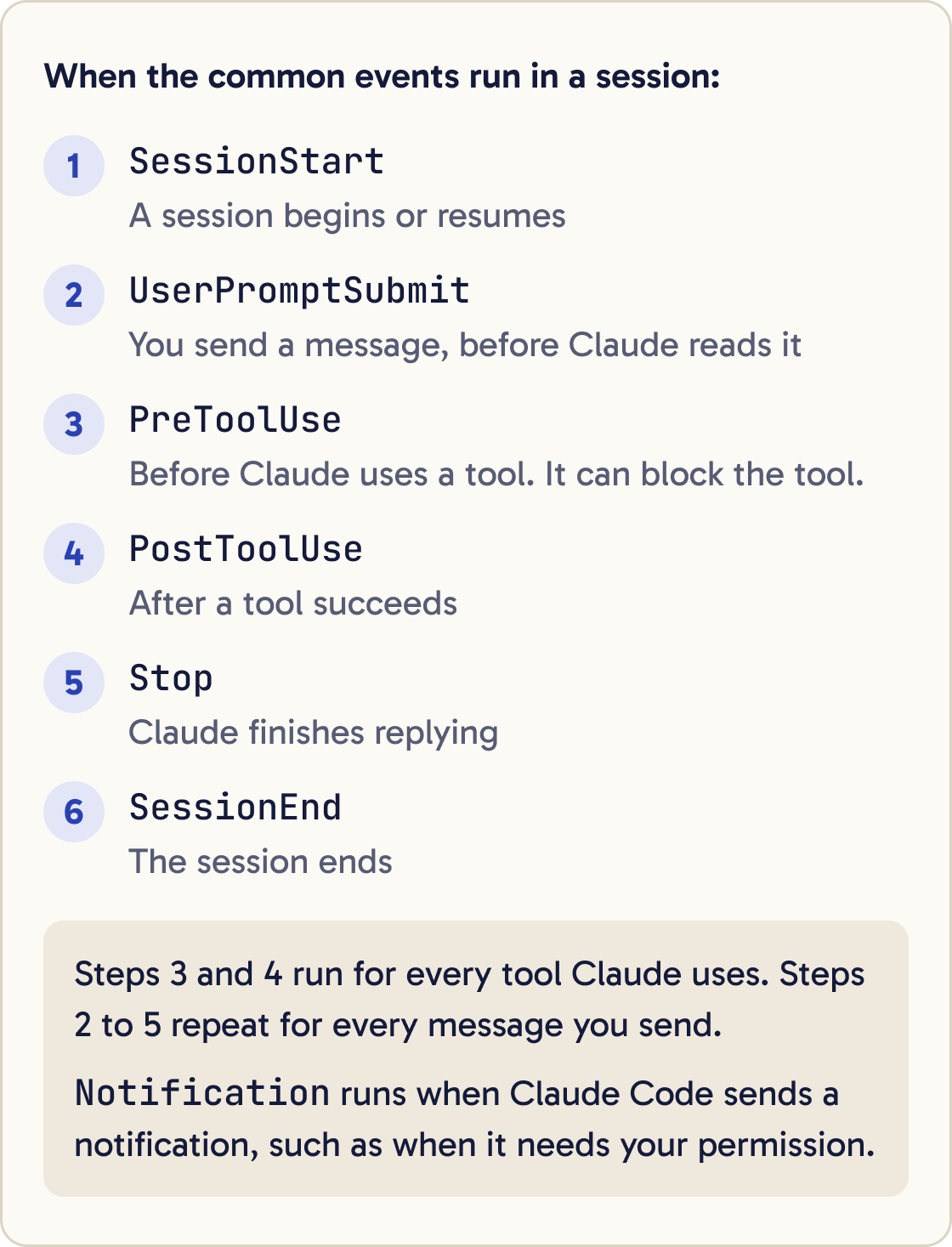
An event is the moment a hook runs. Claude Code has more than 30. These are the ones beginners use most.
SessionStart runs when a session begins or resumes. UserPromptSubmit runs when you send a message, before Claude reads it.
PreToolUse runs before Claude uses a tool, such as editing a file or running a command. It can block the tool. PostToolUse runs after a tool succeeds.
Notification runs when Claude Code sends a notification, such as when it needs your permission. Stop runs when Claude finishes replying.
PreCompact runs before Claude Code shortens a long conversation to save space. SessionEnd runs when a session ends.
The full list is on the Hooks reference page in the Claude Code docs.
Step 4 of 14
Know where hooks live
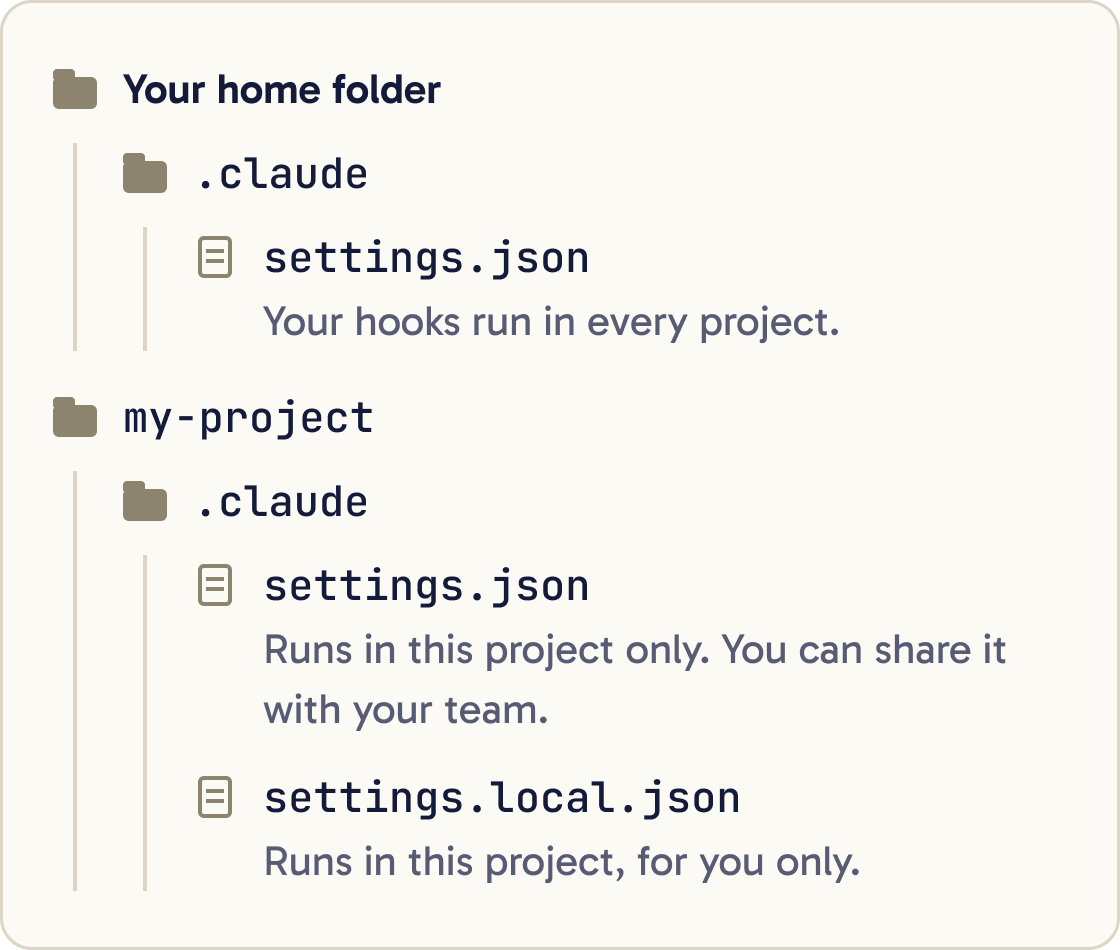
Hooks go in a settings file. Where you put them decides where they run.
~/.claude/settings.json runs your hooks in every project on your computer. The ~ sign means your home folder.
.claude/settings.json inside a project runs them in that project only. You can share this file with your team.
.claude/settings.local.json inside a project runs them in that project, for you only.
Settings files are strict JSON, a text format for settings. That means no comments and no comma after the last item in a list.
Step 5 of 14
Understand the shape of a hook
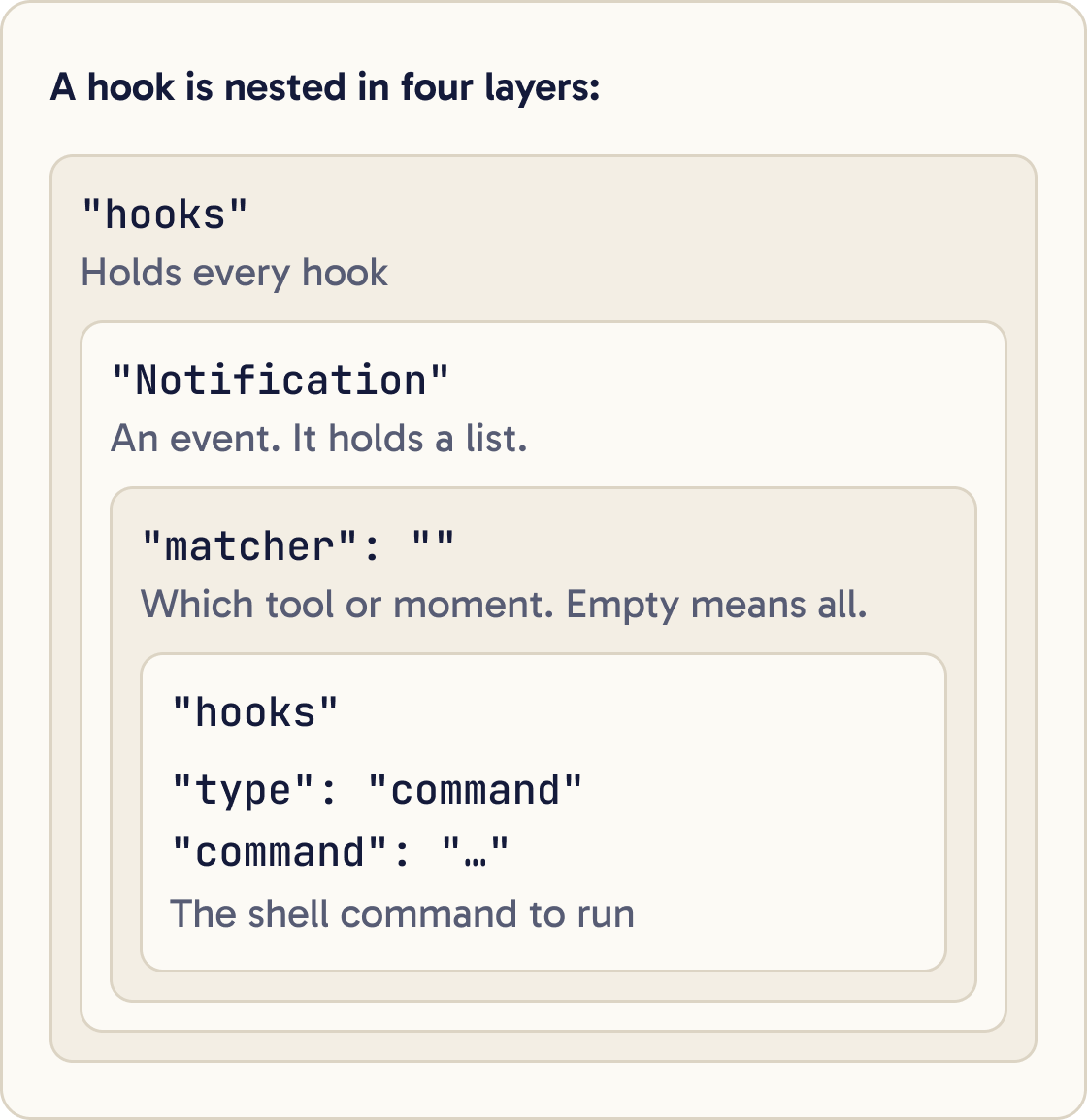
Every hook has the same parts, nested inside each other.
The hooks section holds every hook. Inside it, each event name, such as Notification, holds a list.
Each item in that list has a matcher and its own hooks list. The matcher says which tool or type of moment it applies to.
An empty matcher, "", means all of them. Edit|Write means the Edit tool or the Write tool.
Each hook inside has a type and a command. For beginners the type is always "command", which runs a shell command.
Matchers are case-sensitive. edit will not match the Edit tool.
Step 6 of 14
Hook 1: get an alert when Claude needs you
This hook pops up a desktop notification whenever Claude is waiting for you. You can work in another window and come back when it pings.
Add a Notification hook to my user settings at ~/.claude/settings.json that shows a desktop notification saying "Claude Code needs your attention" whenever Claude needs my input. Use the command from the Claude Code hooks guide for my operating system. Keep everything already in the file. Show me the final hooks section and check the file is valid JSON.The easy way is to paste the prompt below into Claude Code. Claude adds the hook to your settings for you.
To do it by hand, open ~/.claude/settings.json and add this. On a Mac:
{"hooks":{"Notification":[{"matcher":"","hooks":[{"type":"command","command":"osascript -e 'display notification \"Claude Code needs your attention\" with title \"Claude Code\"'"}]}]}}
On Linux:
{"hooks":{"Notification":[{"matcher":"","hooks":[{"type":"command","command":"notify-send 'Claude Code' 'Claude Code needs your attention'"}]}]}}
On Windows, this opens a small dialog box:
{"hooks":{"Notification":[{"matcher":"","hooks":[{"type":"command","command":"powershell.exe -Command \"[System.Reflection.Assembly]::LoadWithPartialName('System.Windows.Forms'); [System.Windows.Forms.MessageBox]::Show('Claude Code needs your attention', 'Claude Code')\""}]}]}}
If the file already has a hooks section, add Notification inside it next to the other events. Do not replace the whole section.
Step 7 of 14
Check the hook is loaded
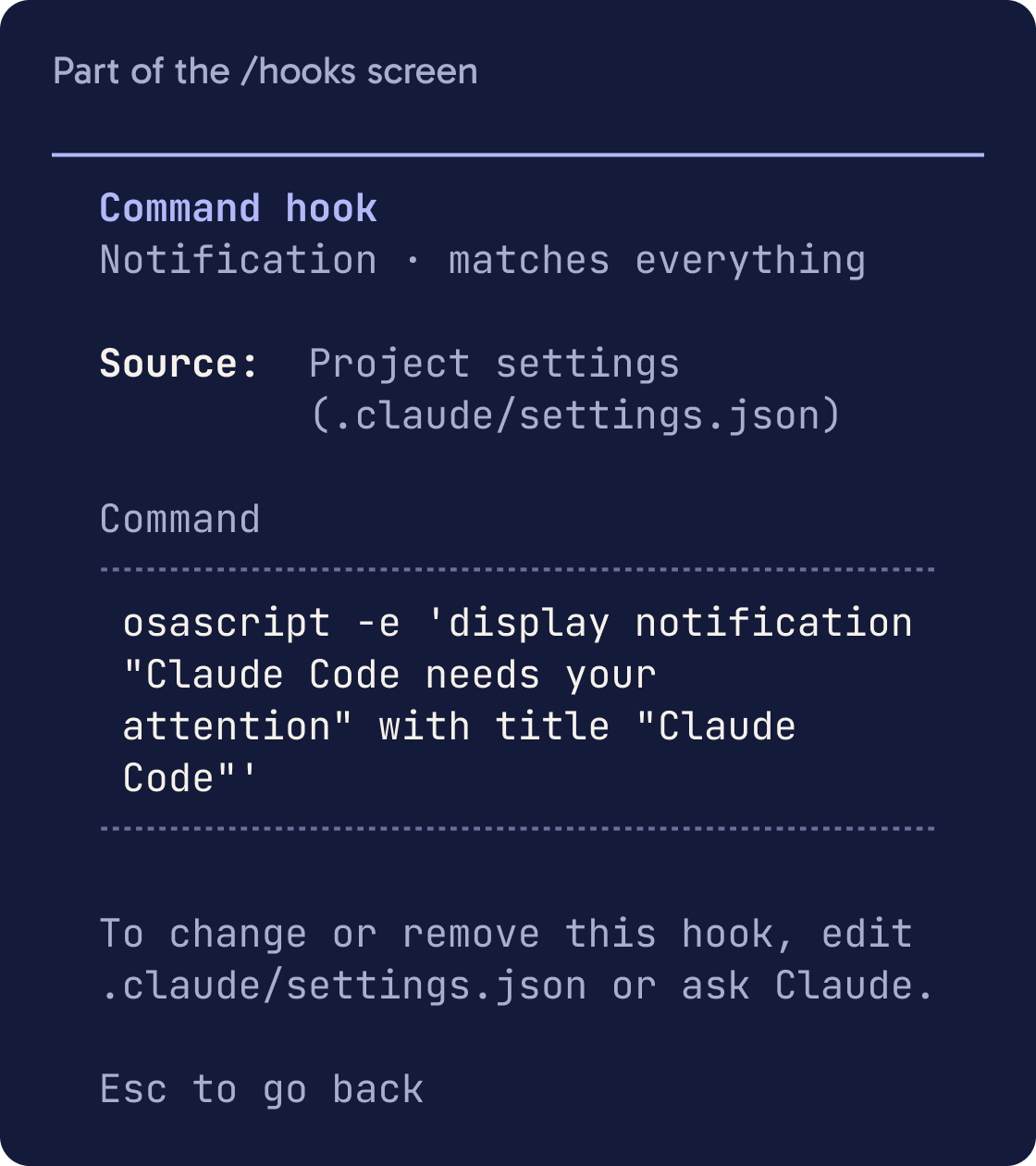
Inside Claude Code, type /hooks and press Enter. This opens a read-only list of every hook Claude Code has loaded.
Your new hook should appear under Notification. Select it to see the exact command and which settings file it came from.
Claude Code normally notices changes to settings files by itself while it is running. You do not usually need to restart.
Step 8 of 14
Test the alert hook
Press Esc to close the /hooks list.
Create a file called hook-test.txt containing the words hello from Claude.Press Shift+Tab until the status bar at the bottom shows ⏸ manual mode on. In manual mode, Claude asks before most actions, so it will need you.
Ask Claude to do something that needs permission, such as creating a file. Then switch to another window and wait.
After about six seconds of an unanswered permission request, you should get the notification.
Step 9 of 14
Hook 2: tidy code formatting after every edit
This hook runs Prettier on every file Claude edits. Prettier is a free tool that makes code formatting consistent, such as spacing and quote marks.
Add a PostToolUse hook to this project's .claude/settings.json with the matcher Edit|Write that runs Prettier on the edited file, using the command from the Claude Code hooks guide. First check that jq and npx are installed and tell me if either is missing. Keep everything already in the file and check it is valid JSON.It needs Node.js, a free program that runs JavaScript tools, and jq, a small tool that reads JSON.
On a Mac with Homebrew, a free tool for installing apps from the terminal, install jq with brew install jq. On Debian or Ubuntu, use apt-get install jq.
Add this to .claude/settings.json in your project, so it only runs there:
{"hooks":{"PostToolUse":[{"matcher":"Edit|Write","hooks":[{"type":"command","command":"jq -r '.tool_input.file_path' | xargs npx prettier --write"}]}]}}
The matcher Edit|Write means it only runs after Claude edits or writes a file. The command reads which file changed and passes it to Prettier.
To test it, ask Claude to add a line with single quotes to a JavaScript file. With Prettier's default settings, the hook changes them to double quotes.
Step 10 of 14
Hook 3: block edits to secret files
This hook stops Claude editing files you want left alone, such as .env, which holds secrets, or anything in the .git folder. It runs before every edit and blocks the ones that match.
Create the file .claude/hooks/protect-files.sh with exactly this content, then show it to me:

#!/bin/bash
# protect-files.sh

INPUT=$(cat)
FILE_PATH=$(echo "$INPUT" | jq -r '.tool_input.file_path // empty')

# Normalize Windows backslash separators so the patterns below match
FILE_PATH="${FILE_PATH//\\//}"

PROTECTED_PATTERNS=(".env" "package-lock.json" ".git/")

for pattern in "${PROTECTED_PATTERNS[@]}"; do
  if [[ "$FILE_PATH" == *"$pattern"* ]]; then
    echo "Blocked: $FILE_PATH matches protected pattern '$pattern'" >&2
    exit 2
  fi
done

exit 0Add a PreToolUse hook to this project's .claude/settings.json with the matcher Edit|Write that runs "$CLAUDE_PROJECT_DIR"/.claude/hooks/protect-files.sh. Keep everything already in the file and check it is valid JSON. Then tell me how to test it.It has two parts: a small script that does the check, and a settings entry that runs it.
Paste the first prompt below to have Claude create the script. Then make it runnable on a Mac or Linux with:
chmod +x .claude/hooks/protect-files.sh
Then add this to .claude/settings.json in your project:
{"hooks":{"PreToolUse":[{"matcher":"Edit|Write","hooks":[{"type":"command","command":"\"$CLAUDE_PROJECT_DIR\"/.claude/hooks/protect-files.sh"}]}]}}
To test it, ask Claude to add a comment to your .env file. Claude Code blocks the edit before it happens and passes the Blocked: message to Claude.
Step 11 of 14
Ask Claude to write a hook for you
You can describe a hook in plain words and let Claude write it. The docs suggest this too.
Write a Claude Code hook that [WHAT YOU WANT TO HAPPEN] whenever [THE MOMENT, FOR EXAMPLE CLAUDE FINISHES REPLYING]. Pick the right hook event and explain why. Show me the exact JSON and explain the command in plain English before you save anything. Put it in [~/.claude/settings.json OR .claude/settings.json]. Tell me if a hook is the wrong tool for this.List every hook in ~/.claude/settings.json and this project's .claude/settings.json and .claude/settings.local.json. For each one, explain in plain English when it runs and what it does, and flag anything that could delete or expose files.Be specific. Say which moment, what should happen and which settings file to use.
Always ask Claude to explain the command before it saves it, and check it in /hooks afterwards.
Step 12 of 14
See what a hook actually did
Press Ctrl+O inside Claude Code to open the transcript view. It shows hook results that the normal view hides.
A successful hook shows nothing. A hook that blocked an action shows its message, such as a line starting Blocked:. A hook that failed shows a notice ending in hook error.
For full detail, start Claude Code with a log file: claude --debug-file /tmp/claude.log. If a session is already running, type /debug to start logging from that point.
Step 13 of 14
Turn hooks off or remove them
To remove a hook, delete its entry from the settings file.
To switch off every hook for a while without deleting them, add "disableAllHooks": true to your settings file. Set it back to false to switch them on.
There is no switch for a single hook. To pause one hook, remove it and keep a copy somewhere safe.
Step 14 of 14
Fix the most common errors
Start with /hooks. If your hook is missing from that list, the problem is the settings file. If it is listed, the problem is the command or the matcher.
My hook for [EVENT NAME] is not working. Read my settings files, check the JSON is valid, check the matcher matches the tool name exactly, and test the hook's command on its own. Explain what is wrong in plain English and ask me before changing anything.Did that work?
Still stuck? Send me a DM on Instagram at @maxbuilds.ai and I'll help.
Common mistakes
- Adding a hook you do not understand. Hooks run with your full permissions, so ask Claude to explain any hook first.
- Replacing the whole `hooks` section when adding a new event. Add the new event next to the existing ones.
- Leaving a trailing comma or a comment in a settings file. Settings files must be strict JSON.
- Writing `edit` in a matcher. Matchers are case-sensitive, so use `Edit`.
- Forgetting `chmod +x` on a hook script. Claude Code cannot run a script that is not executable.
- Expecting a message when a hook works. Successful hooks are silent, so check the result, such as the formatted file.
Want the next guide?
I'll email you each new guide as I share it, with new tutorials and prompts too.