Reading on your phone? Send it to your laptop.
You'll get the guide and every prompt in one email.
Guide 014
Connect Claude Code to your other apps with MCP servers
You need
- Claude Code installed and signed in
- A terminal open in a project folder (any folder works, even an empty one)
- Node.js 18 or later for the Playwright server in step 7
- A Notion or GitHub account only if you want those servers
Step 1 of 13
Understand what MCP is
MCP stands for Model Context Protocol. It is an open standard that lets Claude Code use tools from other apps.
An MCP server is a small program that gives Claude new tools. One server lets Claude search your Notion pages. Another lets Claude open and click around a web browser.
Local servers run on your own computer. Remote servers run on the internet at a web address.
Once a server is connected, Claude can read and act on that app directly. You stop copying and pasting between the app and the chat.
Did that work?
Still stuck? Send me a DM on Instagram at @maxbuilds.ai and I'll help.
Step 2 of 13
Know where each command goes
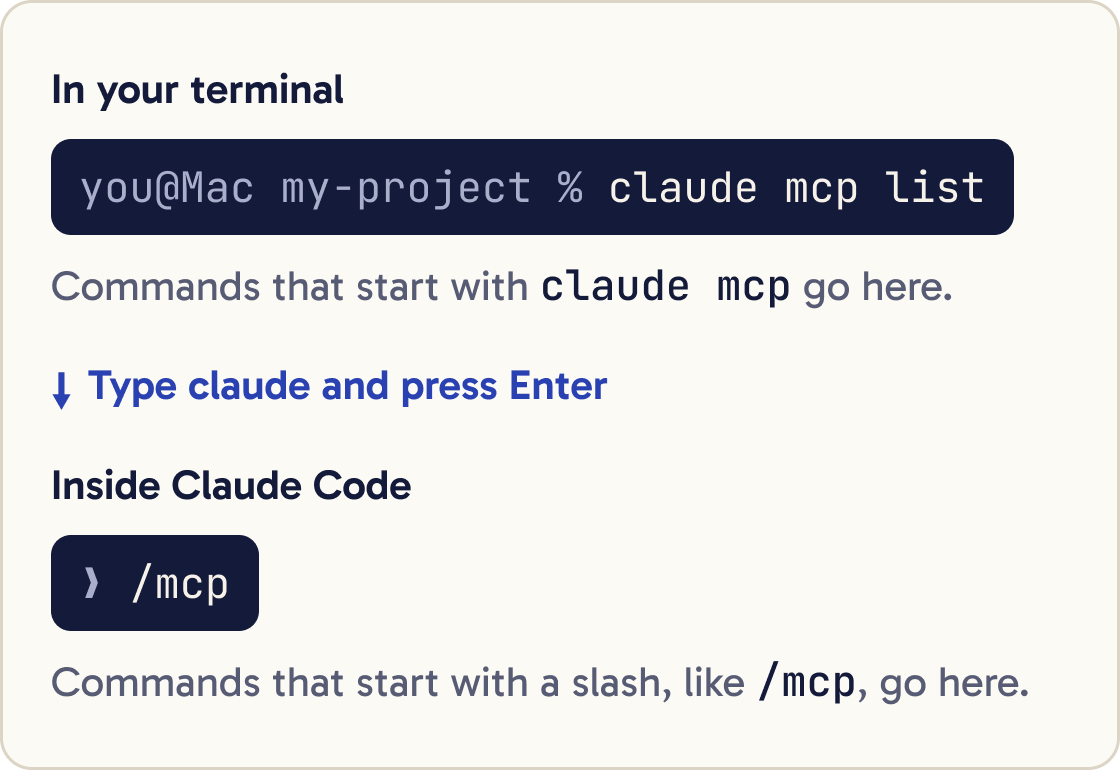
You will type two kinds of command in this guide.
Commands that start with claude mcp go in your terminal. The terminal is the app where you type text commands.
On a Mac it's called Terminal. On Windows you can use PowerShell.
Commands that start with a slash, like /mcp, go inside Claude Code. You start Claude Code by typing claude in the terminal and pressing Enter.
Open your terminal in your project folder, the folder that holds the files you're working on.
To move into a folder, type cd, a space and the folder's path, then press Enter.
Step 3 of 13
Add your first server
Start with Anthropic's Claude Code documentation server. It searches the official Claude Code docs. It needs no sign-in, so it is the easiest way to test the setup.
Run this in your terminal:
claude mcp add --transport http claude-code-docs https://code.claude.com/docs/mcp
claude mcp add registers a server. --transport http says the server lives at a web address.
claude-code-docs is a name you choose, and the last part is the server's address.
When it works you see a line like Added HTTP MCP server claude-code-docs with URL: https://code.claude.com/docs/mcp to local config, followed by a File modified: line.
![Terminal. The command claude mcp add --transport http claude-code-docs https://code.claude.com/docs/mcp, then the reply: Added HTTP MCP server claude-code-docs with URL: https://code.claude.com/docs/mcp to local config. File modified: ~/.claude.json [project: ~/my-project].](/guides/claude-code-mcp/2-mcp-add.png)
Step 4 of 13
Check the server is connected
In your terminal, run:
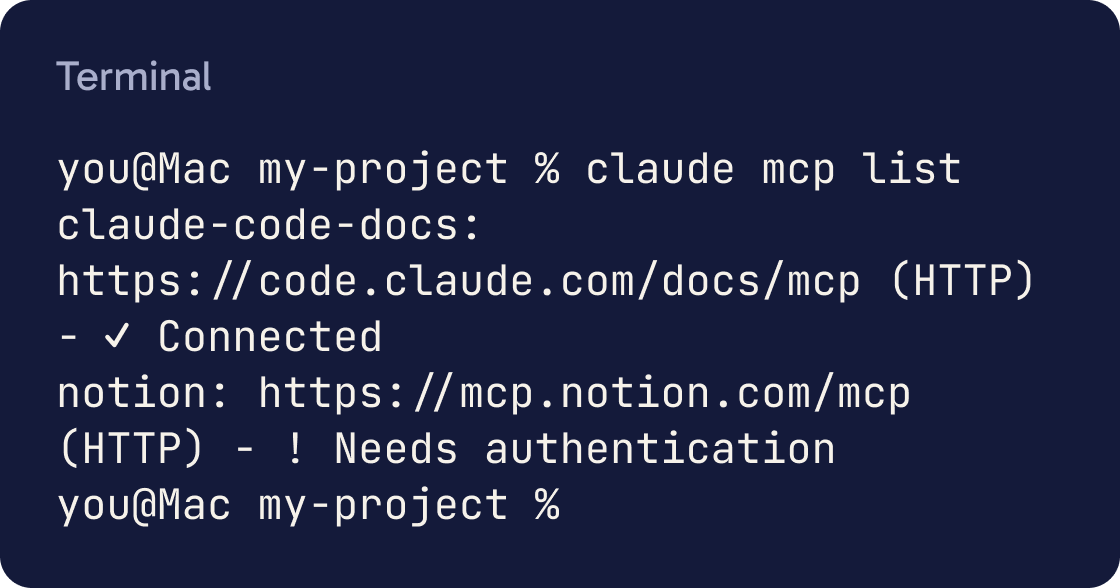
claude mcp list
Each server shows a status. ✔ Connected means it's ready.
! Needs authentication means you must sign in first. ✘ Failed to connect means the server didn't answer.
You can also check from inside Claude Code. Start it with claude, then type /mcp and press Enter. The panel lists each server, its status and how many tools it gives Claude.
The Added message only means the details were saved. Always run one of these checks before you rely on a new server.
Step 5 of 13
Use the server in a chat
Start Claude Code with claude and paste the prompt below.
Use the claude-code-docs server to look up what MCP_TIMEOUT doesUse the claude-code-docs server to explain the difference between local, project and user scope for MCP servers. Keep it short and plain.Claude normally picks the right tools by itself. Naming the server here makes sure this test goes through it.
The first time Claude uses a server's tool, Claude Code may ask for permission. Read what it wants to do, then approve it.
In Claude's reply, the tool call is labelled with the server name. That label is how you know the answer came from the server.
Step 6 of 13
Choose who gets the server (scopes)
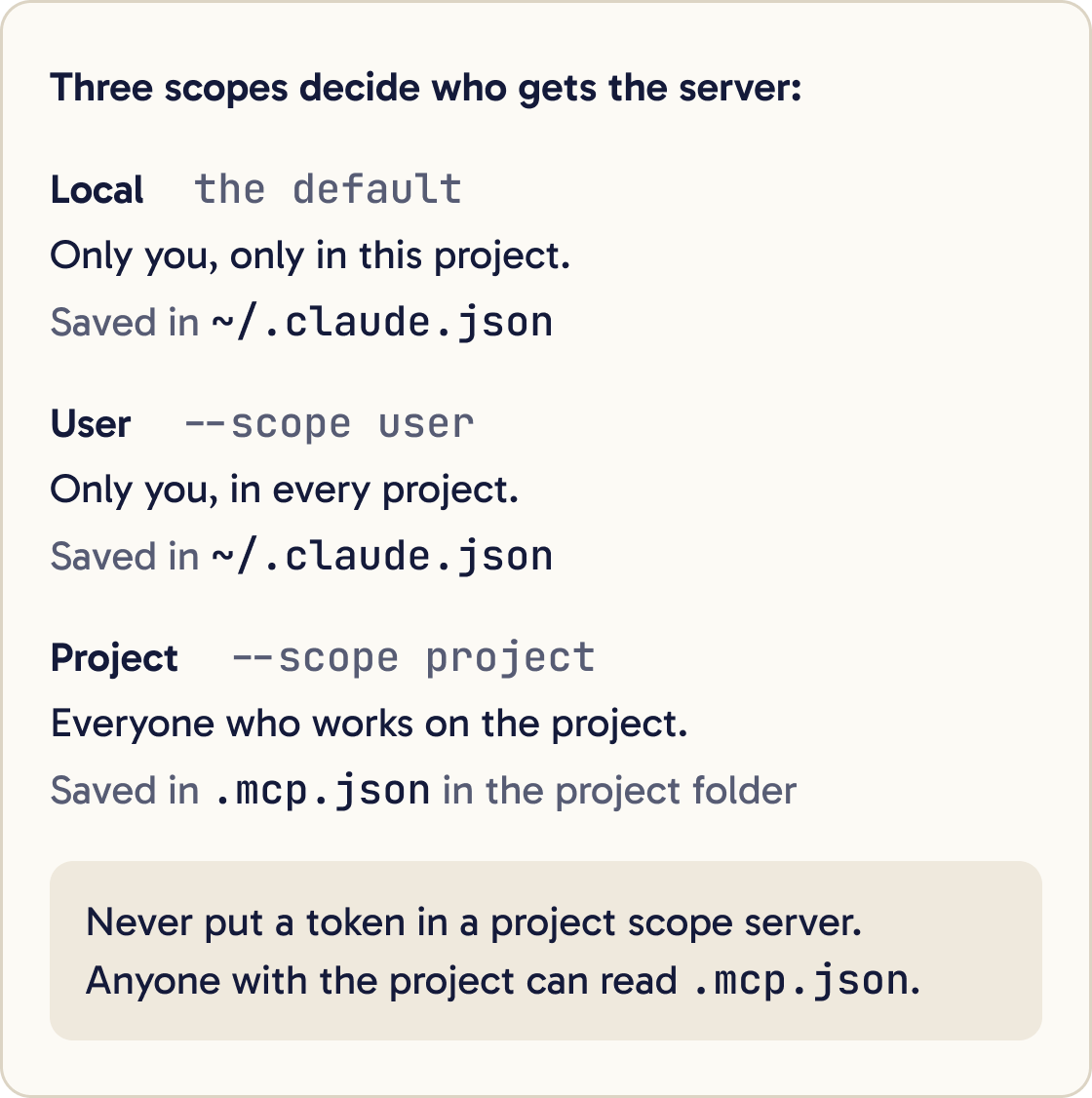
A scope decides where a server loads. There are three.
Local scope is the default. The server works only for you, and only in the current project.
Claude Code saves it in ~/.claude.json. The ~ sign means your home folder.
User scope makes the server work for you in every project. Add --scope user to the command:
claude mcp add --scope user --transport http claude-code-docs https://code.claude.com/docs/mcp
Project scope shares the server with everyone who works on the project. It writes a file called .mcp.json in the project folder. Add --scope project to use it.
You cannot change a server's scope in place. Remove it and add it again at the new scope:
claude mcp remove claude-code-docs --scope local
Step 7 of 13
Add a local server: Playwright for web browsing
Playwright is Microsoft's MCP server for controlling a web browser. Claude can open pages, click and read what is on screen. It runs on your computer and needs no account.
Use playwright to open https://example.com and tell me the page titleUse playwright to open [YOUR WEBSITE ADDRESS], then tell me if any images are broken or any buttons do nothing when clicked. List what you find and where.It needs Node.js 18 or later. Node.js is a free program that runs JavaScript tools. Check your version by running node --version in the terminal.
Add the server with this command:
claude mcp add playwright -- npx -y @playwright/mcp@latest
Keep the --. Everything after it is the command Claude Code runs to start the server.
npx downloads and runs the tool, and -y lets it install without asking.
Run claude mcp list. The first check can show ✘ Failed to connect while the download finishes. Wait a moment and run it again until you see ✔ Connected.
Then start Claude Code and try the prompt below. A browser window opens so you can watch it work. Playwright uses the Chrome already on your computer.
Step 8 of 13
Add a remote server that needs sign-in: Notion
Notion runs its own MCP server on the internet. Claude can search, read, create and update pages you have access to.
Search my Notion for pages about [TOPIC] and list their titles with one line on what each one covers. Do not change anything.Create a new Notion page called [PAGE TITLE] with a short outline for [WHAT THE PAGE IS FOR]. Show me the outline in the chat first and wait for my yes before you create it.Add it from your terminal:
claude mcp add --transport http notion https://mcp.notion.com/mcp
Run claude mcp list. Notion shows ! Needs authentication. That is expected, because you have not signed in yet.
Start Claude Code with claude and type /mcp. Select notion, press Enter and choose Authenticate.
Your browser opens on Notion's sign-in page. Approve the connection there.
Back in Claude Code, the status changes to connected. You can also sign in from the terminal with claude mcp login notion.
Claude Code stores the sign-in for you and refreshes it automatically.
Step 9 of 13
Add a server that uses a token: GitHub
GitHub is a website that stores code projects. Its MCP server lets Claude read issues and pull requests. A pull request is a proposed change to a project.
Show me all open pull requests assigned to me on GitHub, with one line on what each one changes.Create a new GitHub issue in [OWNER/PROJECT] for the bug we just found. Show me the title and description first and wait for my yes.GitHub's server needs a personal access token. A token is a long secret password made for one app.
Create one at github.com/settings/personal-access-tokens. Choose a fine-grained token and give it access only to the projects Claude should see.
Then run this in your terminal, swapping in your token:
claude mcp add --transport http github https://api.githubcopilot.com/mcp/ --header "Authorization: Bearer YOUR_GITHUB_PAT"
Run /mcp inside Claude Code and check the GitHub row shows a tick. A wrong token shows ✘ with an error such as 401.
The token is saved in ~/.claude.json on your computer. Treat it like a password. Read the guide on keeping API keys safe before you share your screen or your files.
Step 10 of 13
Use the connectors you already have in the Claude app
If you added connectors in the Claude app at claude.ai, they load in Claude Code automatically when you sign in with the same account.
Manage them at claude.ai/customize/connectors. They show up in /mcp like any other server.
To find more servers, browse the Anthropic Directory at claude.ai/directory. You can add any remote server listed there with claude mcp add.
Step 11 of 13
Stay safe: only connect servers you trust
A server can read and change things in the app it connects to. A local server is a program that runs on your computer. Only add servers from companies or people you trust.
I want to add this MCP server: [PASTE THE SERVER NAME AND ITS OFFICIAL PAGE ADDRESS]. Read its official page and tell me who makes it, what it can read and change, whether it runs on my computer or online, and any risks. Tell me plainly if you would not add it.Anthropic reviews connectors before listing them in its directory. Anthropic does not security-audit or manage any MCP server, so you still decide what to trust.
Servers that fetch content from the web carry a risk called prompt injection. That is when a web page or document hides instructions meant to trick Claude. Watch what Claude asks permission to do, especially after reading outside content.
When you open a project that someone else made, Claude Code asks before it uses servers from that project's .mcp.json file. Only approve them if you trust where the project came from.
Step 12 of 13
Manage and remove servers
These terminal commands cover day-to-day management:
claude mcp list shows every server and its status.
claude mcp get notion shows the details for one server, including any error.
claude mcp remove notion deletes a server. For remote servers it also deletes the stored sign-in.
Inside Claude Code, /mcp lets you reconnect, sign in again or turn a server off for this project without deleting it.
Step 13 of 13
Fix the most common errors
Start every fix the same way. Run claude mcp list in the terminal, or /mcp inside Claude Code, and read the status next to the server.
My MCP server [SERVER NAME] is not working. Run claude mcp list and claude mcp get [SERVER NAME], explain the status in plain English, and tell me the exact next step. Do not change my configuration without asking me first.Then match what you see to the list below.
Did that work?
Still stuck? Send me a DM on Instagram at @maxbuilds.ai and I'll help.
Common mistakes
- Typing `claude mcp add` inside Claude Code. It belongs in the plain terminal. Only slash commands like `/mcp` go inside Claude Code.
- Adding a server in one folder and expecting it in another. Use `--scope user` for servers you want in every project.
- Forgetting the `--` before a local server's command. Without it, Claude Code tries to read the server's options as its own.
- Putting a token in a project-scoped server. The `.mcp.json` file is shared, so keep secrets in local or user scope.
- Trusting the `Added` message. It only means the details were saved. Check with `claude mcp list` before you rely on the server.
- Adding servers you do not use. Each one takes space in Claude's context window, so remove the ones you stop using.
Want the next guide?
I'll email you each new guide as I share it, with new tutorials and prompts too.