Reading on your phone? Send it to your laptop.
You'll get the guide and every prompt in one email.
Guide 016
Install Claude Code plugins from a marketplace
You need
- Claude Code installed and signed in
- A terminal open in a project folder
- Git installed, for the commit-commands plugin in step 7
- Python 3.8 or later, only for the security-guidance plugin in step 9
Step 1 of 14
Understand what a plugin is
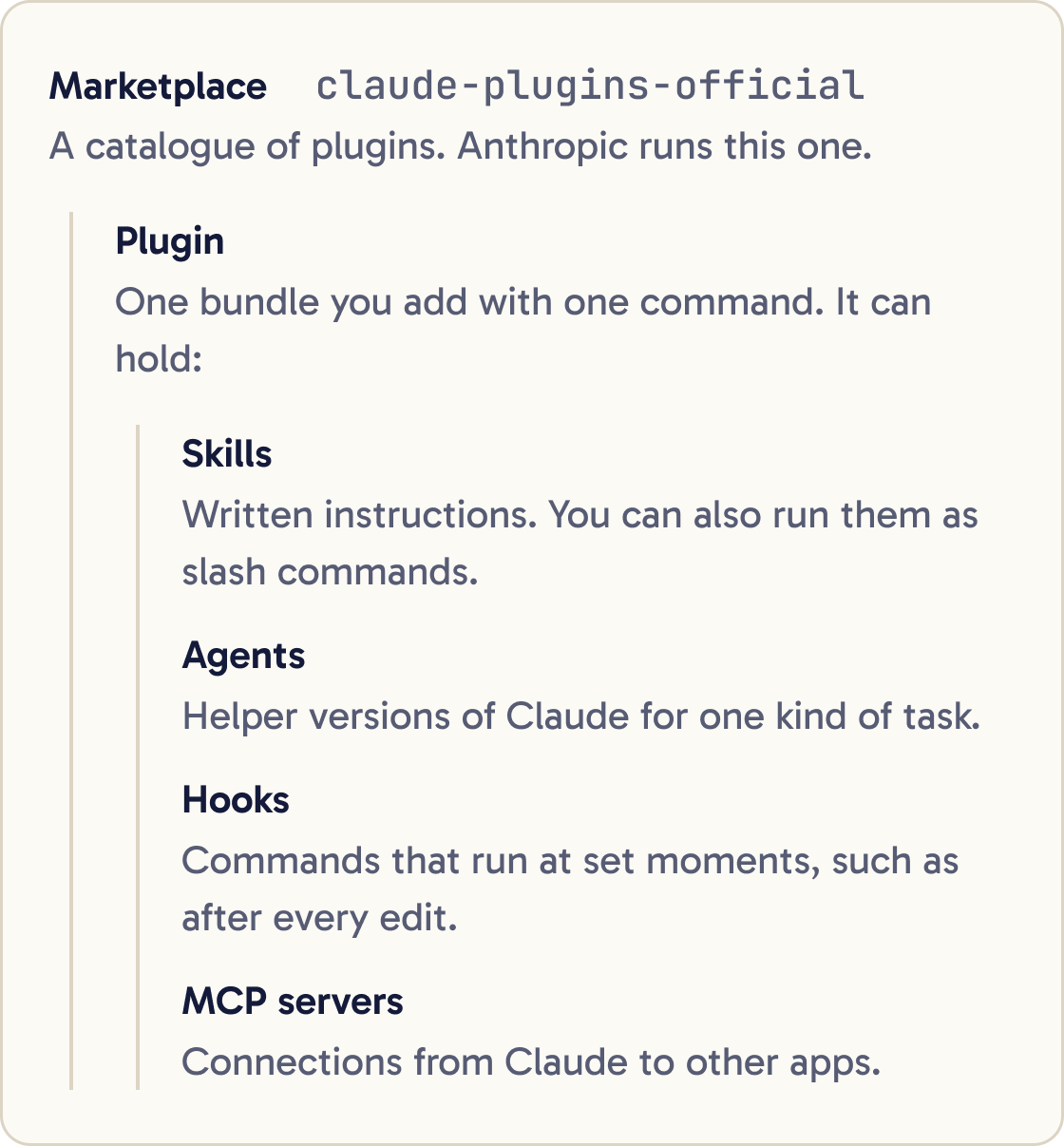
A plugin is a bundle of extras that Claude Code installs in one go. Someone else builds it, and you add it with one command.
A plugin can hold four main kinds of extra. Skills are written instructions Claude loads when they're relevant, and you can also run them as slash commands.
Agents are helper versions of Claude that handle one kind of task. Hooks are commands that run at set moments, such as after every edit.
MCP servers connect Claude to other apps.
A marketplace is a catalogue of plugins. Anthropic runs an official one called claude-plugins-official. Claude Code adds it for you the first time you start it in a terminal.
Did that work?
Still stuck? Send me a DM on Instagram at @maxbuilds.ai and I'll help.
Step 2 of 14
Know where to type plugin commands
Commands that start with /plugin go inside Claude Code. Start Claude Code by typing claude in your terminal and pressing Enter.
Commands that start with claude plugin go in the plain terminal, outside Claude Code. They do the same jobs without opening a session.
In the Claude desktop app's Code tab, click the + button next to the prompt box, then Plugins, then Add plugin. In VS Code, type /plugins in the Claude Code panel.
Step 3 of 14
Browse the official marketplace
Inside Claude Code, type /plugin and press Enter. The panel opens on the Discover tab, which lists the plugins from your marketplaces.
Start typing to search. Use the arrow keys to move and press Enter to open a plugin's details.
You can also browse on the web at claude.com/marketplace/plugins. It shows install counts and marks some plugins as Anthropic verified.
Most plugins in the official marketplace come from partner companies and other authors. Anthropic maintains a smaller set itself, such as commit-commands, code-review, feature-dev and security-guidance.
Step 4 of 14
Open a plugin and read what it adds
This guide installs commit-commands, one of Anthropic's own plugins. It adds commands that save your work with git. Git is a tool that saves versions of your project, and each saved version is called a commit.
Inside Claude Code, run:
/plugin install commit-commands@claude-plugins-official
The part after @ is the marketplace's name. This command doesn't install straight away: it opens the plugin's details so you can check it first.
Read the Will install section. It lists the commands, agents, skills, hooks and servers the plugin adds. Plugins from the official marketplace also show a Context cost, which estimates how much the plugin adds to each message.
Step 5 of 14
Choose who gets the plugin
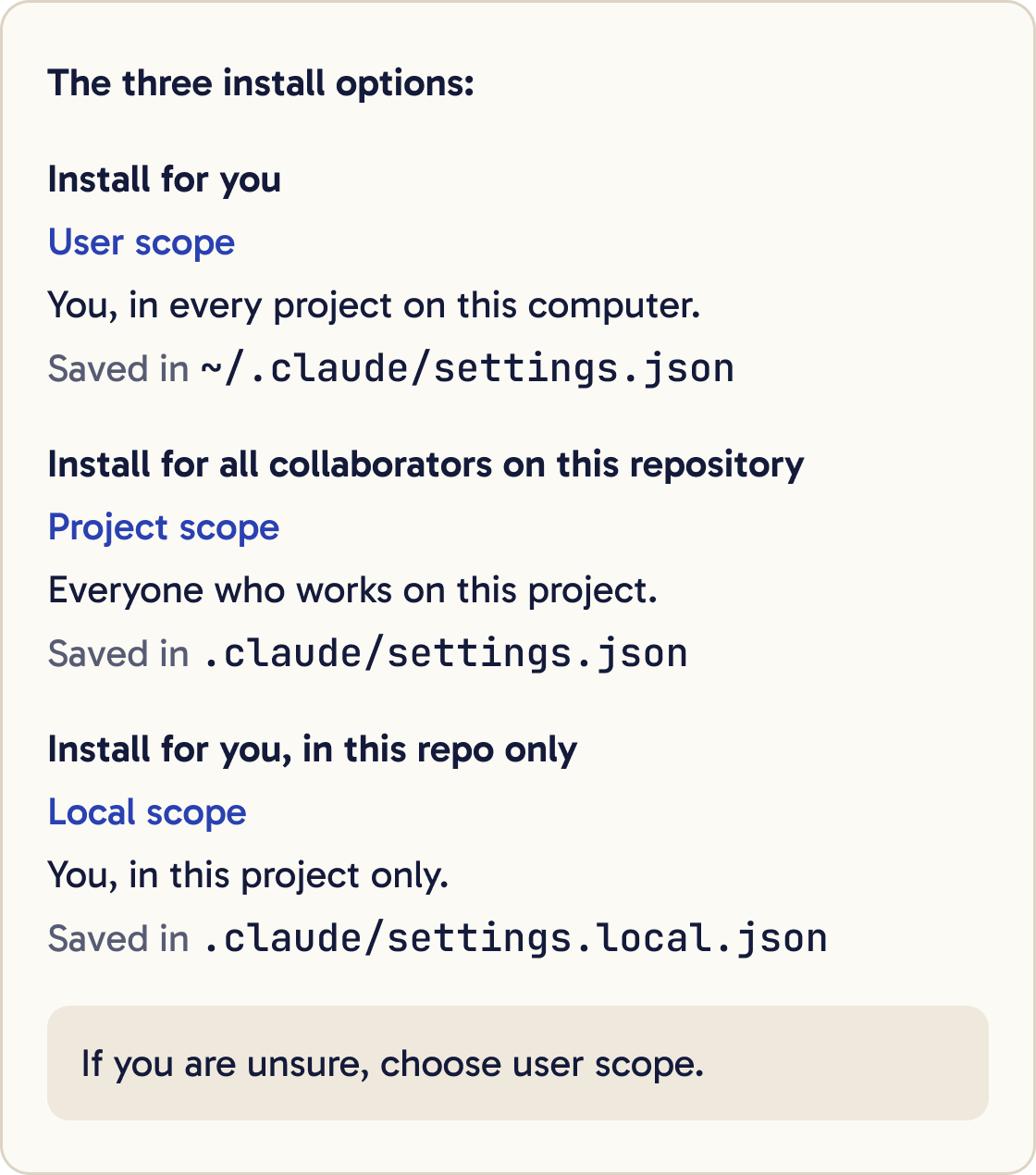
Pick one of three install options. This choice is called the scope.
Install for you (user scope) gives you the plugin in every project on this computer.
Install for all collaborators on this repository (project scope) turns it on for everyone who works on this project. Use it only when your team agrees.
Install for you, in this repo only (local scope) gives you the plugin in this project only.
If you are unsure, choose user scope.
Step 6 of 14
Read the install summary
After you pick a scope, Claude Code installs the plugin and prints a summary. The last line tells you if you can use it yet.
Plugin is now active. means it is ready.
Run /reload-plugins to apply. means it needs a reload. Claude Code closes the panel and runs the reload for you.
The plugin couldn't be loaded means something went wrong. Open the Errors tab in /plugin to see why.
Step 7 of 14
Try your first plugin command
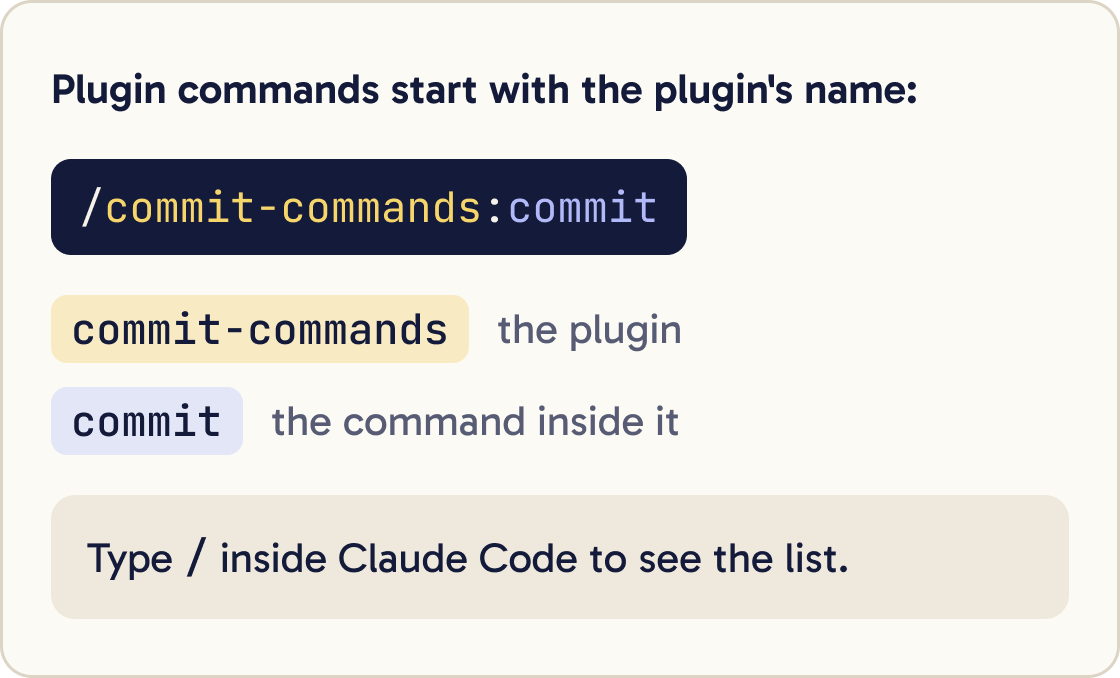
Type / inside Claude Code. Plugin commands show the plugin's name first, in the form /plugin-name:command. For this plugin, look for /commit-commands:commit.
Before I run /commit-commands:commit, show me which files have changed and a one line summary of each change. Flag anything that looks like a secret or a file that should not be committed.Run it in a project that uses git and has changes. Claude looks at what changed, writes a commit message in your project's style and saves the commit.
The plugin also has /commit-commands:commit-push-pr. It saves your work, sends it to GitHub and opens a pull request, which is a proposed change for others to review. That one needs the GitHub command line tool gh installed and signed in.
Step 8 of 14
Install from the terminal
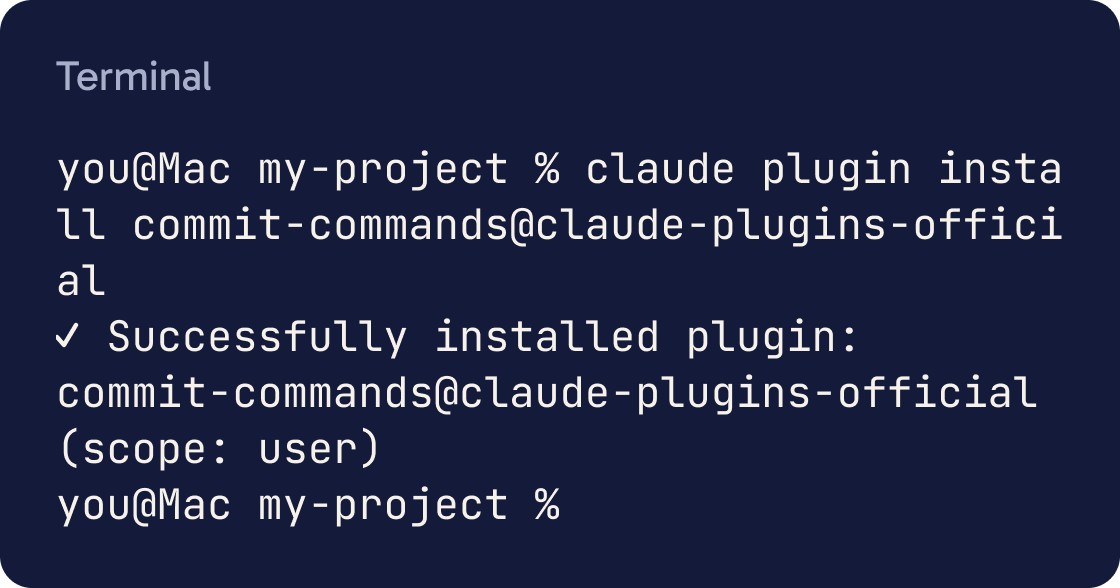
You can install without opening Claude Code. Run this in the plain terminal:
claude plugin install commit-commands@claude-plugins-official
It installs at user scope unless you add --scope project or --scope local. When it finishes it prints Successfully installed plugin: commit-commands@claude-plugins-official.
The plugin loads the next time you start Claude Code. If a session is already open, run /reload-plugins in it.
On claude.com/marketplace, a plugin's Claude Code button copies this same command for you.
Step 9 of 14
Add a safety reviewer: security-guidance
security-guidance is another of Anthropic's plugins. It reviews code Claude writes for common security problems.
It works in three layers. First, it warns straight away when an edit contains a known risky pattern, such as a hard-coded password.
Second, when Claude finishes a turn, it sends the changes to a separate Claude review. Third, when you commit with git, a reviewer reads related files to catch problems that span several files.
Install it inside Claude Code with:
/plugin install security-guidance@claude-plugins-official
It needs Claude Code version 2.1.144 or later and Python 3.8 or later. Check Python by running python3 --version in the terminal.
Step 10 of 14
Add another marketplace
Some plugins live in other marketplaces. You add a marketplace once, and its plugins then appear on the Discover tab.
Anthropic's community marketplace holds plugins that authors submitted to Anthropic. Add it inside Claude Code:
/plugin marketplace add anthropics/claude-plugins-community
Then install its plugins with the @claude-community ending, for example /plugin install plugin-name@claude-community.
Other marketplaces are usually GitHub projects. Add one with /plugin marketplace add owner/project, using the owner and project name from its GitHub address.
Claude Code prints the marketplace's name once it's added. Use that name after the @.
Step 11 of 14
Manage, update and remove plugins
Open /plugin and press Tab to reach the Installed tab. Type to filter the list.
Press Space to turn the selected plugin on or off. Press Enter to open its details, where you can choose Disable plugin, Update now or Uninstall.
From the plain terminal, these commands do the same jobs:
claude plugin disable commit-commands@claude-plugins-official
claude plugin enable commit-commands@claude-plugins-official
claude plugin uninstall commit-commands@claude-plugins-official
Plugins from the official marketplace update automatically. After an update you see Plugin updated: with the name.
Run /reload-plugins to use the new version now, or it loads next time you start.
Step 12 of 14
Decide whether to trust a plugin
A plugin you install can run any code on your computer with your permissions. Its hooks, background commands and local servers run outside Claude Code's permission prompts.
I am thinking of installing the plugin [PLUGIN NAME] from [MARKETPLACE OR GITHUB ADDRESS]. Read its README, hooks/hooks.json, .mcp.json and any files in bin/. Tell me in plain English who made it, what it adds, every command it runs on my computer and when, and anything that worries you. Tell me plainly if you would not install it.Before you install, Claude Code shows this warning: Make sure you trust a plugin before installing, updating, or using it. Anthropic does not control what MCP servers, files, or other software are included in plugins and cannot verify that they will work as intended or that they won't change.
Run three checks. First, read the Will install section in the details pane. Second, choose Open homepage or View on GitHub and look at who made it.
Third, for hooks and servers, read the plugin's hooks/hooks.json and .mcp.json files on GitHub to see the exact commands they run.
A marketplace's name tells you who publishes the catalogue. It does not vouch for every plugin inside it. Names like claude-plugins-official only work for marketplaces stored under Anthropic's own GitHub account, so another catalogue cannot pretend to be Anthropic's.
Auto-updates can change a plugin's files after you checked them. Anthropic does not review third-party marketplaces.
Step 13 of 14
Remove a plugin you no longer trust
In the plain terminal, run claude plugin uninstall with the plugin's name and the scope you installed it at, for example:
claude plugin uninstall plugin-name@marketplace-name --scope user
The plugin's files stay in ~/.claude/plugins/cache/ for 14 days before Claude Code clears them. To delete them now, remove the plugin's folder there yourself.
If you do not trust the marketplace either, remove it with claude plugin marketplace remove marketplace-name. That also uninstalls every plugin you installed from it.
Step 14 of 14
Fix the most common errors
Most plugin problems show a message. Match yours below.
The plugin [PLUGIN NAME] is not working. Run claude plugin list and claude plugin details [PLUGIN NAME], explain what you find in plain English, and tell me the exact next step. Do not uninstall or change anything without asking me first.If nothing shows at all, open /plugin and check the Errors tab first.
Did that work?
Still stuck? Send me a DM on Instagram at @maxbuilds.ai and I'll help.
Common mistakes
- Typing `/plugin` in the plain terminal. It only works inside Claude Code. In the terminal, use `claude plugin`.
- Installing without reading the Will install section. It takes seconds and shows every hook and server the plugin adds.
- Choosing project scope for a plugin only you want. That turns it on for everyone on the project.
- Adding the old demo marketplace and installing duplicates. Install Anthropic's plugins from `claude-plugins-official`.
- Leaving plugins enabled that you never use. Each one adds to every message, so turn off the ones under Not used recently.
- Assuming a plugin is safe because the marketplace is official. Check who made the plugin itself.
Want the next guide?
I'll email you each new guide as I share it, with new tutorials and prompts too.