Reading on your phone? Send it to your laptop.
You'll get the guide and every prompt in one email.
Guide 006
Permissions and staying safe with Claude Code
You need
- Claude Code installed and signed in (type `claude` in the terminal and it opens)
- A project folder to practise in
- About 20 minutes
Step 1 of 13
Know what Claude Code can touch
Claude Code runs on your own computer, as you. It can read files, edit files and run commands in the terminal. A command is a typed instruction to your computer, such as npm test.
Your permission mode decides how often Claude stops to ask you first. From version 2.1.283, a new session in the terminal or VS Code starts in auto mode. In auto mode Claude doesn't ask before routine edits and commands, and a second AI model checks each action for you.
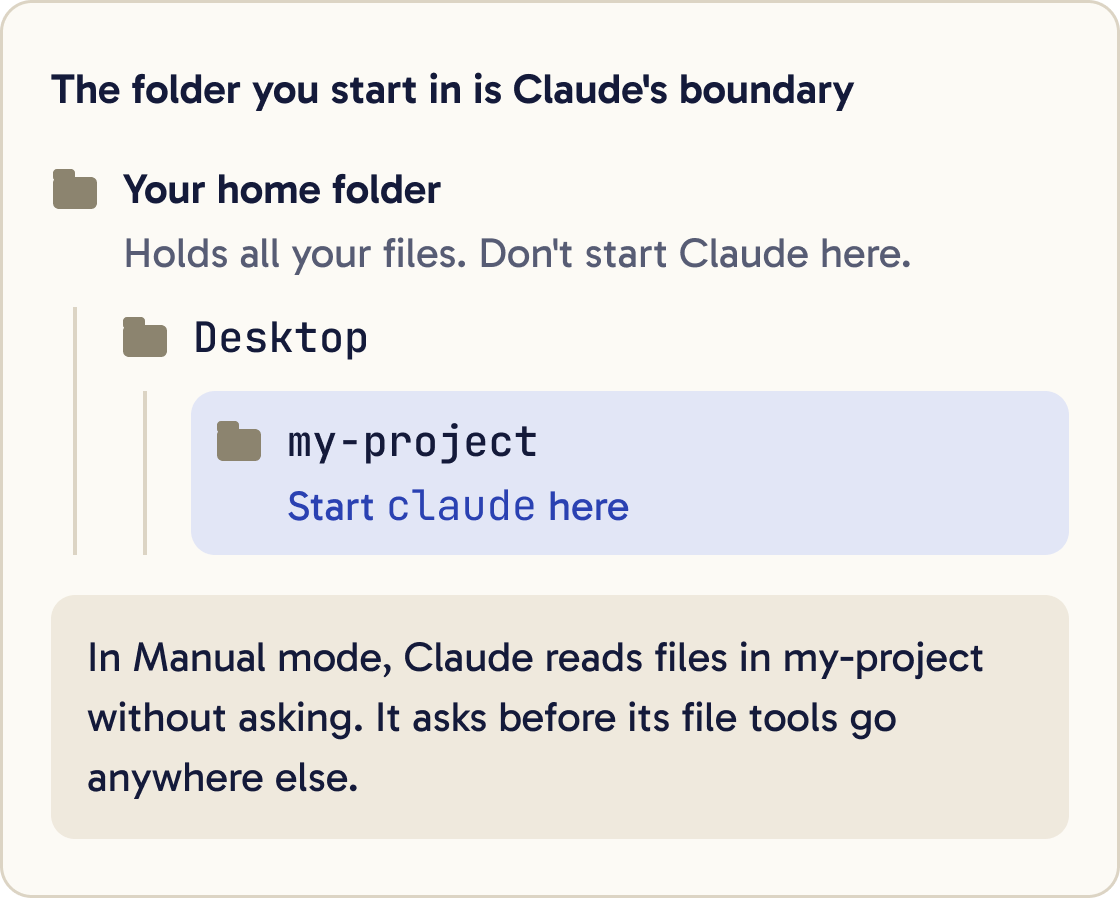
In Manual mode, Claude can read files in the folder you started it in without asking. It asks before its file tools read or write anywhere else. Step 3 explains every mode, and step 5 shows how to start sessions in Manual mode.
There is one gap. Once you approve a terminal command, it can reach anything your user account can reach. Read each command before you say yes.
Did that work?
Still stuck? Send me a DM on Instagram at @maxbuilds.ai and I'll help.
Step 2 of 13
Start Claude in your project folder
Open the terminal in your project folder, then type claude. The folder you start in is the boundary Claude works inside.
cd ~/Desktop/my-project
claude
The first time you start Claude Code in a new folder, it asks whether you trust that folder. Say yes only for projects you made or got from someone you trust. A trusted folder's settings files can give Claude extra permissions.
Don't start Claude in your home folder, the folder that holds all your files. Its boundary would then cover everything you own.
Step 3 of 13
Learn the six permission modes
A permission mode sets what Claude can do without asking you. In the terminal, press Shift and Tab together to switch modes during a session. From auto mode, the first press goes to Manual, then each press moves on to Accept edits, then Plan, then back to Auto.
The bar under the input box shows the current mode.
Manual: Claude asks before editing files or running most commands. The bar shows manual mode on. Use it while you're learning.
Accept edits: Claude edits files in your folder without asking, and still asks before most commands. The bar shows accept edits on.
Plan: Claude reads and explores, then writes a plan. It doesn't edit your files until you approve the plan. The bar shows plan mode on.
Auto: a second AI model checks each action before it runs and blocks risky ones. You see far fewer prompts. The bar shows auto mode on.
Don't ask and Bypass permissions are for automated scripts and sealed-off computers. Step 11 explains why you shouldn't use Bypass on your own machine.
Step 4 of 13
Answer a permission prompt
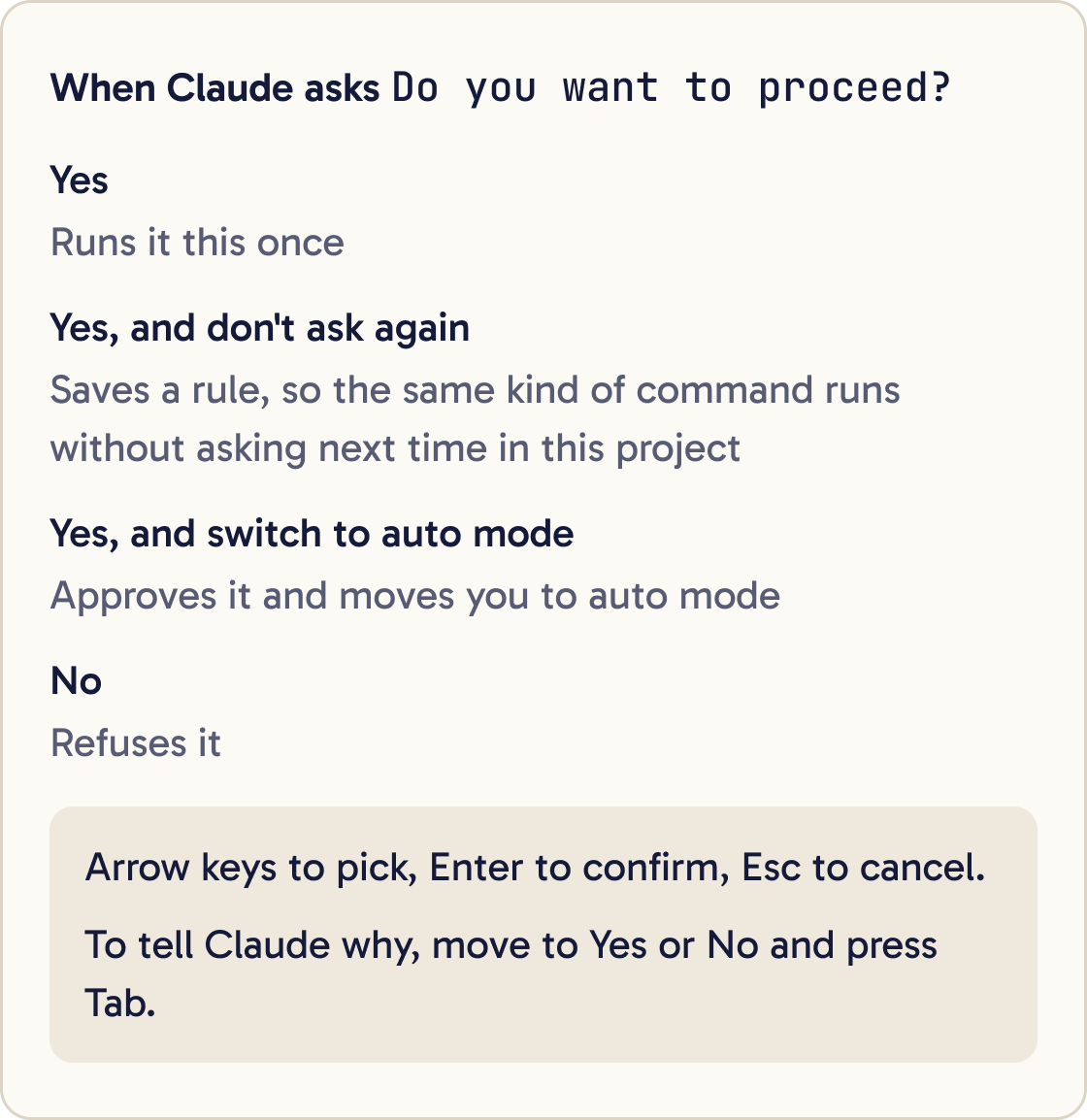
When Claude needs approval, it shows what it wants to do and asks Do you want to proceed?. You'll usually see four choices.
Yes runs it this once. Yes, and don't ask again saves a rule so the same kind of command runs without asking next time in this project. Yes, and switch to auto mode approves it and moves you to auto mode. No refuses it.
Use the arrow keys to pick and Enter to confirm. Press Esc to cancel.
To tell Claude why, move to Yes or No and press Tab. Type a note and press Enter. For example, pick No and type: use npm test for this.
Step 5 of 13
Pick a safe default mode
Start sessions in Manual mode while you're new, so you see every change before it happens. Switch to plan mode for bigger jobs, so you approve the approach before any file changes.
Don't edit anything yet. Read the project and write a numbered plan for this change: [DESCRIBE THE CHANGE]. List every file you would touch and every command you would run, and flag anything risky.To make every new terminal session start in Manual mode, open ~/.claude/settings.json in a text editor and add this line. Create the file if it doesn't exist.
{ "permissions": { "defaultMode": "default" } }
default is the settings name for Manual mode. Save the file and start a new session. The bar should show manual mode on.
Once you trust the general direction of a job, auto mode saves a lot of clicking. Anthropic warns that auto mode reduces prompts but does not guarantee safety, so keep git in place as your backup.
Step 6 of 13
Add allow, ask and deny rules
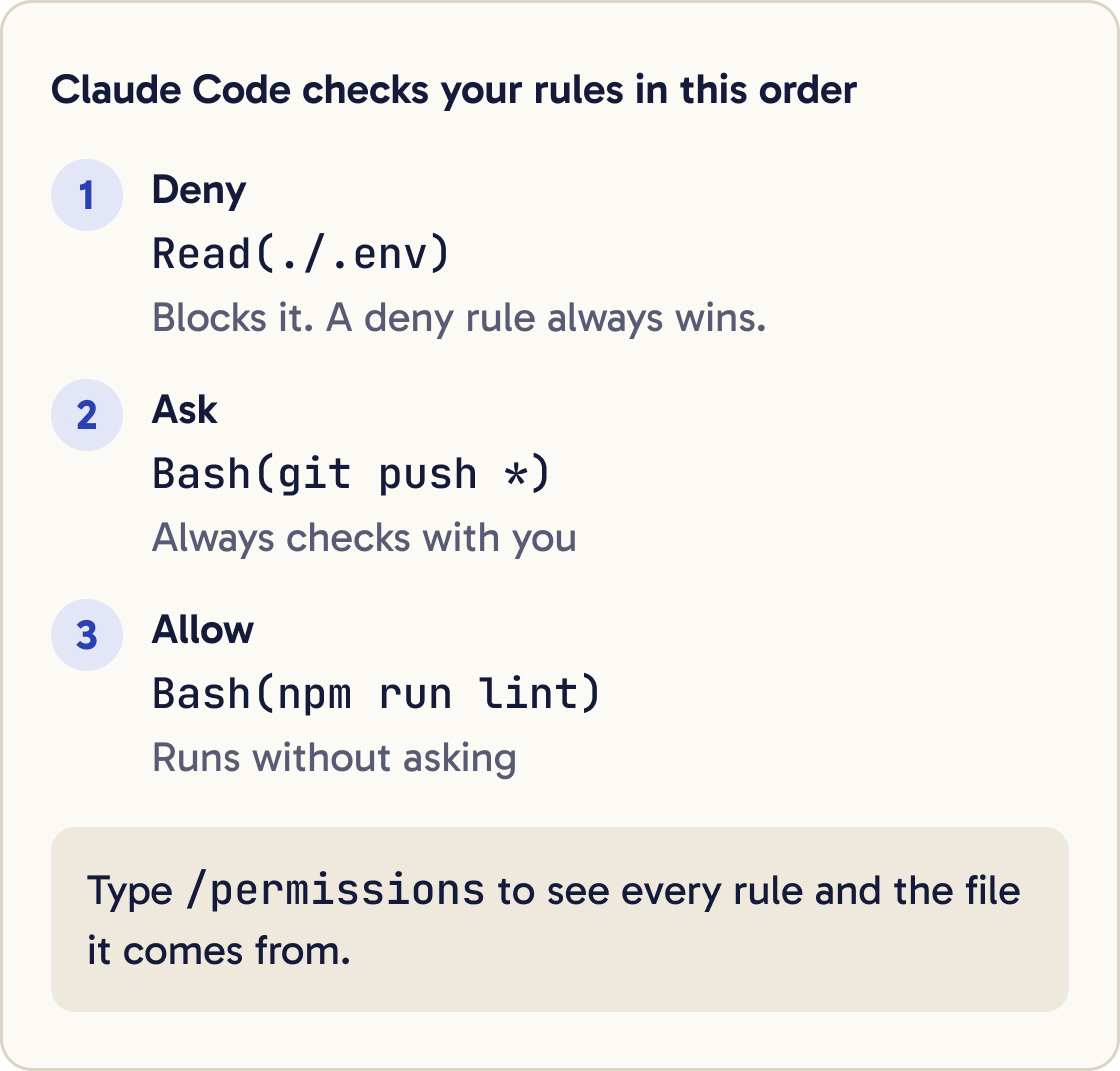
Rules give you finer control than modes. An allow rule lets something run without asking, an ask rule always asks, and a deny rule blocks it completely.
Look at this project and suggest permission rules for ~/.claude/settings.json. Allow only the safe commands I run often, such as tests and linting. Add ask rules for anything that pushes, deploys or deletes. Add deny rules for any file that could hold secrets. Show me the JSON and explain each rule in one sentence. Don't save anything until I say yes.Claude Code checks deny first, then ask, then allow. So a deny rule always wins.
Type /permissions to see every rule and which file it comes from. You can add and remove rules there.
You can also write rules in ~/.claude/settings.json, which applies to all your projects. This example lets Claude run your lint and test scripts without asking, always asks before git push, and blocks .env files:
{ "permissions": { "allow": ["Bash(npm run lint)", "Bash(npm run test *)"], "ask": ["Bash(git push *)"], "deny": ["Read(./.env)", "Read(./.env.*)"] } }
The * at the end of a rule matches anything that starts with that command. Keep the space before the star.
Step 7 of 13
Keep secret files out of reach
A secret is anything that grants access, such as a password, an API key or a token. An API key is a long code that lets a program use a paid service as you. Projects often keep these in a file called .env.
Add deny rules for every place your project keeps secrets. Put them in ~/.claude/settings.json or in .claude/settings.json inside your project folder. They block Claude's tools from reading or editing those files:
{ "permissions": { "deny": ["Read(./.env)", "Read(./.env.*)", "Read(./secrets/**)"] } }
Deny rules cover Claude's file tools and common file commands such as cat. They can't stop a script that opens files by itself. On a Mac or Linux, type /sandbox to turn on the sandbox, which blocks access at the operating system level.
Step 8 of 13
Never paste secrets into the chat
Don't type or paste passwords, API keys or tokens into a prompt. Everything you type goes to Anthropic and stays in plain text on your computer for 30 days.
My API key is saved in .env as STRIPE_SECRET_KEY. Write the code so it reads the key from that environment variable. Don't open or print the .env file.Keep keys in your .env file. Add .env to your .gitignore file, the list of files git should never save. Then tell Claude the name of the variable it should read.
For GitHub automations, store keys as repository secrets on GitHub. Never write them into a file you commit.
Step 9 of 13
Undo with checkpoints and /rewind
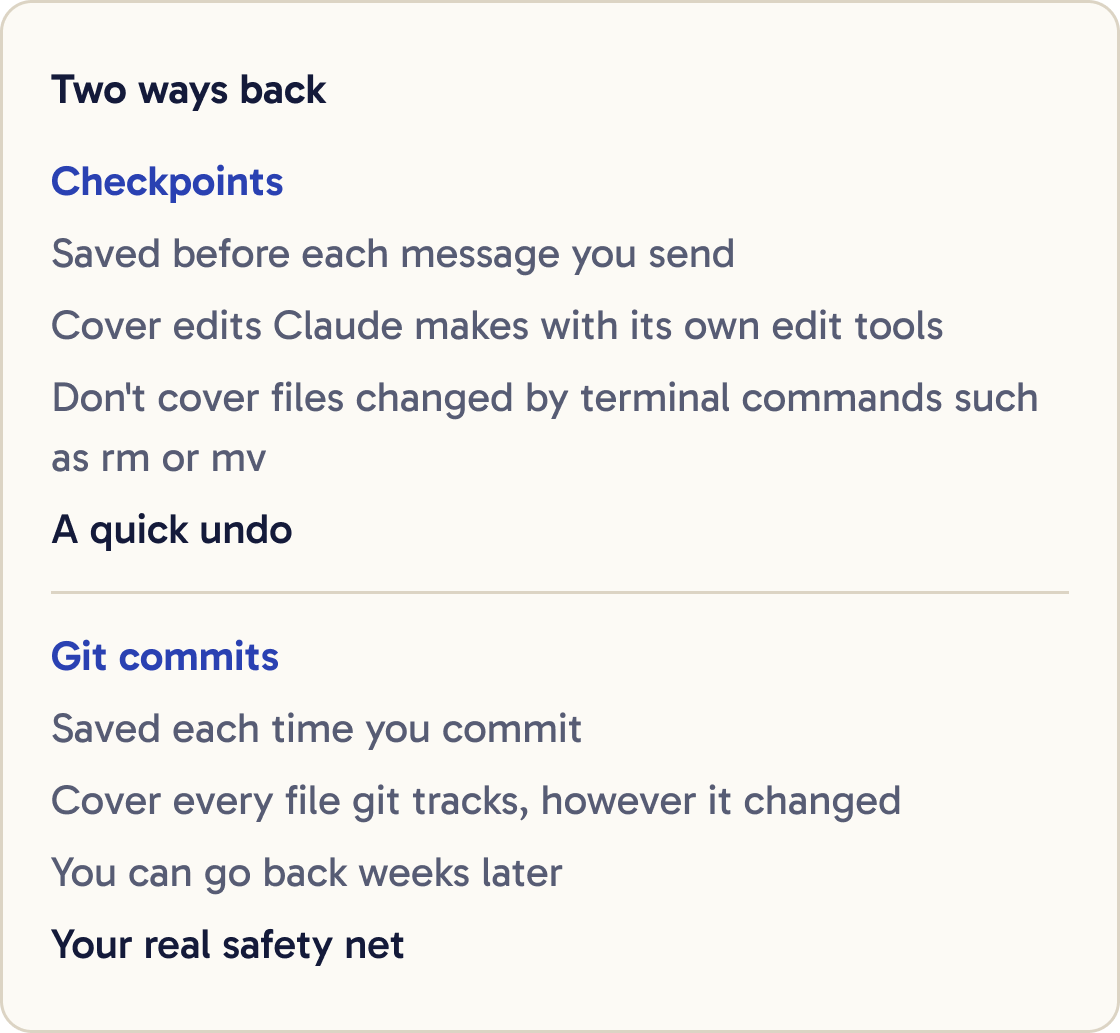
Claude Code saves a checkpoint of your files before each message you send. A checkpoint is a snapshot you can go back to.
Press Esc twice with the input box empty, or type /rewind. Pick the message you want to go back to, then choose an option.
Restore code and conversation puts both back. Restore conversation rewinds the chat and keeps your files. Restore code puts your files back and keeps the chat. Never mind closes the menu.
Checkpoints only cover changes Claude made with its own edit tools. Files changed by terminal commands, such as rm or mv, aren't saved. Use checkpoints as a quick undo and git as the full backup.
Step 10 of 13
Use git as your real safety net
Git is free software that saves named snapshots of your project, called commits. You can go back to any commit, even weeks later. Anthropic says checkpoints are not a replacement for git.
Before we start, check git status. If there are uncommitted changes, commit them with a clear message describing what they are. Then tell me the commit ID so I can go back to it.Make a commit before you ask Claude for any big change. If the change goes wrong, you can return to that commit in seconds.
If your project doesn't use git yet, follow the Git guide on this site first.
Step 11 of 13
Understand dangerously skip permissions
--dangerously-skip-permissions is a flag you add when you start Claude. It puts Claude in Bypass permissions mode, which runs almost everything with no prompts and no safety checks.
Anthropic says to use it only in sealed-off computers such as containers or virtual machines, with no internet access, where Claude can't damage your real system. It also gives no protection against prompt injection, which the next step explains.
Don't use it on your own computer while you're learning. If prompts slow you down, use Accept edits mode, allow rules for safe commands, or auto mode.
Step 12 of 13
Watch out for prompt injection
Prompt injection is hidden text that tries to give Claude new orders. It can sit in a web page, a downloaded file or a code comment that Claude reads.
The permission system is your protection. Read every command before you approve it, especially ones that use the internet, such as curl.
Don't paste text from unknown sources straight into Claude. Only add MCP servers and plugins, the add-ons that give Claude new tools, from providers you trust. If Claude does something you didn't ask for, choose No and report it with /feedback.
Step 13 of 13
Review your safety setup each month
Type /permissions and remove any allow rule you no longer need. Old don't ask again rules build up over time.
Do a safety check of this project's Claude Code setup. List every permission rule from /permissions and say which ones are broad or risky. Check that .env and any other secret files are in .gitignore and have Read deny rules. Check whether git has uncommitted changes. Report problems as a numbered list with the fix for each. Don't change anything.Check your .gitignore still lists .env and your project has recent commits. Then check /status shows the settings files you expect.
Did that work?
Still stuck? Send me a DM on Instagram at @maxbuilds.ai and I'll help.
Common mistakes
- Approving a command without reading it. Read every command, and choose No when you're unsure.
- Clicking Yes, and don't ask again on broad commands. Save rules only for exact, safe commands such as your test script.
- Pasting an API key into the chat. Keep keys in `.env`, block it with a deny rule, and revoke any key you've already pasted.
- Relying on `/rewind` alone. It doesn't undo terminal commands, so commit with git before big changes.
- Starting Claude in your home folder. Start it inside your project folder so its boundary stays small.
- Using `--dangerously-skip-permissions` to stop the prompts. Use Accept edits, allow rules or auto mode.
Want the next guide?
I'll email you each new guide as I share it, with new tutorials and prompts too.