Reading on your phone? Send it to your laptop.
You'll get the guide and every prompt in one email.
Guide 015
Claude Code skills: install one and write your first SKILL.md
You need
- Claude Code installed and signed in. Typing `claude` in your terminal should start it.
- A paid Claude plan (Pro, Max, Team or Enterprise) or a Claude Console account.
- A folder to practise in. Any folder with a few files is fine.
Step 1 of 14
Understand what a skill is
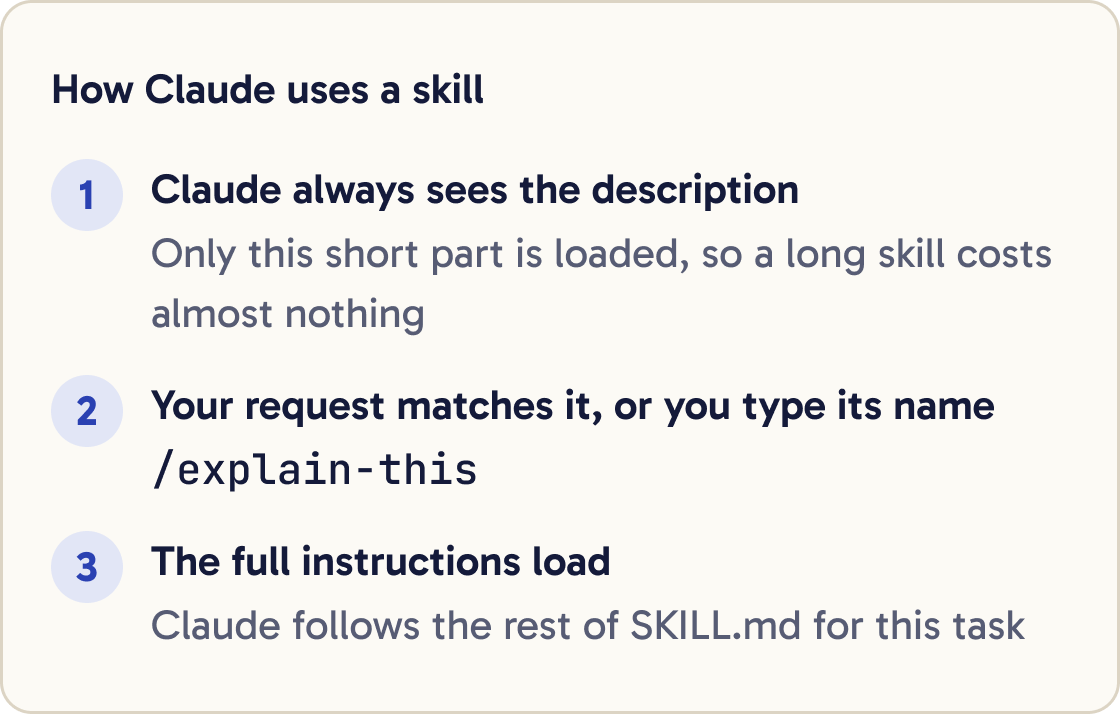
A skill is a set of instructions saved in a file called SKILL.md. Claude follows it when your request calls for it.
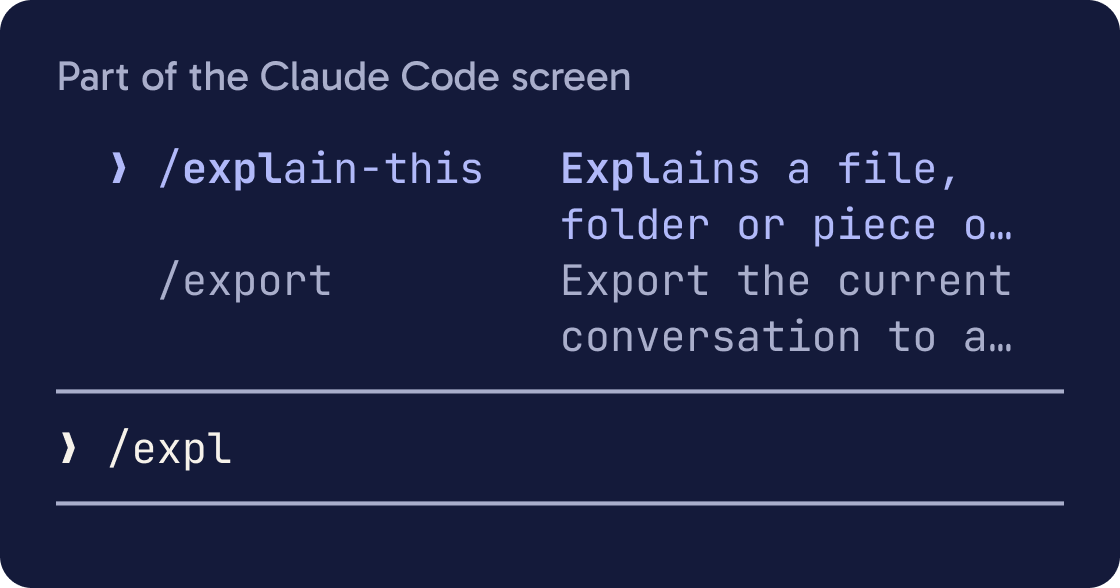
Claude can use a skill on its own when your request matches it. You can also run one yourself by typing / and its name, such as /explain-this.
Use a skill for anything you keep explaining again, such as a checklist or a writing style.
Claude always sees each skill's short description. The full instructions load only when the skill runs, so a long skill costs almost nothing until then.
Did that work?
Still stuck? Send me a DM on Instagram at @maxbuilds.ai and I'll help.
Step 2 of 14
Try the skills you already have
Claude Code comes with bundled skills. A bundled skill is one that ships with Claude Code, such as /doctor, /code-review, /debug and /loop.
Type this and press Enter to see every skill available to you:
/skills
You can type to filter the list. Press Esc to close it.
Try a safe one now. /doctor runs a checkup of your setup and asks before it changes anything.
Step 3 of 14
Learn where skills live
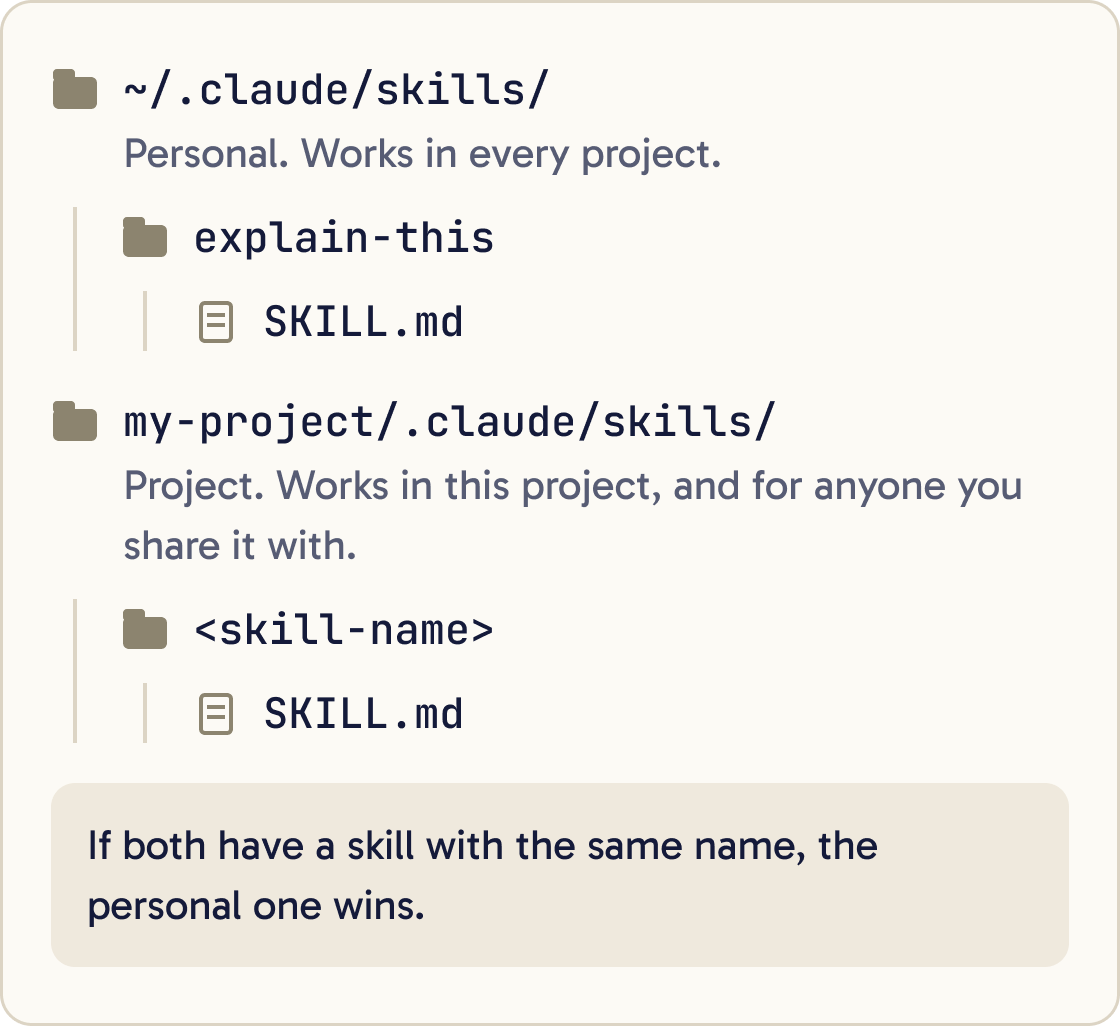
Each skill is a folder with a SKILL.md file inside. The folder's location decides where you can use the skill.
Personal skills live in ~/.claude/skills/<skill-name>/SKILL.md. The ~ means your home folder. These work in every project on your computer.
Project skills live in .claude/skills/<skill-name>/SKILL.md inside a project folder. They work in that project, and anyone you share the project with gets them too.
Plugins can also bring skills. A plugin is a package of extras you install into Claude Code. Its skills run as /plugin-name:skill-name.
If you sign in with a claude.ai account, skills turned on in your claude.ai settings also sync into Claude Code. They are saved in ~/.claude/skills/synced/.
If a personal skill and a project skill share a name, the personal one wins.
Step 4 of 14
Install a skill from a plugin
The easiest way to install a skill is through a plugin. Anthropic's official plugin list includes skill-creator, which helps you write and test skills.
Use skill-creator to help me write a new personal skill. Ask me questions one at a time about what the skill should do before you write anything.Type this at the Claude Code prompt:
/plugin install skill-creator@claude-plugins-official
If the summary says Run /reload-plugins to apply., Claude Code runs that for you. You can then ask Claude to use skill-creator.
Someone may also send you a skill folder. To install it, copy the whole folder into ~/.claude/skills/.
Step 5 of 14
Make the folder for your first skill
You will build a skill called explain-this. It explains any file or folder in plain English.
Every skill needs its own folder. In your terminal, outside Claude Code, run:
mkdir -p ~/.claude/skills/explain-this
mkdir makes a folder. The -p part also creates any missing folders along the way, and stays quiet if the folder already exists.
This creates a personal skill, so it works in every project.
Step 6 of 14
Write the SKILL.md file
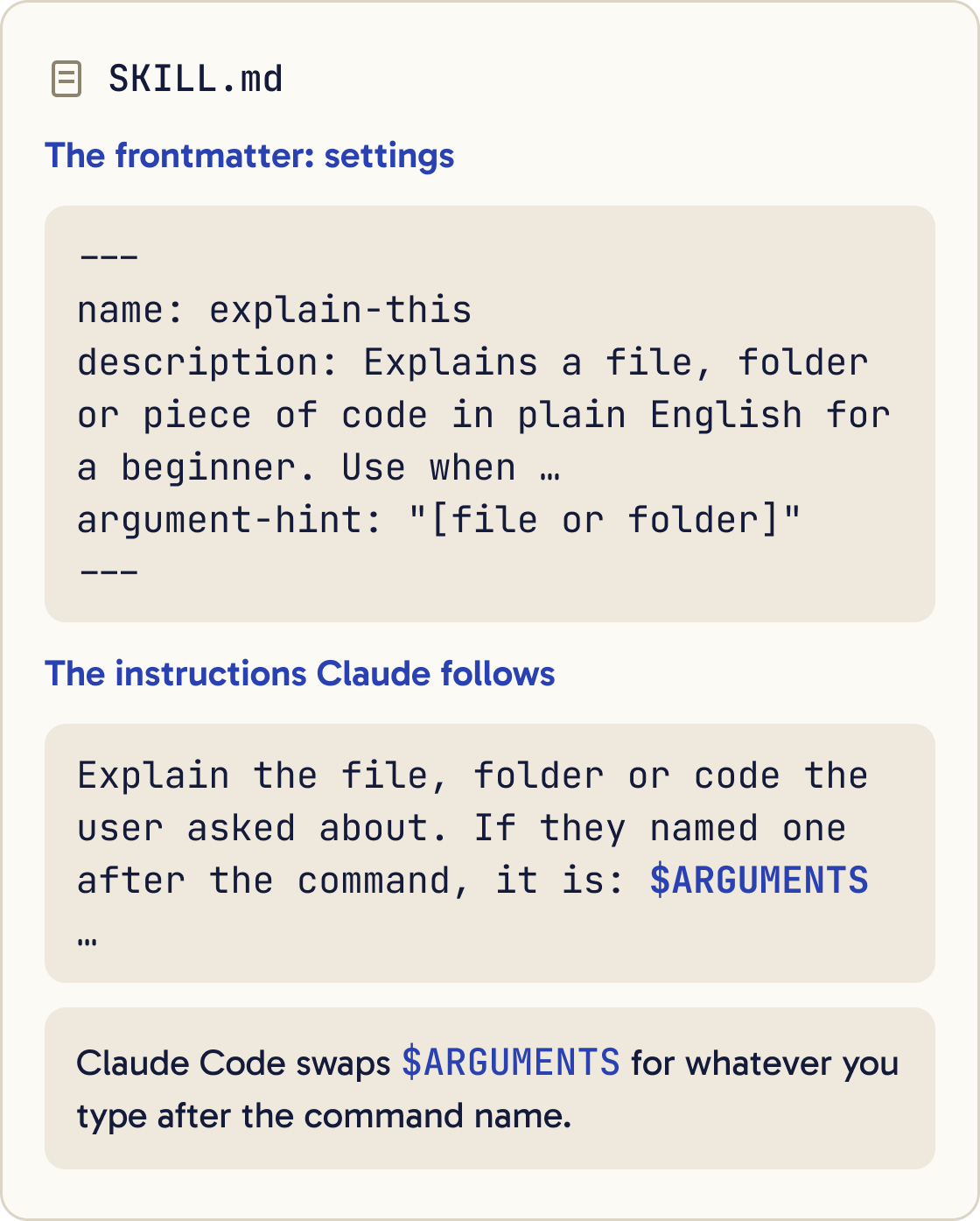
A SKILL.md has two parts. The top part is frontmatter: settings between two lines of three hyphens (---). The rest is the instructions Claude follows.
Create the file ~/.claude/skills/explain-this/SKILL.md (create the folder too if needed) with exactly this content, then show it to me:

---
name: explain-this
description: Explains a file, folder or piece of code in plain English for a beginner. Use when the user asks what something does, what a file is for, or says they don't understand it.
argument-hint: "[file or folder]"
---

Explain the file, folder or code the user asked about. If they named one after the command, it is: $ARGUMENTS

1. Say what it is for in one sentence.
2. List its main parts, one line each, in plain English.
3. Explain any technical word the first time you use it.
4. End with one safe thing the user could try next.

Never change any files while following this skill.
The folder name, or the name setting, becomes the command you type. The description tells Claude when to use the skill on its own.
$ARGUMENTS is a placeholder. Claude Code swaps it for whatever you type after the command.
Paste the prompt below into Claude Code. It writes the whole file for you.
Step 7 of 14
Learn the frontmatter settings
Every setting is optional. Only description is recommended, so Claude knows when to use the skill.
name: the command name. It defaults to the folder name.
description: what the skill does and when to use it. Put the main use first. The description and when_to_use together are cut off at 1,536 characters.
when_to_use: extra trigger phrases or example requests. It's added to the description.
argument-hint: a hint shown as you type, such as [file or folder].
disable-model-invocation: true: only you can run the skill. Claude won't start it by itself.
user-invocable: false: only Claude can use it. It's hidden from your / menu.
allowed-tools: tools Claude may use without asking while the skill runs. The permission ends when you send your next message.
model and effort: pick the model and the effort level used while the skill is active.
context: fork: runs the skill in a separate helper with its own memory, called a subagent. The agent setting picks which helper.
paths: file patterns. Claude then uses the skill automatically only when it's working on matching files.
Setting names must match exactly, hyphens included. Claude Code ignores a misspelled setting without telling you.
Step 8 of 14
Test your skill
Claude Code notices new and changed skills in ~/.claude/skills/ straight away, so you don't need to restart.
I don't understand what the files in this folder do. Can you explain them?What skills are available?Start Claude Code in any project folder. Test the skill two ways.
First, let Claude choose it. Ask something that matches the description, using the first prompt below.
Second, run it directly by typing its name and a file or folder:
/explain-this README.md
Either way, you should get a one-sentence purpose, a list of main parts, and one next step.
Step 9 of 14
Pass details into a skill
Anything you type after the skill's name is passed in as arguments.
$ARGUMENTS holds everything you typed. $0 holds the first word, $1 the second, and so on.
Wrap several words in quotes to pass them as one. For example, /my-skill "hello world" second makes $0 equal hello world.
If your skill has no placeholder, Claude Code adds what you typed to the end as ARGUMENTS: <what you typed>.
Step 10 of 14
Choose who can start the skill
By default, both you and Claude can start any skill.
Add disable-model-invocation: true to the frontmatter of ~/.claude/skills/explain-this/SKILL.md. Keep everything else the same and show me the result.For anything with side effects, add disable-model-invocation: true. A side effect is a change you can't easily undo, such as sending a message or publishing a site. You decide when those run.
For background knowledge that isn't a task, add user-invocable: false. Claude still uses it, and it stays out of your / menu.
Step 11 of 14
Add extra files when a skill grows
A skill folder can hold more than SKILL.md. You can add reference notes, examples or small scripts.
Mention each extra file in SKILL.md so Claude knows what it holds and when to open it. Claude reads them only when needed.
Keep SKILL.md itself under 500 lines. Once a skill is in use, its instructions stay in the conversation, so every line has an ongoing cost.
Step 12 of 14
Copy a useful beginner skill
These three skills are worth having early on. Paste any prompt below and Claude creates the skill for you.
Create a personal skill at ~/.claude/skills/plain-english/SKILL.md. Its description: Rewrites text in plain British English. Use when the user asks to simplify, tidy or proofread writing. Its instructions: rewrite the text the user gives ($ARGUMENTS if provided) in short sentences of under 15 words, one idea per sentence, British spelling, no jargon. Keep every fact. After the rewrite, list any sentence whose meaning you were unsure about. Show me the file when you're done.Create a personal skill at ~/.claude/skills/explain-error/SKILL.md. Its description: Explains an error message in plain English and suggests a fix. Use when the user pastes an error or says something broke. Its instructions: say what the error means in one sentence, give the most likely cause, then list the fix as numbered steps. Ask before running any command or changing any file. Show me the file when you're done.Create a personal skill at ~/.claude/skills/plan-first/SKILL.md with disable-model-invocation: true. Its description: Plans a change before any code is written. Its instructions: restate what the user wants ($ARGUMENTS), ask up to three questions one at a time if anything is unclear, then write a numbered plan listing each file to change and how to check it worked. Do not change any files. Wait for the user to approve the plan. Show me the file when you're done.After each one, test it the same way as in step 8.
Step 13 of 14
Fix common skill problems
Most skill problems come from the description or the file's top section. Find your problem below.
Step 14 of 14
Remove a skill
To remove a personal skill, delete its folder from ~/.claude/skills/. To remove a project skill, delete its folder from .claude/skills/.
Show me the folders in ~/.claude/skills. Then delete the folder for the skill called [SKILL NAME], but only after I confirm.Claude Code drops it from /skills in the current session.
To remove a plugin's skills, uninstall the plugin from the /plugin menu.
To keep a skill but stop it showing up, open /skills, highlight it and press Space to change its setting. Press Esc to save.
Did that work?
Still stuck? Send me a DM on Instagram at @maxbuilds.ai and I'll help.
Common mistakes
- Writing a vague description such as "helps with stuff". Claude picks skills by their description, so say what it does and when to use it.
- Putting the settings anywhere but the very top. The `---` line must be line one of `SKILL.md`.
- Misspelling a setting, such as `disable-model-invokation`. Claude Code ignores it silently, so copy names exactly.
- Letting Claude start a skill that sends or deletes things. Add `disable-model-invocation: true` to anything with side effects.
- Installing skills you haven't read. Check the `allowed-tools` line before you trust one.
- Making one giant skill for everything. Keep each skill to one job so Claude can tell when to use it.
Want the next guide?
I'll email you each new guide as I share it, with new tutorials and prompts too.