Reading on your phone? Send it to your laptop.
You'll get the guide and every prompt in one email.
Guide 011
Claude Code slash commands: the ones you need and how to make your own
You need
- Claude Code installed and signed in. Typing `claude` in your terminal should start it.
- A paid Claude plan (Pro, Max, Team or Enterprise) or a Claude Console account.
- A project folder to practise in.
Step 1 of 16
Understand what a slash command is
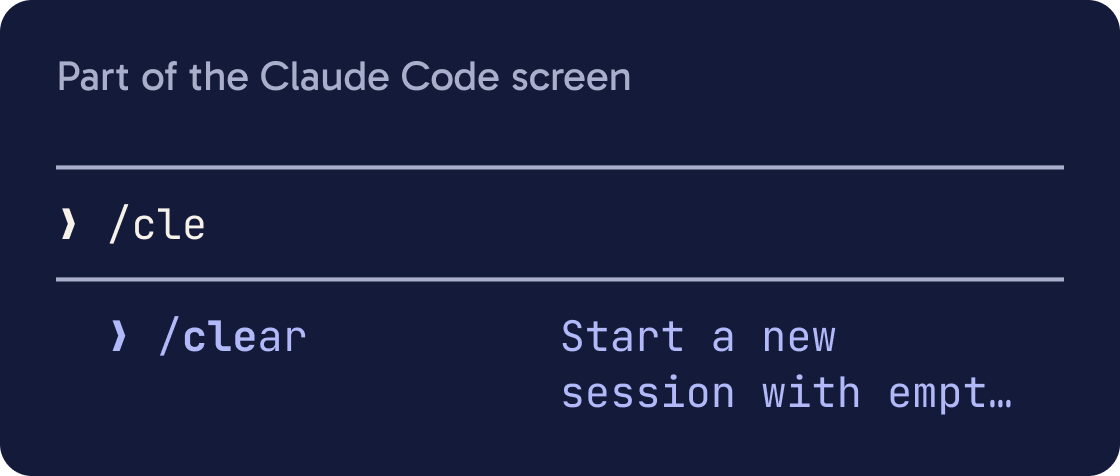
A slash command is a word starting with / that controls Claude Code. For example, /clear starts a fresh conversation.
Type / at the Claude Code prompt and a menu appears. Keep typing letters to filter it, then press Enter to run the highlighted command.
A command only works at the very start of your message. Any text after the command name is passed to it as extra detail, called arguments.
If you send a command while Claude is still answering, Claude Code waits and runs it when the answer finishes. A few, such as /status and /usage, run straight away.
Did that work?
Still stuck? Send me a DM on Instagram at @maxbuilds.ai and I'll help.
Step 2 of 16
Get help with /help
Type this and press Enter:
/help
It shows help and the commands available to you.
Not every command appears for everyone. What you see depends on your computer, your plan and how you signed in.
Step 3 of 16
Set up a project with /init and /memory
/init looks through your project and writes a starter CLAUDE.md file. CLAUDE.md is a note that Claude reads at the start of every session.
/memory opens your CLAUDE.md files so you can edit them. It also has a switch for auto memory, where Claude saves its own notes.
Run /init once in each new project, then use /memory to adjust what it wrote.
Step 4 of 16
Start fresh with /clear
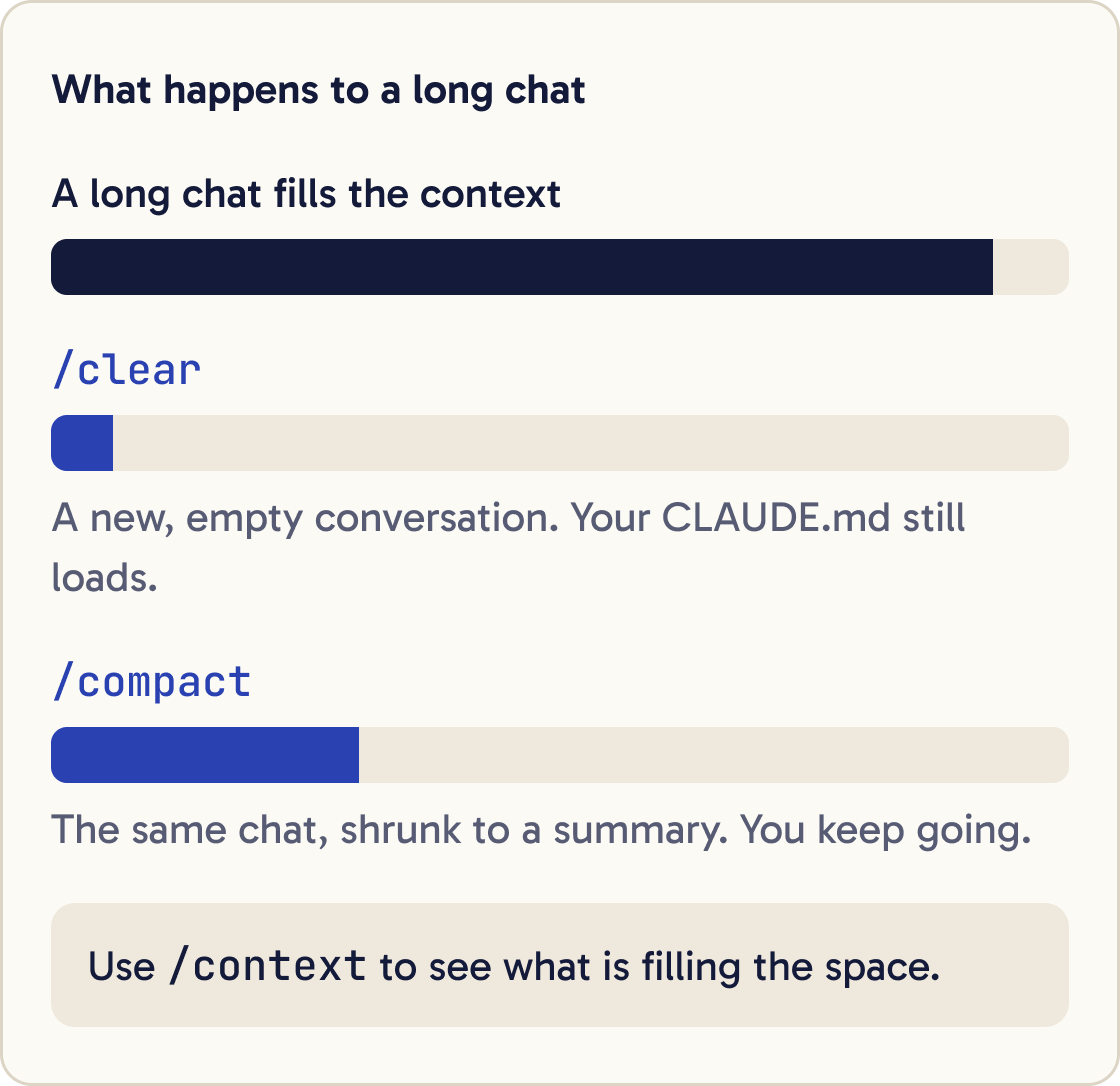
/clear starts a new conversation with an empty context. Context is everything Claude is holding in mind right now.
Use it when you switch to a different task. Old details from the last task can confuse the new one.
Your CLAUDE.md and project memory still load in the new conversation.
/reset and /new do the same thing.
Step 5 of 16
Free up space with /compact and /context
Long conversations fill Claude's context. When it gets full, Claude has less room to work.
/context shows what is filling the space as a coloured grid, with tips for freeing room.
/compact shrinks the conversation into a summary so you can keep going in the same chat.
You can tell it what to keep, for example:
/compact keep the list of files we changed and the open questions
Step 6 of 16
Pick up where you left off with /resume
/resume opens a list of your earlier conversations. Pick one to carry on with it.
You can also do this from the terminal before Claude Code starts. This command opens the most recent conversation in the current folder:
claude -c
-c is short for --continue.
Step 7 of 16
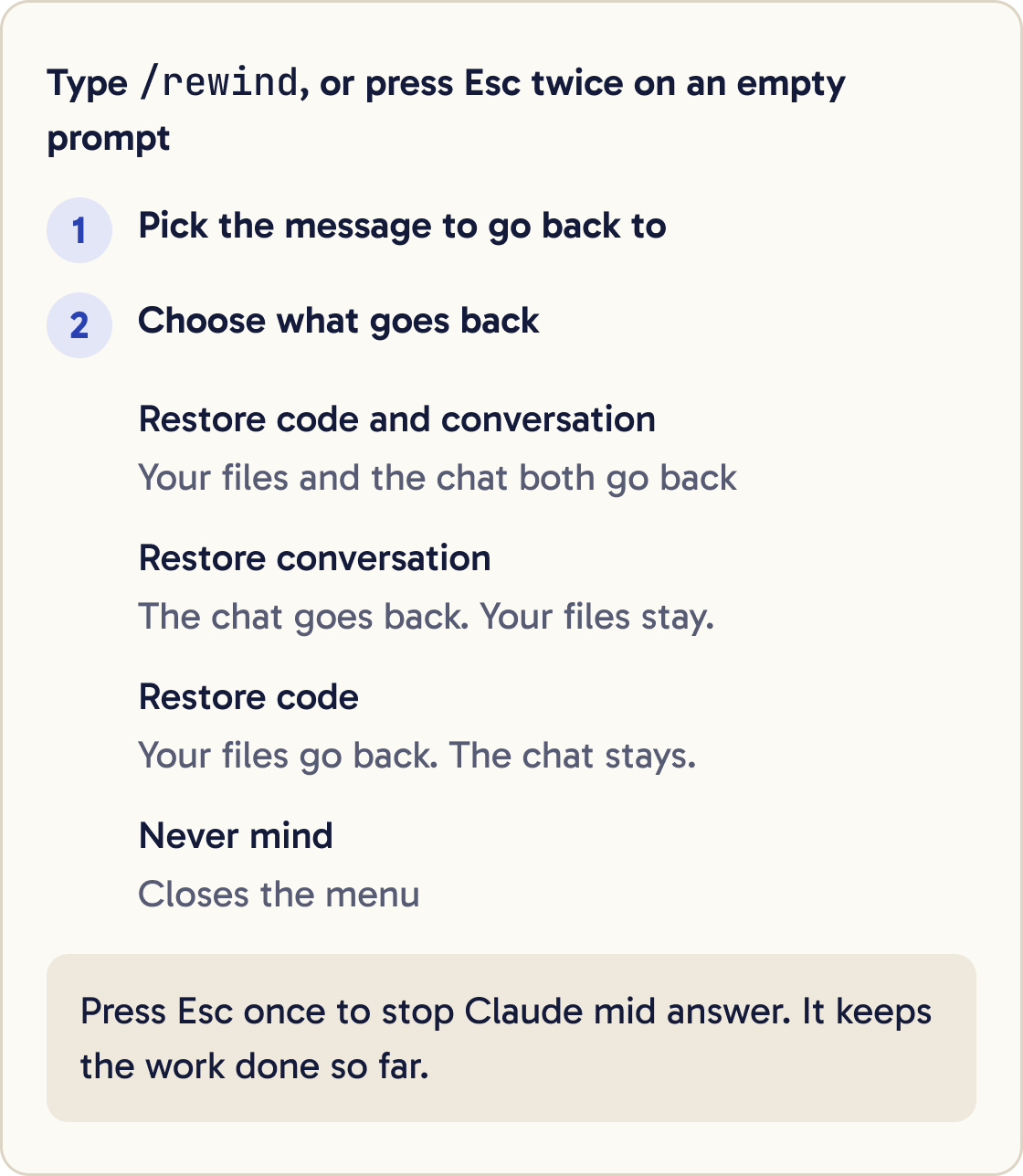
Undo changes with /rewind
/rewind rolls the conversation, your files, or both back to an earlier point. These saved points are called checkpoints.
You can also press Esc twice on an empty prompt to open the same menu.
/undo and /checkpoint do the same thing.
To stop Claude in the middle of an answer, press Esc once. Claude keeps the work it has done so far.
Step 8 of 16
Plan before you build with /plan
/plan switches Claude into plan mode. In plan mode, Claude looks around and writes a plan before it changes anything.
You can add a task straight after it:
/plan add a contact form to my homepage
Read the plan, ask questions, and approve it only when it looks right.
Step 9 of 16
Check your model and usage
/model switches the AI model and saves your choice for new sessions. With no name after it, it opens a list to pick from.
/usage shows what this session has cost and how close you are to your plan's usage limits. /cost and /stats open the same screen.
/status shows your Claude Code version, model, account and connection.
Step 10 of 16
Control what Claude can do with /permissions
Claude Code asks your permission before actions such as editing files or running commands.
/permissions opens a screen of rules.
Allow rules let something run without asking. Ask rules always check with you, and deny rules block it.
Leave these alone at first. Add an allow rule only for a command you have approved many times and understand.
Step 11 of 16
Review work with /diff and /code-review
/diff shows every change in your project folder, including Claude's edits so far.
/code-review checks the current changes for bugs. Add --fix to have Claude apply what it finds. /review does the same thing.
/security-review checks the changes on your current git branch for security problems before you share them.
Step 12 of 16
Fix problems with /doctor and report bugs
/doctor runs a checkup of your setup. It looks at your installation, settings and CLAUDE.md files, then suggests fixes. It asks before changing anything.
To check your installation without starting a session, run claude doctor in the terminal. It only reads and reports.
/debug turns on detailed logs for this session and helps you find the cause of a problem.
/feedback sends feedback about Claude Code. /bug reports a bug, and you choose how much of the conversation to include.
Step 13 of 16
Ask a side question and exit
/btw asks a quick side question about your session without adding it to the conversation. For example:
/btw what was the name of the file we changed first?
/exit closes Claude Code. /quit does the same.
Step 14 of 16
Make your own command
A custom command is a set of instructions you save once and run with / and a name. Claude Code now calls these skills.
Create the file ~/.claude/skills/wrap-up/SKILL.md (make the folder too) with exactly this content, then show it to me:

---
name: wrap-up
description: Summarises the session so the user can pick up later
disable-model-invocation: true
---

Summarise this session for someone coming back to it tomorrow:

1. What we set out to do, in one sentence.
2. What is finished, as a short list.
3. What is left to do, as a numbered list.
4. Any files that changed, with one line each on why.
5. The exact first thing to do next time.
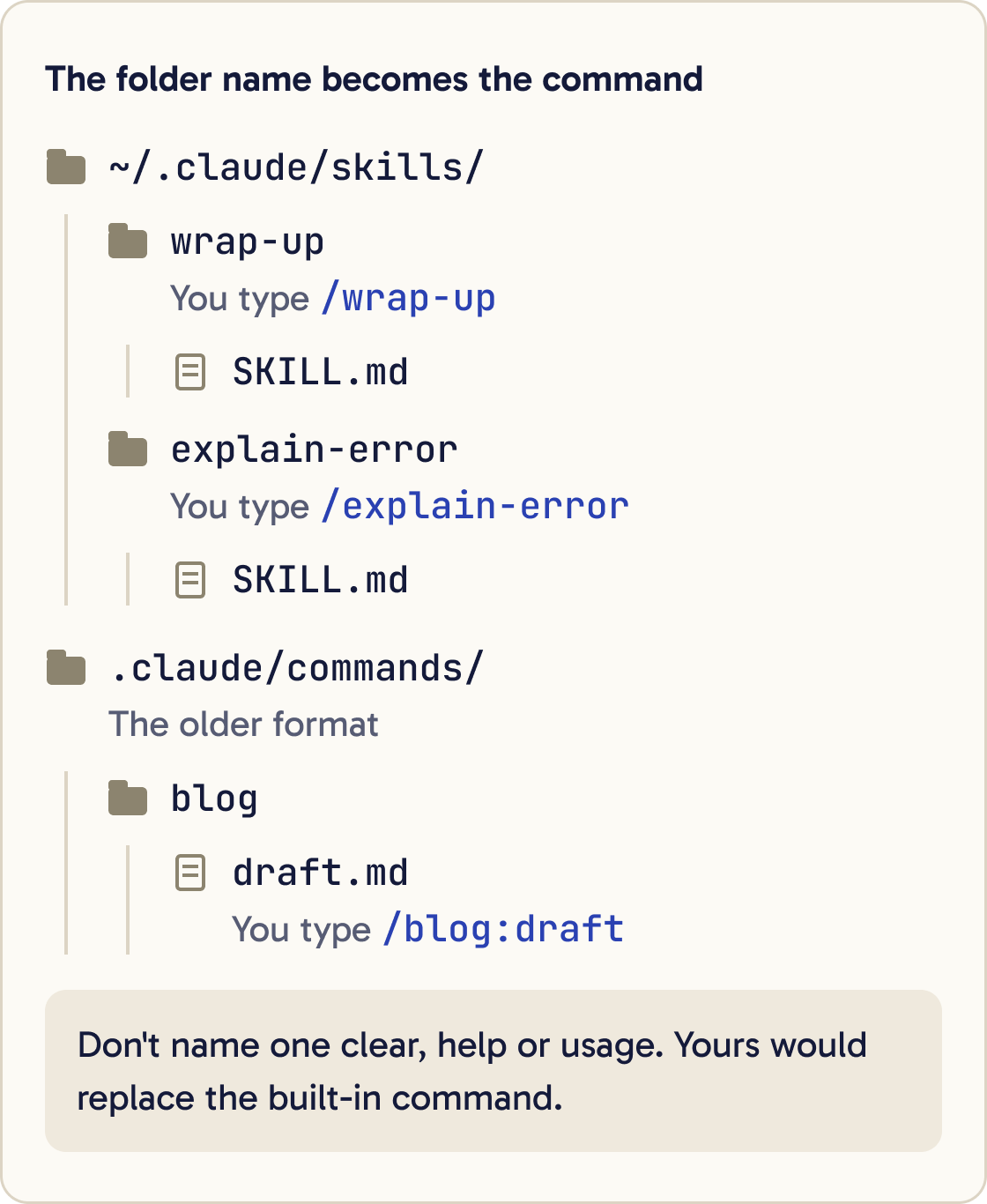
Each one lives in its own folder with a file called SKILL.md. Personal commands go in ~/.claude/skills/<name>/SKILL.md and work in every project. The ~ means your home folder.
The top of the file holds settings between two --- lines. description says what it does. disable-model-invocation: true means only you can run it, which suits commands.
Paste the prompt below to create a /wrap-up command that summarises your session.
Step 15 of 16
Add details to a command with $ARGUMENTS
$ARGUMENTS is a placeholder. When you run the command, Claude Code swaps it for whatever you typed after the name.
Create the file ~/.claude/skills/explain-error/SKILL.md (make the folder too) with exactly this content, then show it to me:

---
name: explain-error
description: Explains an error message in plain English
argument-hint: "[error message]"
disable-model-invocation: true
---

Explain this error to a beginner: $ARGUMENTS

1. Say what it means in one sentence.
2. Give the most likely cause.
3. List the fix as numbered steps.

Ask before you run any command or change any file.
The prompt below creates /explain-error. Paste an error after the command and Claude explains it.
Then try it like this:
/explain-error npm ERR! missing script: start
Step 16 of 16
Name your commands safely
The folder name becomes the command name. A folder called wrap-up gives you /wrap-up.
If your command has the same name as a built-in one, yours replaces it. Avoid names such as clear, help or usage.
If a personal command and a project command share a name, the personal one runs.
In the older .claude/commands/ format, subfolders add to the name. .claude/commands/blog/draft.md becomes /blog:draft.
Did that work?
Still stuck? Send me a DM on Instagram at @maxbuilds.ai and I'll help.
Common mistakes
- Typing a command in the middle of a sentence. Commands only run at the start of a message.
- Never using `/clear`. Old tasks fill the context and confuse new ones, so clear between unrelated jobs.
- Naming a custom command after a built-in one, such as `/help`. Yours replaces the built-in.
- Closing the window and thinking the work is lost. Run `claude -c` in the same folder to continue.
- Letting Claude run commands that change things on its own. Add `disable-model-invocation: true` to custom commands that send, delete or publish.
- Approving permission requests without reading them. Read what Claude wants to run before you say yes.
Want the next guide?
I'll email you each new guide as I share it, with new tutorials and prompts too.