Reading on your phone? Send it to your laptop.
You'll get the guide and every prompt in one email.
Guide 002
Day 1 on Claude Code: your first 30 minutes
You need
- A Mac with macOS 13 or later, or a Windows 10 (version 1809 or later) or Windows 11 PC
- An internet connection
- A paid Claude plan: Pro, Max, Team or Enterprise
- Claude Code installed (see the install guide if you haven't done this yet)
- About 30 minutes
Step 1 of 16
Know what Claude Code is
Claude Code is an AI assistant made by Anthropic. It works on the files in a folder on your computer.
You type what you want in plain English. Claude reads your files, writes new ones, edits existing ones and runs commands to get the job done.
A command is a typed instruction that tells your computer to do something. Claude Code can type and run these for you.
You don't need to know how to code. Describe the result you want and Claude writes the code.
Did that work?
Still stuck? Send me a DM on Instagram at @maxbuilds.ai and I'll help.
Step 2 of 16
Know what it can and can't do
Claude Code can read every file in the folder you open it in. It can create files, edit them, rename them and organise them.
It can run commands in your terminal, search the web and look up documentation.
It can build things from a description, such as a webpage, a small app or a script that renames photos.
It works inside the folder you start it in. To use files elsewhere it needs your permission.
It makes mistakes. Code can look right and still have bugs, so check the result before you rely on it.
Step 3 of 16
Check which plan you need
Claude Code needs a paid plan. The free Claude plan doesn't include Claude Code.
Pro costs $20 a month billed monthly, or $17 a month if you pay $200 for a year up front. Pro includes Claude Code.
Max costs $100 a month for 5 times the Pro usage, or $200 a month for 20 times the Pro usage.
These are the US dollar prices on claude.com/pricing. Check the price at checkout, since it can differ in your country.
Start with Pro. Move to Max only if you keep hitting your usage limits.
Step 4 of 16
Choose where to use it
On day one you can use it in two places.
The terminal: you type claude in a terminal window. This is the full version, and this guide shows it.
The Claude desktop app: you download Claude for Mac or Windows, sign in and click the Code tab. You pick a folder with a button and never touch a terminal.
Both run the same Claude Code. The steps in this guide work in both, and the desktop app has buttons for some of them.
Step 5 of 16
Make a practice folder
Give Claude its own empty folder to work in. That keeps your first tests away from your other files.
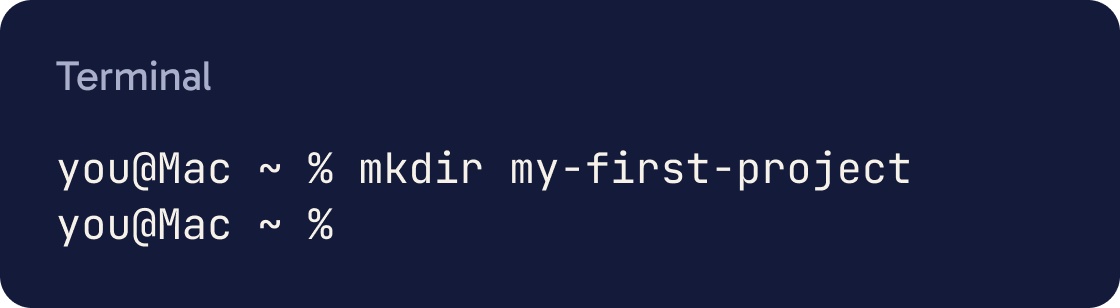
On a Mac, open Terminal: press Cmd + Space, type Terminal and press Enter. Type this and press Enter:
mkdir my-first-project
On Windows, open PowerShell: press Win + X and pick Windows PowerShell or Terminal. Type this and press Enter:
md my-first-project
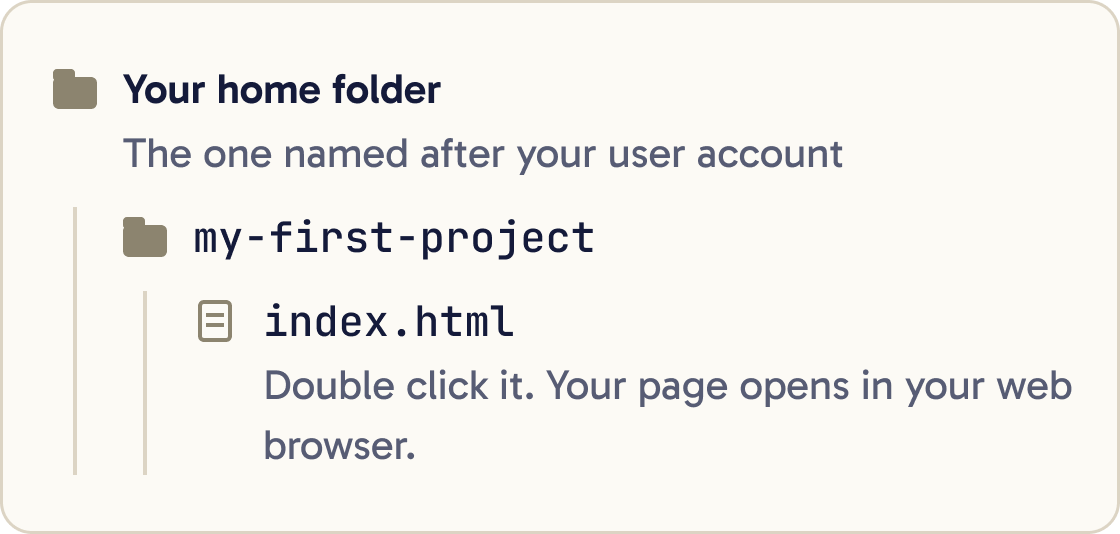
Both commands make a new folder called my-first-project inside your home folder. Your home folder is the one named after your user account.
On a Mac nothing prints after the command. On Windows you see a few lines that describe the new folder. Both mean it worked.
Step 6 of 16
Open Claude Code in that folder
Move into the folder, then start Claude Code. Type each line and press Enter after each one:
cd my-first-project
claude
The first time, Claude Code asks you to log in. A browser window opens. Sign in with the same account you use for Claude, then go back to the terminal.
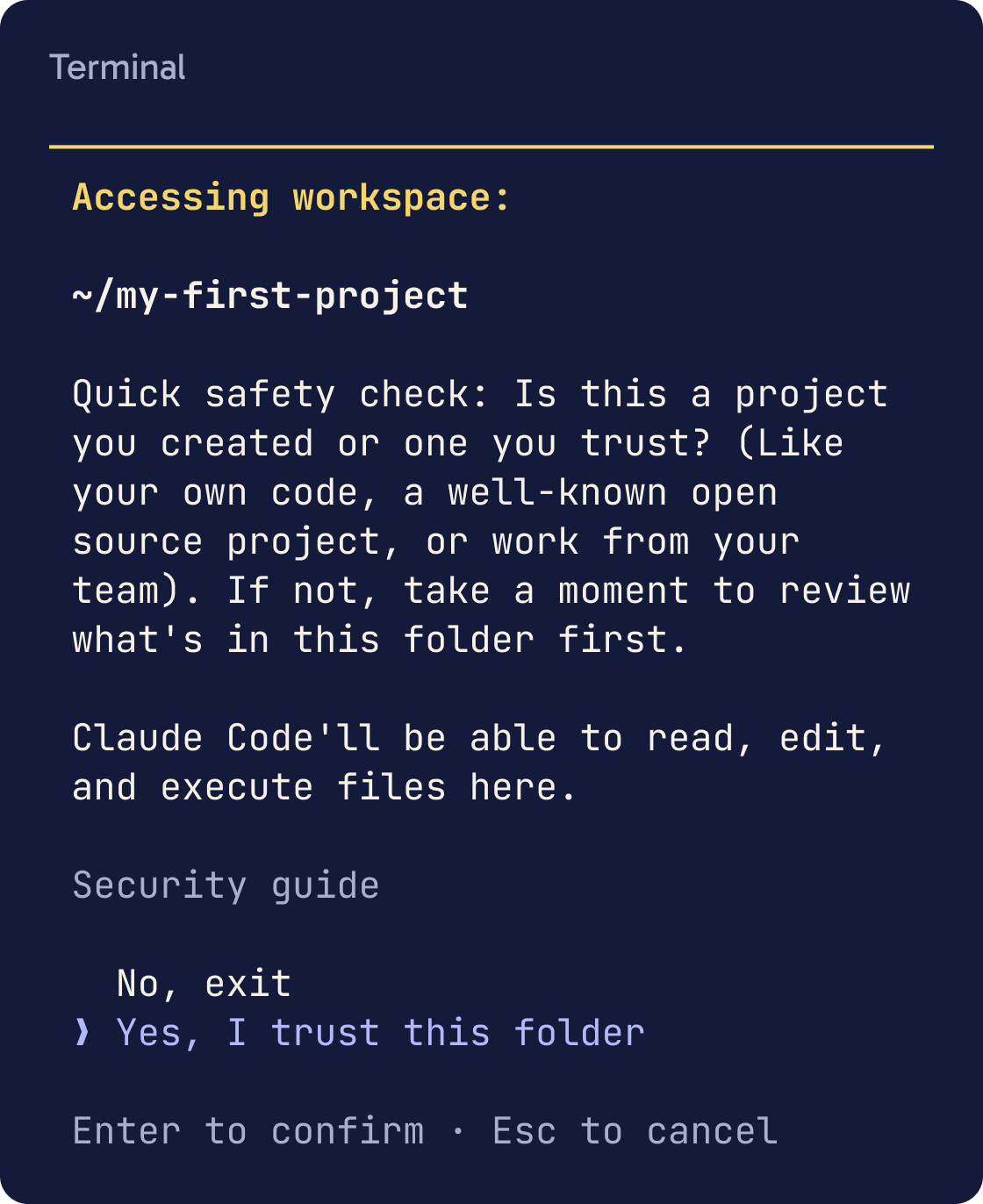
Claude Code also asks whether you trust the files in this folder. It's your own empty folder, so say yes.
You only log in once. Claude Code remembers your login after that. When it's ready, you see an input box waiting for your first message.
Step 7 of 16
Read the screen
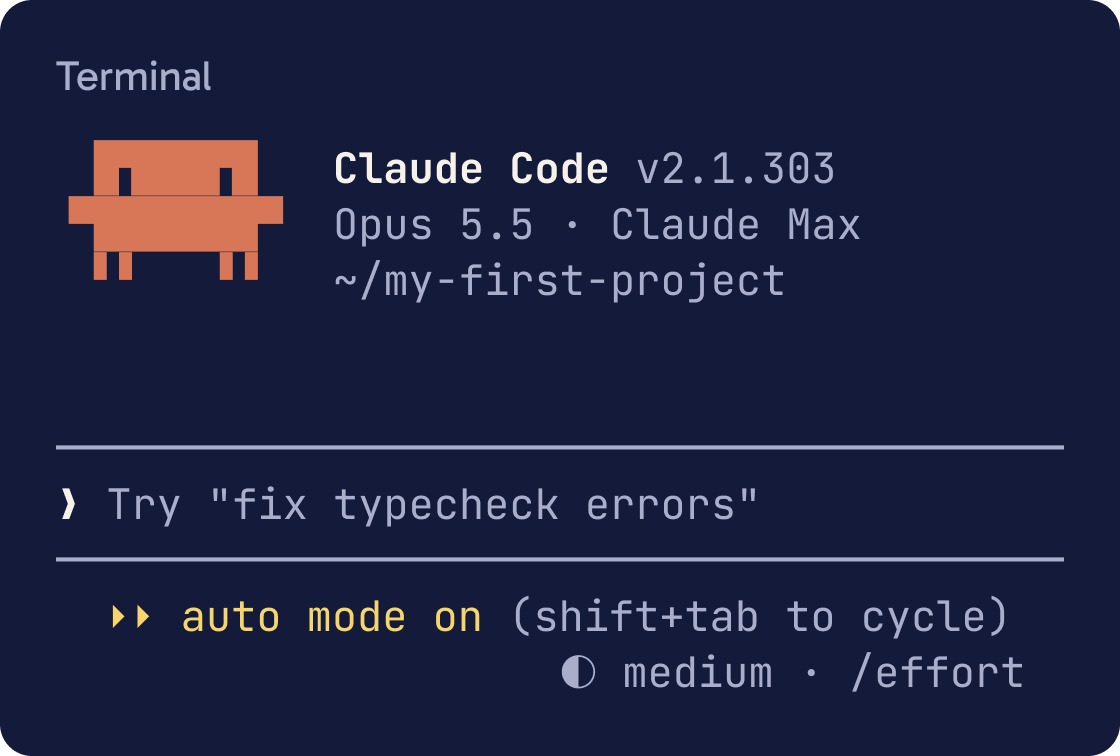
Above the input box, Claude Code shows its version, the AI model it is using and the folder it is working in. Check the folder name says my-first-project.
The input box is where you type. Press Enter to send your message.
Under the box is the status bar. It shows the permission mode, which decides what Claude can do without asking you. New sessions usually show auto mode on.
You can't click on things in the terminal. Use the arrow keys to move through menus and Enter to choose.
Type /help to see the built in commands. Commands that start with a slash work inside Claude Code.
Step 8 of 16
Ask your first question
Start with a question. Claude usually only reads files to answer one, so it's a safe first try.
What can Claude Code do? Explain it to me as a complete beginner in 5 short bullet points.I want to build a personal budget tracker. What would I need? Keep it simple and assume I have never coded.Paste one of the prompts below into the input box and press Enter. The answer appears in the terminal under your message.
Step 9 of 16
Build a tiny webpage
Now ask Claude to make something. A single webpage is a good first project because you can open it straight away.
Make me a simple webpage in a single file called index.html. It should say Hello, this is my first page, in large text in the middle of the screen, with a soft background colour. Use no other files.Paste the prompt below. Claude will create a file called index.html in your folder. An HTML file is a webpage that your browser can open.
Watch the screen while it works. You'll see each step it takes, such as writing a file.
If Claude asks for permission before creating a file, press Enter to choose Yes. In auto mode it may not ask at all.
Step 10 of 16
Open your page
Ask Claude to open the page for you, or find it yourself.
Open index.html in my web browser.To find it yourself, open your home folder in Finder or File Explorer, open my-first-project and double click index.html. It opens in your web browser.
Step 11 of 16
Change it
You don't need a perfect prompt. Ask for a change, look at the result, then ask for the next change.
Add a button under the text that says Click me. When I click it, show a short message that says Nice, it works.Make the background dark blue and the text white. Keep everything else the same.Say exactly what you want. Name the colour, the words or the part of the page.
After each change, refresh the page in your browser to see it. Press Cmd + R on a Mac or F5 on Windows.
Step 12 of 16
Stop it mid task
Press Esc to stop Claude while it is working. It keeps the work done so far and waits for your next message.
You can also type a correction and press Enter while it works. Claude reads it after its current step and adjusts.
Ctrl + C also stops a running task. If nothing is running, the first press clears what you typed and a second press closes Claude Code.
Step 13 of 16
Undo a change
Claude Code saves a checkpoint each time you send a message. A checkpoint is a snapshot of your files before Claude changes them.
Undo the last change you made and show me what the file looks like now.To go back, press Esc twice with an empty input box, or type /rewind. Pick the message you want to go back to with the arrow keys and press Enter.
Choose Restore code to put your files back. Choose Restore code and conversation to undo the files and the chat.
You can also type: undo that. Claude reverses its last change.
Step 14 of 16
Choose how much Claude can do alone
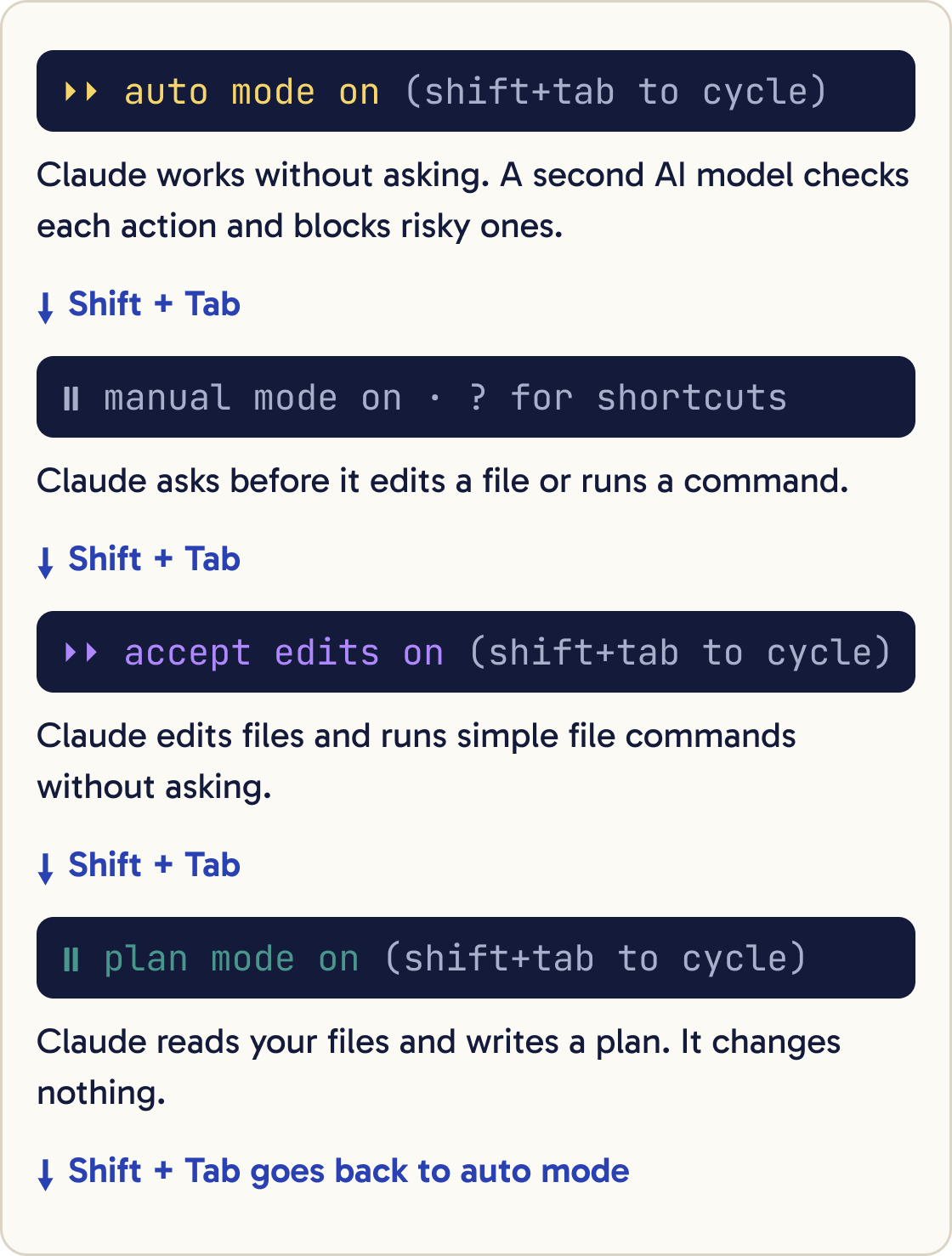
Press Shift + Tab to switch the permission mode. The status bar shows the current one. From auto mode, each press moves to manual, then accept edits, then plan, then back to auto.
Auto mode: Claude works without asking. A second AI model checks each action first and blocks risky ones, such as deleting files that were there before.
Manual mode: Claude asks before it edits a file or runs a command. This is the safest choice while you learn.
Accept edits mode: Claude edits files and runs simple file commands without asking. It still asks before other commands.
Plan mode: Claude reads your files and writes a plan. It doesn't change anything.
Step 15 of 16
Close it and come back later
Type /exit and press Enter to close Claude Code. Your files stay where they are.
Your conversation is saved on your computer. To carry on later, open a terminal, move into the folder and run:
claude -c
That reopens your most recent conversation in this folder. To pick from older ones, type /resume inside Claude Code.
Step 16 of 16
Try these next
Keep each new idea in its own folder. Type /clear when you start an unrelated task in the same session, so old messages don't confuse Claude.
Build a to do list app as a single webpage. I can add items, tick them off and delete them. Save the list in the browser so it is still there when I reload. Explain how to open it when you're done.Look at the files in this folder and suggest a tidy folder structure. Show me the plan first and don't move anything until I say yes.Explain what each part of index.html does, line by line, in plain English for a beginner.Pick one of these for your next project.
Did that work?
Still stuck? Send me a DM on Instagram at @maxbuilds.ai and I'll help.
Common mistakes
- Starting Claude Code in your home folder. Make a project folder and start it there.
- Writing vague requests like make it better. Say what you want changed and what it should look like.
- Mixing many unrelated tasks in one long session. Type /clear between tasks.
- Trusting the result without checking it. Open the page or run the thing yourself every time.
- Thinking rewind undoes everything. It doesn't undo files changed by commands Claude ran, so keep backups of anything important.
- Pasting in passwords or secret keys. Claude doesn't need them for beginner projects.
Want the next guide?
I'll email you each new guide as I share it, with new tutorials and prompts too.