Reading on your phone? Send it to your laptop.
You'll get the guide and every prompt in one email.
Guide 012
Stop your Claude-built sites looking AI made
You need
- Claude Code installed and signed in on a paid Claude plan (Pro or Max)
- A website or app project folder, even an empty one
- A web browser such as Chrome
- About 1 hour for your first pass
Step 1 of 11
Learn why Claude's designs look the same
AI models learn from huge amounts of existing web pages. With no direction, Claude picks the safest and most common choices it has seen.
Look at the website in this folder. List every place it uses a generic AI default: Inter, Roboto, Arial or system fonts, purple or blue gradients, everything centred, identical rounded cards with soft grey shadows, emoji used as icons, all-caps labels above headings, one highlighted word in a headline, and fade-up animations on every section. For each one, tell me the file and line. Don't change anything yet.Anthropic calls this distributional convergence. In practice it means you get the most average design.
Anthropic's team lists the usual giveaways: fonts like Inter, Roboto, Arial or Open Sans, a purple gradient on a white background, and very little animation.
Their design guidance adds more. Content cut into identical rounded cards with the same soft grey shadow is one. A tiny all-caps label above every heading is another, and so is every section fading and sliding up as you scroll.
Emoji used as icons also look unplanned. Each phone and computer draws emoji in its own style, so you can't control how they look.
Claude follows design direction closely. Anthropic found that a short instruction, such as asking Claude to avoid Inter and Roboto, improves the result straight away. The rest of this guide shows you how to give that direction.
Did that work?
Still stuck? Send me a DM on Instagram at @maxbuilds.ai and I'll help.
Step 2 of 11
Install Anthropic's design plugin
A plugin is an add-on that gives Claude Code extra skills. Anthropic publishes a free plugin called frontend-design. It teaches Claude to plan a distinctive look, avoid the common giveaways and critique its own work.
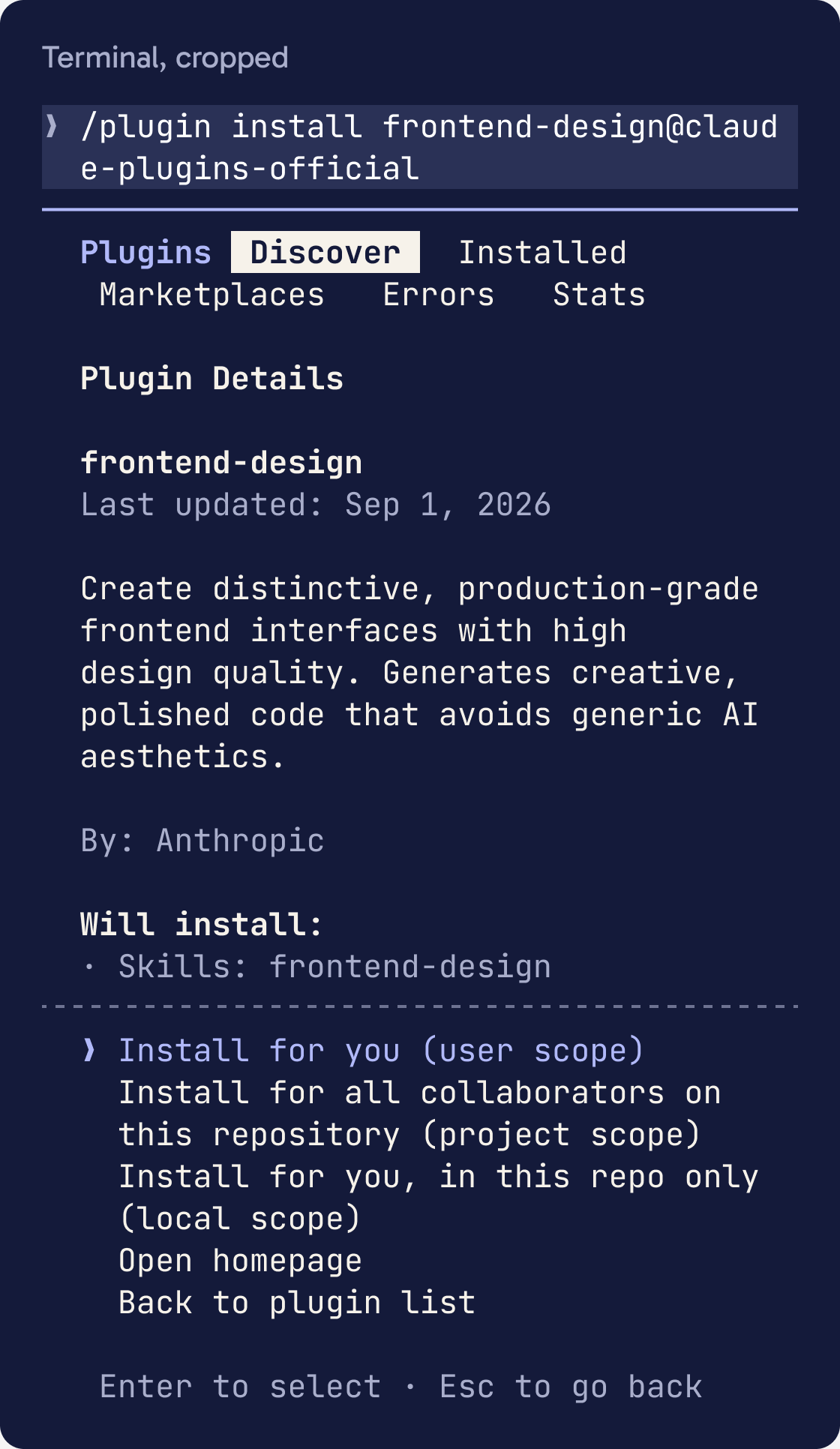
Open your terminal, go to your project folder and start Claude Code by typing claude. Then type this and press Enter:
/plugin install frontend-design@claude-plugins-official
A panel opens showing the plugin's details. Read it, choose where to install it, and confirm. From then on, Claude Code uses the skill on its own when you ask for design work.
Step 3 of 11
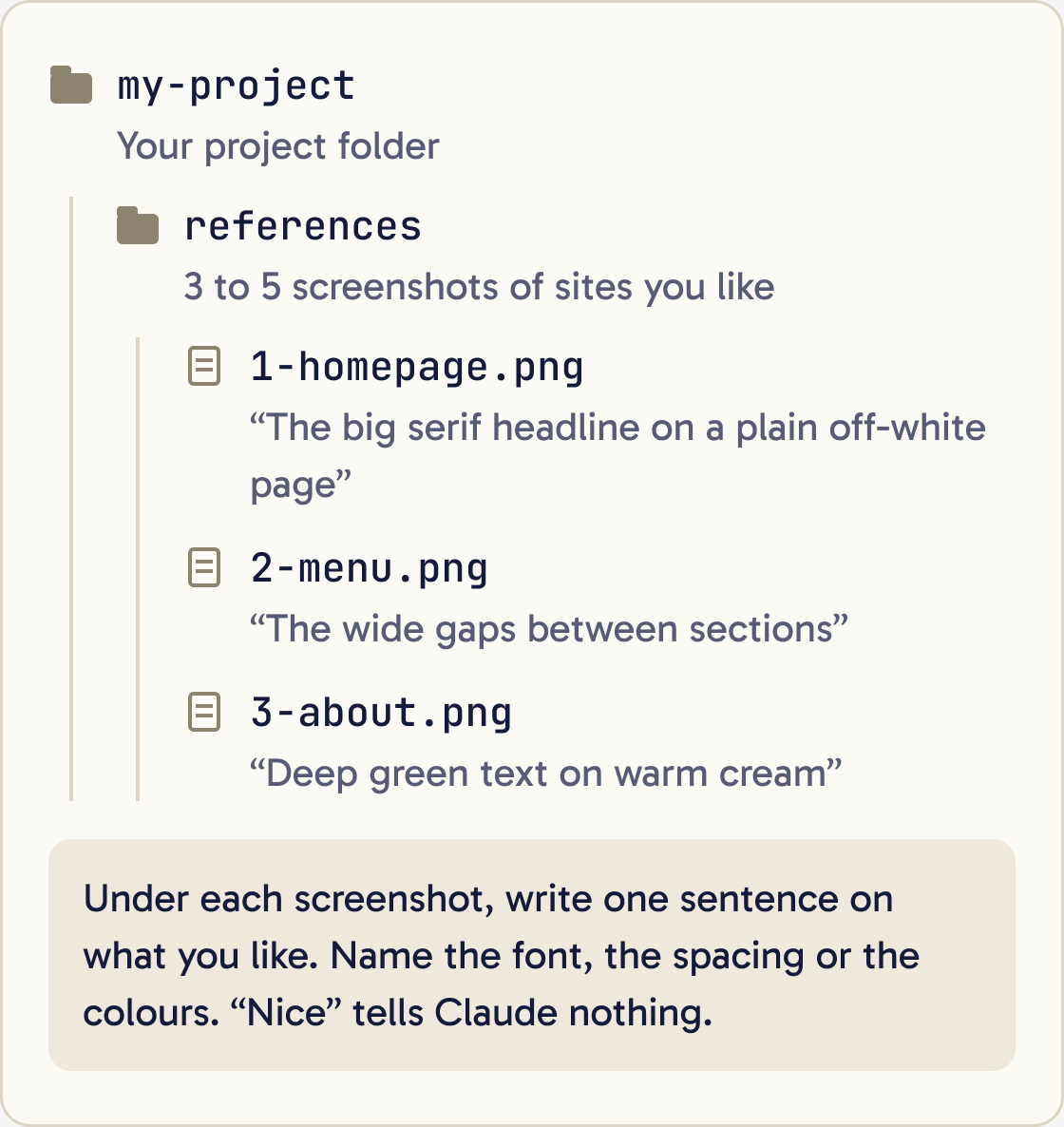
Collect 3 to 5 references you like
A reference is a screenshot of a real website or app whose look you admire. It gives Claude a concrete target, because words like modern or clean mean something different to everyone.
Look at every image in the references folder. For each one, describe the typography, colour palette, layout and spacing in plain words. Then tell me what they have in common, and suggest a direction for my site that borrows those ideas without copying any one site.Look at awwwards.com and godly.website for websites, and mobbin.com for app screens. Look at real businesses in your own field too, since their ideas often fit your subject best.
Take a screenshot of each one. On a Mac, press Shift + Cmd + 4 and drag over the area you want. On Windows, press Win + Shift + S.
Make a folder called references inside your project folder and save the screenshots there. Under each one, write one sentence on what you like, such as the font, the spacing or the colours. Be specific: 'the big serif headline on a plain off-white page' tells Claude more than 'nice'.
Step 4 of 11
Choose your fonts on purpose
Fonts set much of a page's personality. Anthropic found that when it told Claude to use more interesting fonts, the rest of the design improved too.
My project is [WHAT IT IS] for [WHO IT IS FOR]. Suggest 3 font pairings from Google Fonts or Fontshare that suit this subject. Don't suggest Inter, Roboto, Arial, Open Sans, Lato or Space Grotesk. For each pairing, give the heading font, the body font, the weights to use and one sentence on why it fits. Then build a small test page called fonts.html that shows all 3 so I can compare them in my browser.Browse free fonts at fonts.google.com or fontshare.com. Pick one or two families at most. If you use two, make them clearly different, such as a serif for headings and a plain sans serif for body text.
Use big jumps in size between headings and body text. Anthropic's guidance suggests size jumps of 3 times or more, with very light or very heavy weights.
Keep lines of body text under about 80 characters wide so they're easy to read.
Step 5 of 11
Choose your colours on purpose
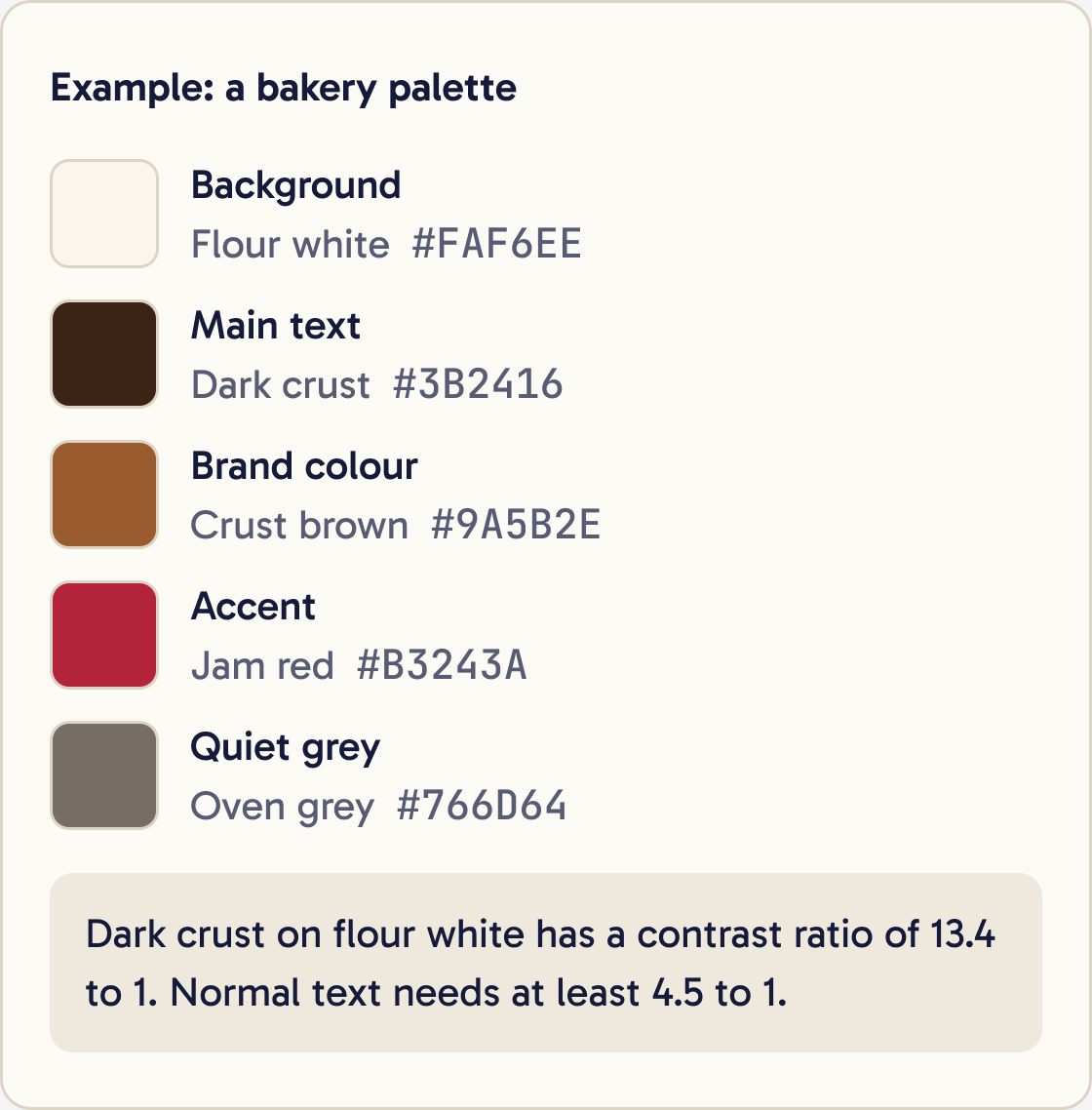
Pick a small palette of 4 to 6 colours. Give each one a name and a hex code, which is the six-character code like #1F3A2E that websites use for colours.
Using the images in the references folder and my subject, [WHAT THE SITE IS ABOUT], propose a palette of 5 colours. Give each a name, a hex code and its job (background, text, brand, accent, muted). Check every text and background pair against the WCAG contrast ratio of 4.5 to 1 and tell me the ratio for each. Avoid purple gradients on white.Anthropic's guidance says one dominant colour with a sharp accent works better than many colours used evenly. A simple set is a background, a main text colour, one brand colour, one accent and one quiet grey.
Take colours from your references or from your subject itself. A bakery might use flour white, crust brown and a jam red.
Check that text is readable. The WCAG accessibility standard asks for a contrast ratio of at least 4.5 to 1 for normal text and 3 to 1 for large text. Paste your text and background colours into webaim.org/resources/contrastchecker to test them.
Step 6 of 11
Write a short design brief
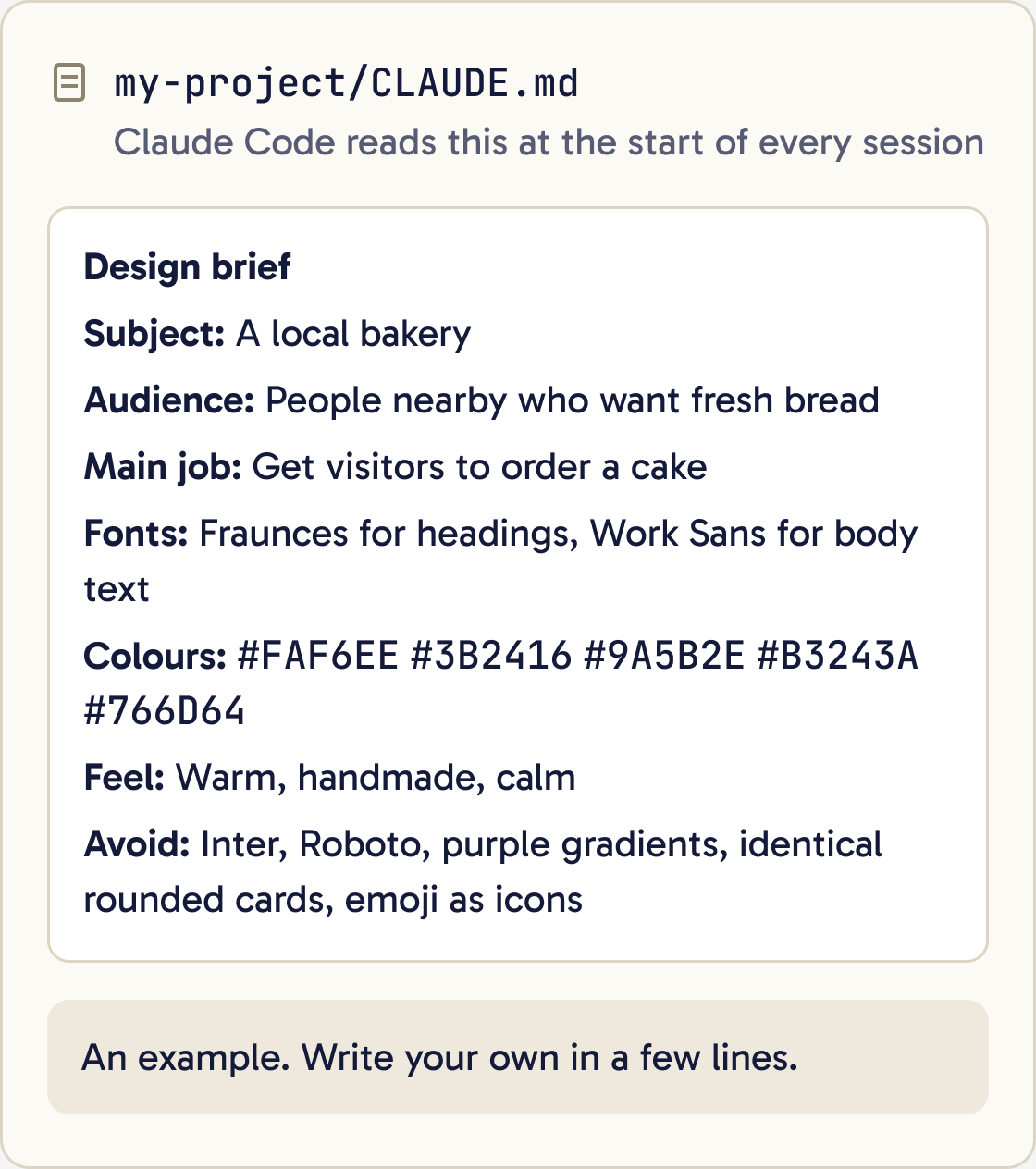
A design brief is a short note that says who the site is for, what it must do and how it should look. With one, Claude doesn't have to guess.
Interview me to write a design brief for this project. Ask me one question at a time and wait for my answer. Cover the subject, who it is for, the main thing a visitor should do, the feel I want, my chosen fonts and colours, and the references in the references folder. When we're done, write the brief into CLAUDE.md under a heading called Design brief. Keep it under 40 lines. Include a list called Avoid with the generic AI defaults we don't want.Save it in a file called CLAUDE.md in your project folder. Claude Code reads this file automatically at the start of every session, so you only write your direction once.
Keep it short. Anthropic recommends keeping CLAUDE.md under 200 lines, and a design brief needs far fewer.
Include the subject, the audience, the one main job of the page, your fonts, your colour palette with hex codes, the feel in 3 words and a list of things to avoid.
Step 7 of 11
Ask for a plan before any code
Anthropic's design skill tells Claude to work in two passes. First it writes a short plan covering colours, fonts and layout. Then it checks the plan against the brief before writing code.
Before writing any code, write a design plan for the homepage using the brief in CLAUDE.md. Include the colour palette as named hex codes, the fonts and their roles, a simple text sketch of the layout, and whether content is left aligned or centred. Then review your own plan: point out any part that looks like a generic default you would produce for any similar site, and replace it with a choice specific to this brief. Show me the final plan and wait for my go-ahead.You can ask for this directly. Reviewing a plan takes a few minutes, and undoing a finished page you dislike takes much longer.
Read the plan and push back on anything that sounds like it could belong to any website.
Step 8 of 11
Show Claude screenshots
Claude Code can see images, so a screenshot shows Claude exactly what you see.
Here is a screenshot of my page and a screenshot of a reference I like. List the 5 biggest visual differences in typography, spacing, colour and layout. Then change my page to close those gaps while keeping my own content and brand colours.To add a screenshot, drag the image file into the Claude Code window. Or copy it and paste it with Ctrl + V.
On a Mac that's Control, not Cmd, unless you use the iTerm2 app, where it's Cmd + V. On Windows, use Alt + V.
To copy a screenshot straight to the clipboard on a Mac, press Control + Shift + Cmd + 4 and drag over the area. On Windows, Win + Shift + S copies your selection.
Pair each screenshot with what's wrong and where. 'The gap between the heading and the button is too big on the right side' works better than 'fix the spacing'.
Step 9 of 11
Ask Claude to critique the design
Ask Claude to judge the page against your brief and the known giveaways. You get a list to work through one item at a time.
Act as a senior designer reviewing this homepage against the design brief in CLAUDE.md. Be blunt. Score it from 1 to 10 on typography, colour, layout, spacing and how distinctive it feels. List anything that looks like a generic AI default. Then give me the 3 changes that would improve it most, in order. Don't make any changes yet.For a more honest review, start a fresh session first. Anthropic's best practices note that a fresh session reviews better, because Claude isn't biased towards work it just did. Type /clear to start fresh.
Step 10 of 11
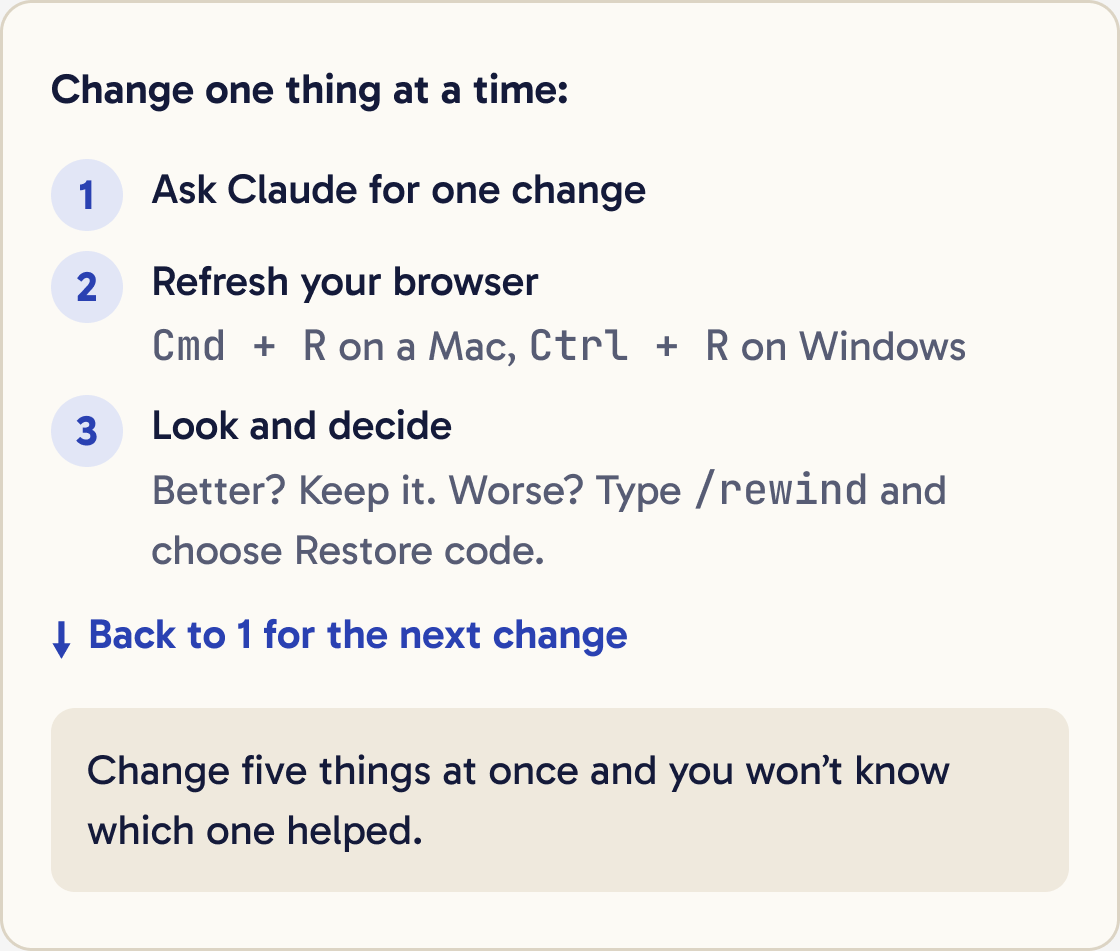
Change one thing at a time
Make one change, look at it in the browser, then decide. If you change five things at once, you won't know which one helped.
Make only this change: [ONE SPECIFIC CHANGE]. Don't touch anything else. When you're done, tell me which files you changed.Refresh your browser after each change with Cmd + R on a Mac or Ctrl + R on Windows.
If a change makes things worse, undo it. Type /rewind, or press Esc twice when your message box is empty. Pick the point before the change and choose Restore code.
Step 11 of 11
Remove one thing and check it on a phone
Anthropic's design skill tells Claude to spend its boldness in one place, and quotes Chanel's advice: before leaving the house, look in the mirror and remove one accessory. Pick one strong idea for your page and keep everything around it quiet.
Name the single most memorable element on this page. Then suggest up to 3 decorative things we could remove so that element stands out more. Explain each one and wait for me to choose.Check this page at a screen width of 375 pixels, which is a common phone size. Fix anything that overlaps, scrolls sideways, or has text smaller than 16 pixels or tap targets smaller than 44 by 44 pixels. List what you changed.Many visitors will see your site on a phone. Make your browser window narrow, or open the site on your phone, and check that nothing overlaps, spills off the side or becomes too small to tap.
Did that work?
Still stuck? Send me a DM on Instagram at @maxbuilds.ai and I'll help.
Common mistakes
- Asking for a 'modern, clean design'. Those words don't steer Claude anywhere. Give references, fonts, hex codes and a subject.
- Writing your direction in every prompt. Put it in CLAUDE.md once so every session starts with it.
- Letting Claude pick fonts with no limits. Name the fonts to avoid, or choose them yourself.
- Using emoji as icons. Ask for a proper icon set or simple shapes that match your design.
- Changing many things at once. Make one change, check it, then decide on the next.
- Skipping the phone check. Look at every page at phone width before you call it finished.
Want the next guide?
I'll email you each new guide as I share it, with new tutorials and prompts too.