Reading on your phone? Send it to your laptop.
You'll get the guide and every prompt in one email.
Guide 008
Your first website with Claude Code, from empty folder to live
You need
- A Mac with macOS 13 or later, or a PC with Windows 10 (version 1809 or later) or Windows 11
- A paid Claude plan. Pro costs $20 a month, or $17 a month billed yearly
- A free Netlify account, which you make in step 11
- About 2 hours
- Optional: from about US$10 a year for your own domain name
Step 1 of 14
Know what it costs before you start
Claude Code isn't part of Claude's free plan. The cheapest plan that includes it is Pro, at $20 a month, or $17 a month if you pay $200 for a year up front.
Max plans start at $100 a month and give 5 or 20 times the usage of Pro. These are US dollar prices, so check the price at checkout in your country.
Hosting is free. Netlify's free plan costs $0 and has hard monthly limits, so it can't charge you. You get 300 credits a month. Each time you publish an update it uses 15 credits, and visitors use more as they load your pages (20 credits per GB).
A custom domain is the only other cost, and it's optional. A domain is a web address like yourname.com. Cloudflare sells .com domains at cost, which a price tracker listed as US$10.46 a year in October 2026. Check the price before you buy.
Did that work?
Still stuck? Send me a DM on Instagram at @maxbuilds.ai and I'll help.
Step 2 of 14
Install Claude Code
The terminal is a window where you type commands to your computer.
On a Mac, press Cmd + Space, type Terminal and press Enter. On Windows, press Win + X, then choose Windows PowerShell or Terminal.
On a Mac, paste this line and press Enter:
curl -fsSL https://claude.ai/install.sh | bash
On Windows in PowerShell, paste this line and press Enter:
irm https://claude.ai/install.ps1 | iex
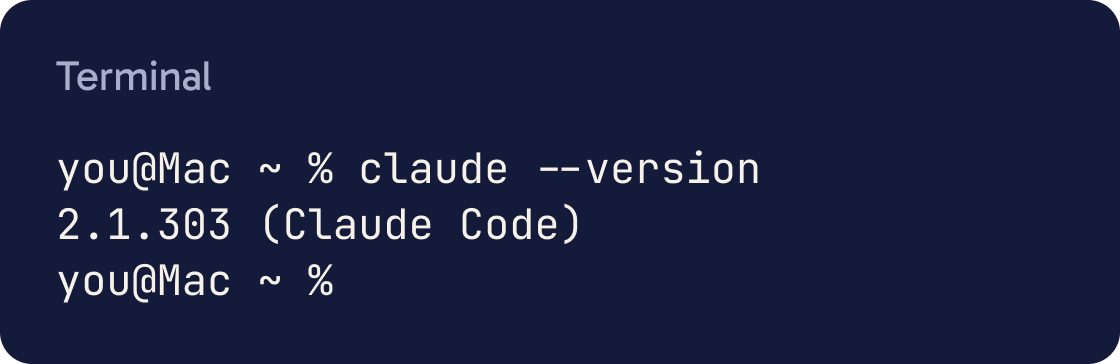
The installer shows no progress, so wait until it says Claude Code successfully installed! Then close the terminal, open a new one and type this:
claude --version
You should see a version number followed by (Claude Code). That means it worked.
Step 3 of 14
Make a folder for your website
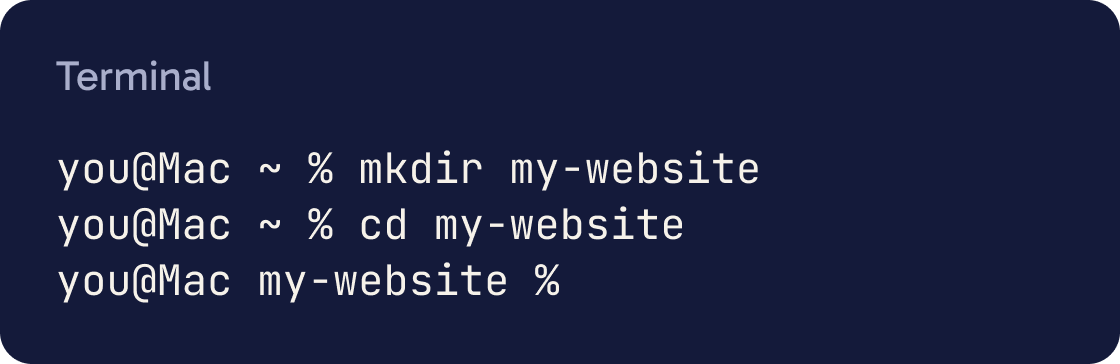
Make a folder called my-website to hold all your site's files. Type these two commands, pressing Enter after each:
mkdir my-website
cd my-website
The first command makes the folder. The second, cd, means change directory. It moves your terminal into that folder, so everything you do next happens there.
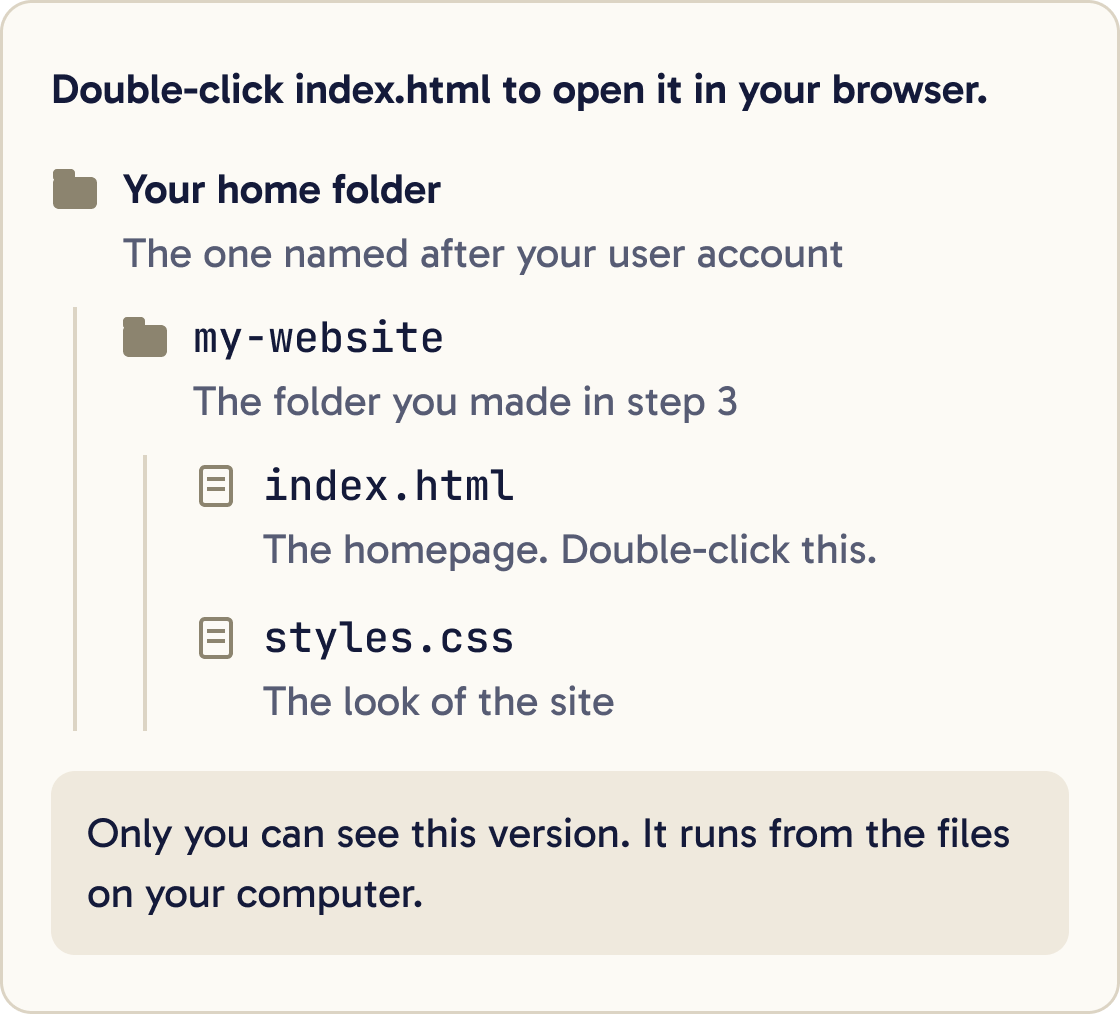
The folder lives in your home folder. On a Mac, open Finder and choose Go, then Home. On Windows, open File Explorer and go to C:, Users, then your name.
Step 4 of 14
Start Claude Code and sign in
Inside your folder, type this and press Enter:
claude
The first time, Claude Code asks you to log in. A browser window opens. Sign in with your Claude account, then go back to the terminal. You only need to do this once.
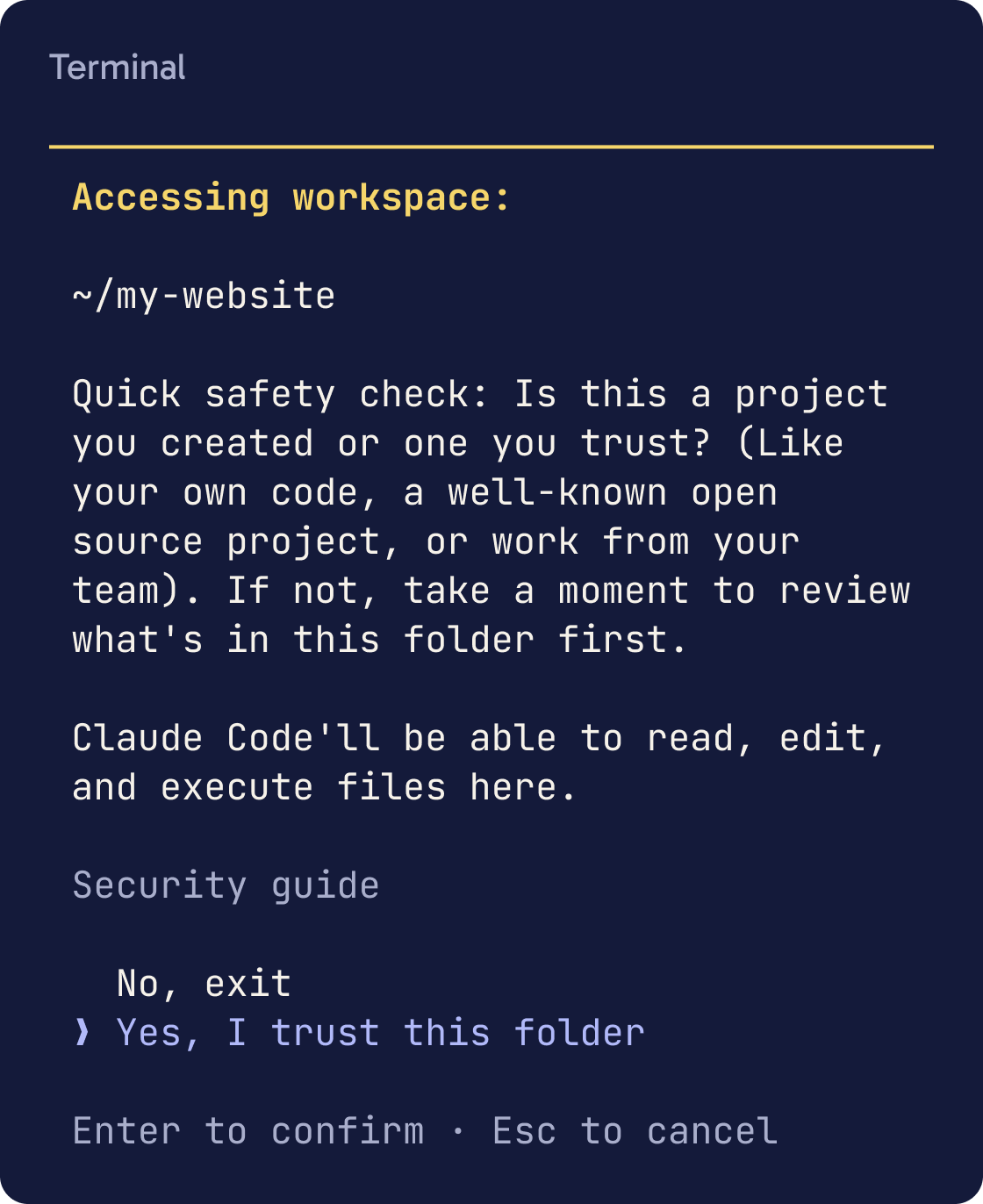
Claude Code also asks whether you trust the files in this folder. It's your own new folder, so say yes.
When you see the Claude Code prompt, you can type messages in plain English and press Enter to send them. You can't click in the terminal. Use the arrow keys to move between options.
Claude may ask before it creates files or runs a command. Read what it wants to do, and choose Yes if it matches what you asked for.
Start Claude Code inside your project folder every time. That folder is where it does its work.
Step 5 of 14
Choose the simplest setup
For a first site, use plain HTML, CSS and JavaScript. HTML holds the words and structure. CSS sets the look. JavaScript adds anything that moves or reacts to clicks.
I want to build a simple website using only plain HTML, CSS and JavaScript, with no frameworks and nothing to install. Before you write any code, ask me questions one at a time to understand what the site is for, who will visit it, which pages it needs and what each page should say. When you have enough, write a short plan with the pages, the sections on each page and the files you'll create. Wait for my approval before building.This setup needs nothing else installed. The files open in any browser, and Netlify can publish them exactly as they are.
Tools like React or Next.js are useful for bigger apps. For a site of 1 to 5 pages, they add setup steps you don't need yet.
Step 6 of 14
Build the first version
Once you approve the plan, ask Claude to build it. Claude creates files such as index.html, which is the homepage, and styles.css. When it's done, you see a list of the files it made.
Build the site from the plan we agreed. Put the homepage in index.html, the styles in styles.css and any scripts in script.js, all in this folder. Make it work on phones as well as computers. Use my real text: [PASTE YOUR TEXT OR SAY 'write sensible draft text I can edit']. When you finish, list every file you created and what it does.Write the real words you want on the site if you have them. Placeholder text makes it hard to judge the design.
To stop the site looking like every other AI-made site, give Claude fonts, colours and a reference screenshot. The design taste guide covers this.
Step 7 of 14
Preview the site on your computer
Open the my-website folder in Finder or File Explorer. Double-click index.html. It opens in your web browser.
Open index.html in my default web browser.Only you can see this version. It runs from the files on your computer and isn't online yet.
Keep the browser open. After each change Claude makes, refresh the page with Cmd + R on a Mac or Ctrl + R on Windows.
Step 8 of 14
Fix what looks off
Look at the page with fresh eyes. Note anything that looks wrong, such as text that's too small, sections squashed together or colours that clash.
Here is a screenshot of my homepage. [DESCRIBE THE PROBLEM, for example: the three boxes under the heading are squashed together and the text in them is hard to read]. Fix only this, then tell me what you changed.Check index.html, styles.css and script.js for mistakes: broken links, missing images, JavaScript errors and CSS that doesn't apply. List what you find, then fix it.A screenshot is the fastest way to show a problem. On a Mac, press Control + Shift + Cmd + 4 and drag over the problem. On Windows, press Win + Shift + S.
Paste the screenshot into Claude Code with Ctrl + V on a Mac (Control, not Cmd) or Alt + V on Windows.
Say what is wrong and where, in one or two sentences. Fix one or two things per message.
Step 9 of 14
Check it on a phone screen
Many visitors will use a phone. Drag the edge of your browser window to make it as narrow as it goes. Check that text wraps neatly, nothing runs off the side and buttons are easy to tap.
Check every page at a screen width of 375 pixels. Fix anything that overlaps, scrolls sideways or is too small to read or tap. List what you changed.You'll check it on your real phone once the site is online in step 11.
Step 10 of 14
Get it ready to publish
Before you publish, ask Claude for a final check. A title and description help your site show up properly in Google and when people share the link. A favicon is the small icon in the browser tab.
Prepare this site for publishing. Check that every page has a clear title and a meta description under 160 characters, that every image has alt text, that all links work, and that there are no spelling mistakes. Add a simple favicon. Make sure index.html is in the top level of this folder. List everything you changed.Step 11 of 14
Put it online with Netlify Drop
Netlify is a company that hosts websites. Its Drop tool publishes a folder when you drag it into your browser. You don't need Git or any commands.
First, create a free account at app.netlify.com and log in. If you drop without logging in, Netlify protects the site with a temporary password until you claim it.
Go to app.netlify.com/drop. Drag your whole my-website folder from Finder or File Explorer onto the drop zone.
After a few seconds, Netlify shows your site's address ending in netlify.app.
Netlify says new projects on its credit-based plans, which include the free plan, start private. Only you can see them. Click Make public, then open the address on your phone to check it.
Step 12 of 14
Publish updates
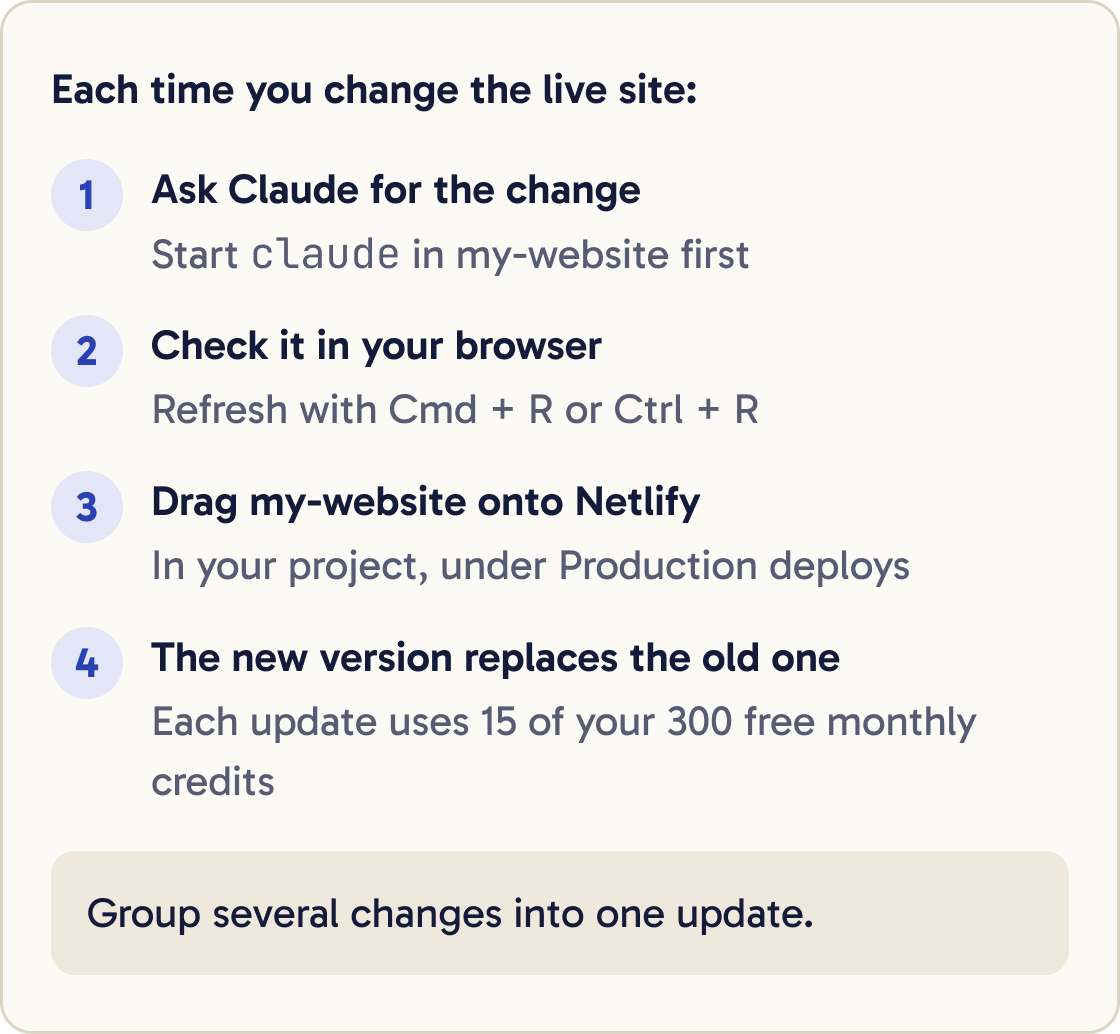
To change the live site, ask Claude to make the change, check it in your local preview, then publish the new version.
In Netlify, open your project. Under Production deploys, drag your updated my-website folder onto the drop area. The new version replaces the old one.
Each update uses 15 of your 300 free monthly credits. That's at most 20 updates a month, and fewer once visitors start using credits too. Group several changes into one update.
Step 13 of 14
Connect your own domain
This step is optional. Buy a domain from a domain seller, called a registrar, or buy one inside Netlify. Check the yearly renewal price as well as the first year price.
I bought [YOUR DOMAIN] from [REGISTRAR NAME] and want it to point to my Netlify site at [YOURSITE].netlify.app. Netlify shows these DNS records: [PASTE WHAT NETLIFY SHOWS]. Explain in simple steps where to add them in my registrar's dashboard and what each field means. Don't guess menu names you aren't sure of. Tell me to check the registrar's help pages if you're unsure.In Netlify, open your project and choose Domain management in the left sidebar. Choose Add a domain, then Add a domain you already own. Type your domain and follow the prompts.
Netlify then shows the DNS records to add at your registrar. DNS is the internet's address book. Click Pending DNS verification next to your domain to see instructions written for your domain.
For a www address, you add a CNAME record that points to your netlify.app address. For the bare domain, you add an A record pointing to 75.2.60.5, or an ALIAS record pointing to apex-loadbalancer.netlify.com if your registrar offers it.
Netlify says changes can take a full day to work everywhere. Netlify then adds HTTPS for free, which gives your site the padlock in the browser. When it worked, your domain opens your site.
Step 14 of 14
Know when to use Vercel
Vercel is another popular host. Its free Hobby plan is for personal, non-commercial projects only, so a business site needs a paid Vercel plan.
Netlify's pricing page doesn't list a non-commercial rule for its free plan. Check Netlify's terms if your site is for a business.
Did that work?
Still stuck? Send me a DM on Instagram at @maxbuilds.ai and I'll help.
Common mistakes
- Starting Claude Code in your home folder. `cd` into your project folder first, so Claude works only on that project.
- Asking for a framework on day one. Plain HTML, CSS and JavaScript is enough for a first site and publishes with a simple drag.
- Dragging the wrong folder to Netlify. Drag the folder that directly contains index.html.
- Forgetting to make the project public. If friends see a login screen, click Make public in Netlify.
- Publishing every tiny change. Each update uses 15 free credits, so group changes together.
- Judging the site only on a computer. Check it on your phone before you share the link.
Want the next guide?
I'll email you each new guide as I share it, with new tutorials and prompts too.