Reading on your phone? Send it to your laptop.
You'll get the guide and every prompt in one email.
Guide 007
Git and GitHub with Claude Code, so you can undo anything
You need
- A Mac or Windows computer
- Claude Code installed and signed in (type `claude` in a terminal and it opens)
- A project folder, even one with a single file in it
- For the GitHub steps: a free account at github.com
Step 1 of 13
Know what git and GitHub are
Git is free software that keeps a history of your project. Each time you save a snapshot, git records every file exactly as it was. That snapshot is called a commit.
A repository, or repo, is a project folder that git is tracking. Git keeps the history in a hidden folder called .git inside it.
GitHub is a website that stores a copy of your repo online. It works as a backup, and it's how people share code. Git works without GitHub, so you can stop at step 11 if you like.
Once you've made a commit, you can go back to it whatever Claude changes later.
Did that work?
Still stuck? Send me a DM on Instagram at @maxbuilds.ai and I'll help.
Step 2 of 13
Check whether git is installed
Open a terminal. On a Mac, press Cmd + Space, type Terminal and press Enter. On Windows, open the Start menu, type PowerShell and press Enter. Then type:
git --version
If you see something like git version 2.50.1, git is installed. Skip to step 3.
On a Mac without git, run the command below and click Install in the window that opens. It installs Apple's Command Line Tools, which include git.
xcode-select --install
On Windows, download Git for Windows from git-scm.com/install/windows and run the installer with its default options. Claude Code also uses the Git Bash program it installs to run commands. Open a new terminal and run git --version again to check.
Step 3 of 13
Tell git who you are
Git puts your name and email on every commit. Set them once per computer, using the email you'll use for GitHub.
git config --global user.name "Your Name"
git config --global user.email you@example.com
Nothing prints when it works. Run git config --list and you'll see your name and email in the list.
Step 4 of 13
Turn your folder into a repo
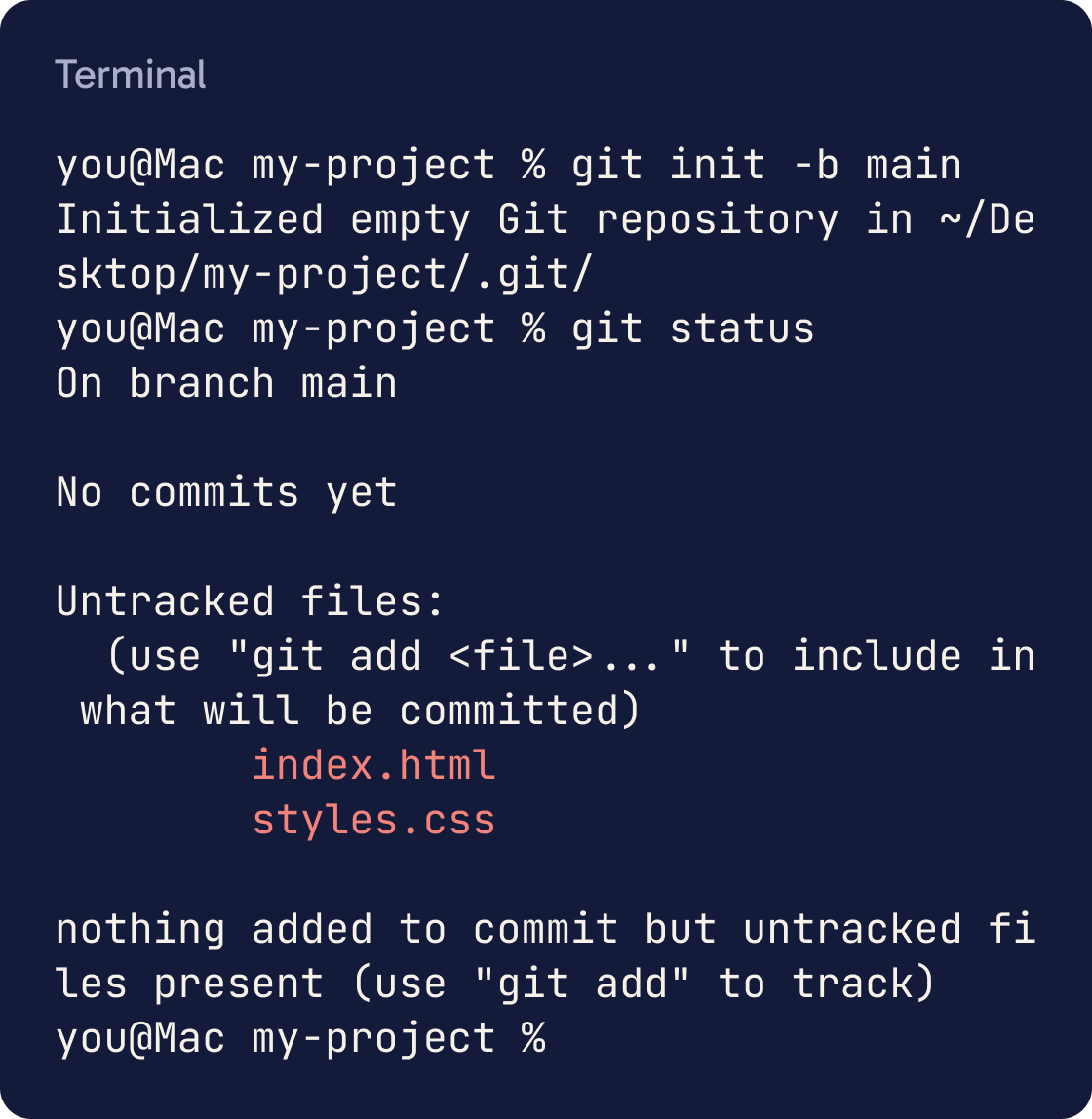
Move into your project folder. For a folder called my-project on your Desktop:
Check whether this folder is a git repository. If it isn't, run git init -b main. Then run git status and explain the result to me in plain English.cd ~/Desktop/my-project
Then start git there. The -b main part names your main line of work main.
git init -b main
You should see Initialized empty Git repository. Now check what git sees:
git status
Your files show as untracked. That means git can see them but hasn't saved them yet.
Step 5 of 13
List the files git must never save
Some files should never go into git. Secret files such as .env hold passwords and keys. Folders such as node_modules are huge, and your tools can rebuild them.
Create a .gitignore for this project. Look at what's in the folder and which tools it uses. Always include .env and .env.* and anything that holds secrets or can be rebuilt, such as node_modules. Explain each line in a few words. Then run git status and confirm no secret files are listed.List them in a file called .gitignore in your project folder, one per line, and git skips them. Do this before your first commit.
A simple .gitignore for most beginner projects has these four lines:
.env
.env.*
node_modules/
.DS_Store
Run git status again. The ignored files no longer appear.
Step 6 of 13
Make your first commit
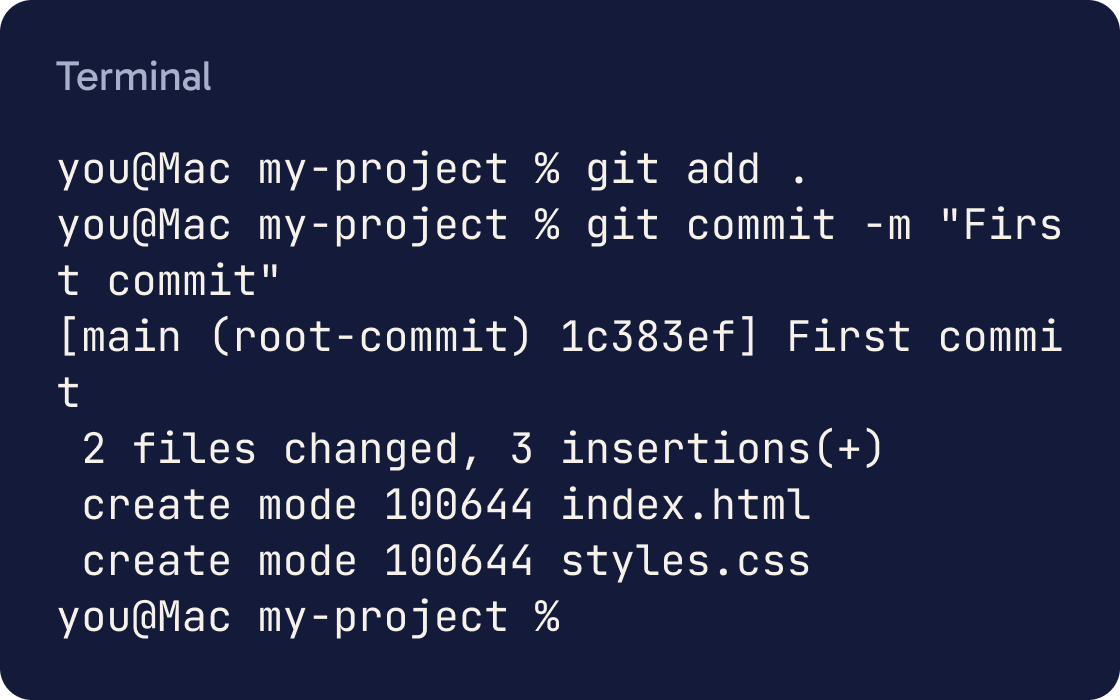
A commit takes two commands. git add . picks every changed file for the snapshot, and the full stop means everything in this folder. git commit saves the snapshot with a message.
git add .
git commit -m "First commit"
You should see a line with your message and a count of files changed. Your project now has its first save point.
Include -m and a message every time. Without it, git opens a text editor in the terminal, which is confusing the first time.
Step 7 of 13
Ask Claude to commit for you
Claude Code can run git for you. Start claude in your project and ask in plain words. Claude reads the changes and writes the commit message.
Look at my changes with git status and git diff. Commit them with a short message that says what changed and why. Don't commit .env or any file with secrets. Show me the commit when you're done.Before you change anything, commit my current work with the message "save point before redesign". Then tell me the commit ID.In manual mode, Claude asks before it runs git commit. Read the command and the message, then choose Yes.
Commit before you ask Claude for a big change, and again when it works.
Step 8 of 13
See your history
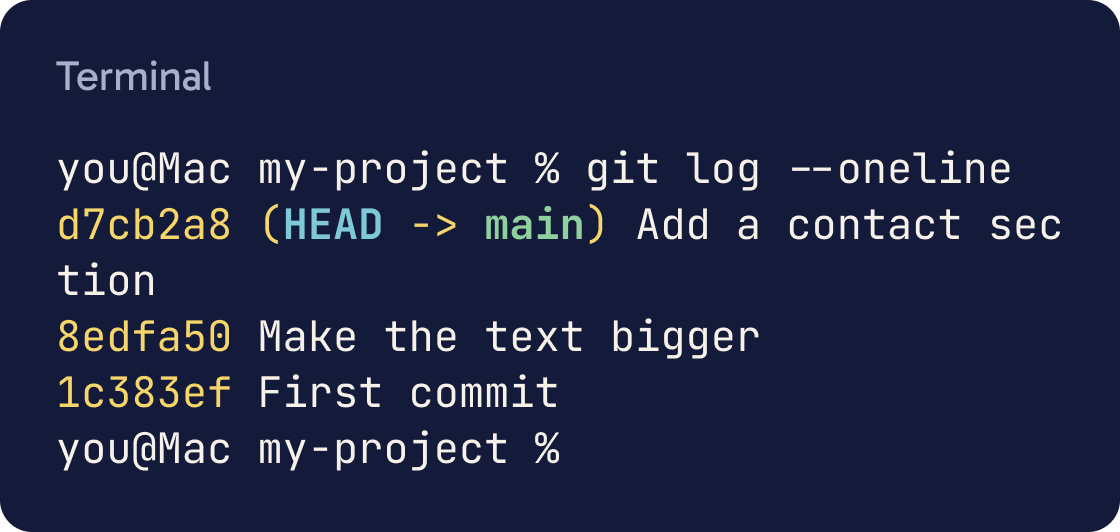
git log --oneline shows one line per commit, newest first. The code at the start, such as a1b2c3d, is the commit ID. You use it to go back.
Run git log --oneline -20 and explain in plain English what happened in this project, newest first.git status shows what has changed since your last commit.
git diff shows the exact lines that changed. Press q to leave the view.
Step 9 of 13
Undo changes you haven't committed
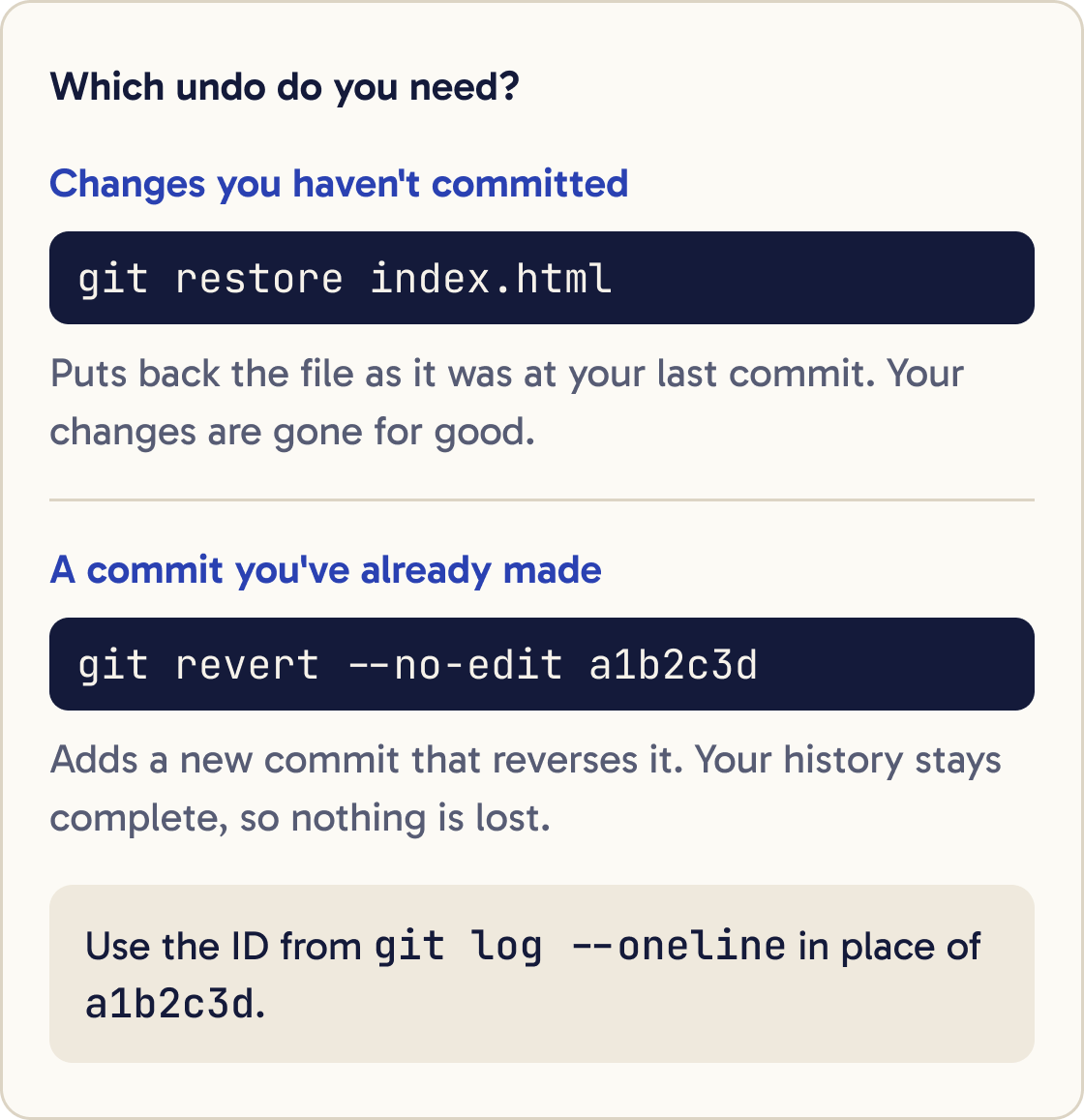
To throw away your changes to one file and put back its last committed version:
Show me what changed since my last commit with git status and git diff. Then explain what reverting would remove. Wait for me to say yes before you run git restore.git restore index.html
To throw away all uncommitted changes to tracked files in the folder:
git restore .
These changes are gone for good, so be careful. New files that git has never saved stay where they are.
Step 10 of 13
Go back to before a commit
To undo a commit you've already made, use git revert with its ID from git log --oneline. Git makes a new commit that reverses it, so your history stays complete and nothing is lost.
The site worked before my last few changes. Show me git log --oneline -10 and help me find the last commit where it worked. Then undo the later commits with git revert so no history is lost. Explain each command before you run it.git revert --no-edit a1b2c3d
--no-edit keeps git's standard message so no editor opens. Run git log --oneline and you'll see a new commit starting with Revert.
Git needs a clean folder for this. Commit or restore any open changes first.
Step 11 of 13
Try ideas on a branch
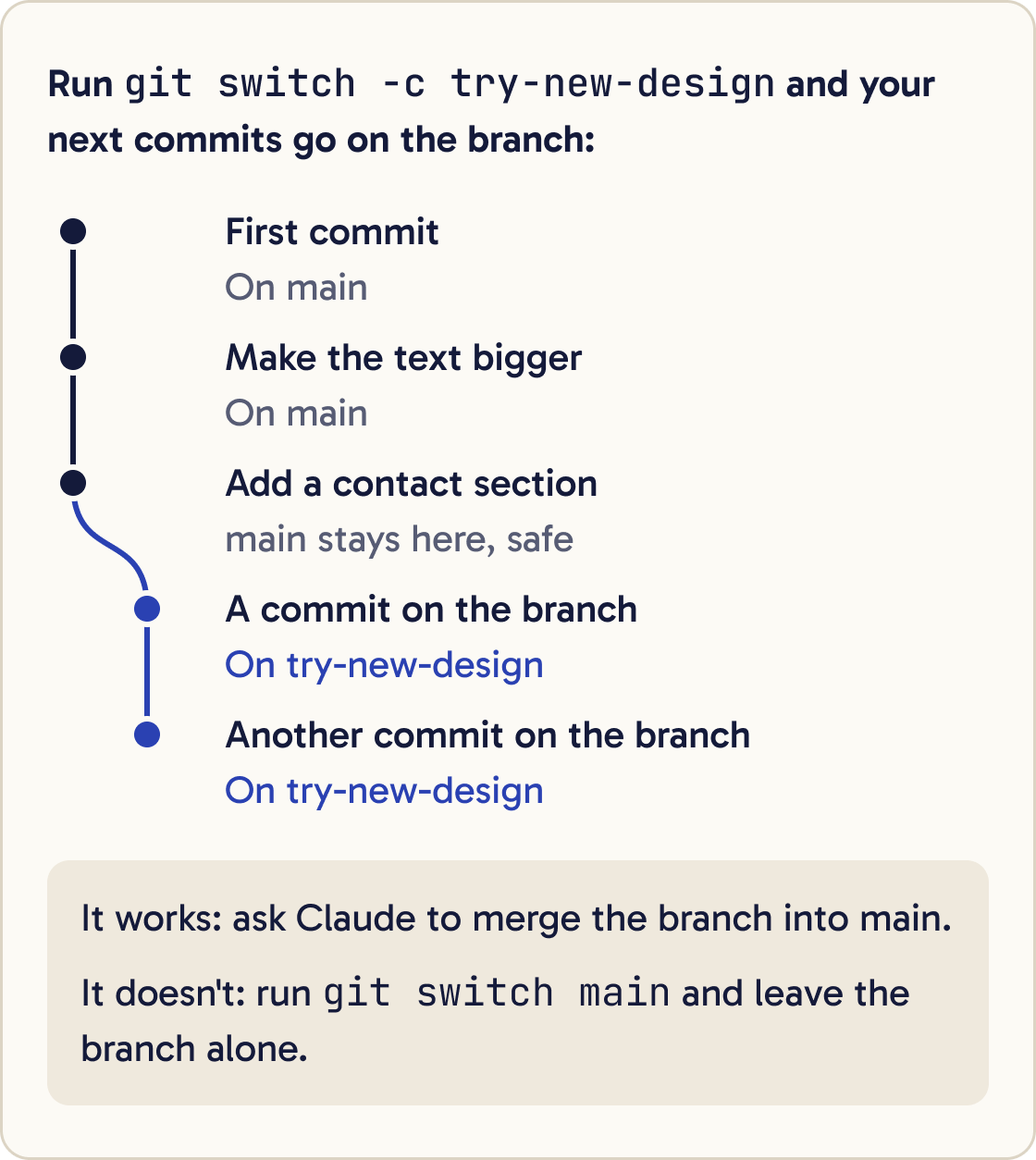
A branch is a separate line of commits. You can try an idea there and leave main as it is. Make a branch and move onto it with:
Create a new branch called try-new-design and switch to it. Make the change there and commit it. Don't touch main.git switch -c try-new-design
Commit on the branch as usual. To go back to your safe version, run git switch main.
If the idea works, ask Claude to merge the branch into main. If it doesn't, switch back to main and leave the branch alone.
Step 12 of 13
Put your project on GitHub
First install the GitHub CLI, a tool that connects your terminal to GitHub. On a Mac with Homebrew, run brew install gh. On Windows, run winget install --id GitHub.cli --source winget. You can also download an installer from cli.github.com.
Commit any changes I haven't committed yet with a clear message, then push to GitHub. Tell me if anything that looks like a secret is about to be uploaded and stop if so.Sign in. Pick GitHub.com and HTTPS when asked, and finish the sign-in in your browser:
gh auth login
Then, in your project folder, create a private repo on GitHub with the same name as your folder and upload your commits:
gh repo create --source=. --private --push
Open github.com and you'll see your project. Private means only you can see it.
Step 13 of 13
Fix it if you committed a secret file
If .env or a key went into a commit, act in this order.
Before I push, check every file git is tracking for anything that looks like a password, API key or token. List each file and line. Don't print the secret itself.First, revoke the key and make a new one in the service that issued it. GitHub advises doing this first, because someone may already have copied the old key.
Second, stop git tracking the file, keep it on your computer, and add it to .gitignore:
git rm --cached .env
Then commit that change. The file stays in older commits, which is why the new key matters.
Removing it from history completely is an advanced job. GitHub's guide called Removing sensitive data from a repository covers it.
Did that work?
Still stuck? Send me a DM on Instagram at @maxbuilds.ai and I'll help.
Common mistakes
- Committing `.env` or other secret files. Create `.gitignore` before your first commit, and check `git status` before every commit.
- Waiting too long between commits. Commit each time something works, so you always have a recent save point.
- Running `git init` in your home folder. `cd` into the project folder first.
- Forgetting `-m` and getting stuck in an editor. Press Esc, type `:q!`, press Enter, and commit again with `-m`.
- Running `git restore .` when you wanted to keep the work. Commit first if you're unsure, then use `git revert`.
- Making the GitHub repo public by accident. Use `--private` unless you want everyone to see it.
Want the next guide?
I'll email you each new guide as I share it, with new tutorials and prompts too.