Reading on your phone? Send it to your laptop.
You'll get the guide and every prompt in one email.
Guide 001
Install Claude Code on Mac or Windows from zero
You need
- A Mac with macOS 13 or later, or a Windows 10 (version 1809 or later) or Windows 11 PC
- At least 4 GB of memory (RAM)
- An internet connection
- A paid Claude plan: Pro, Max, Team or Enterprise. The free plan doesn't include Claude Code
- To live in a country Anthropic supports (listed at anthropic.com/supported-countries)
Step 1 of 17
Pick how you want to use Claude Code
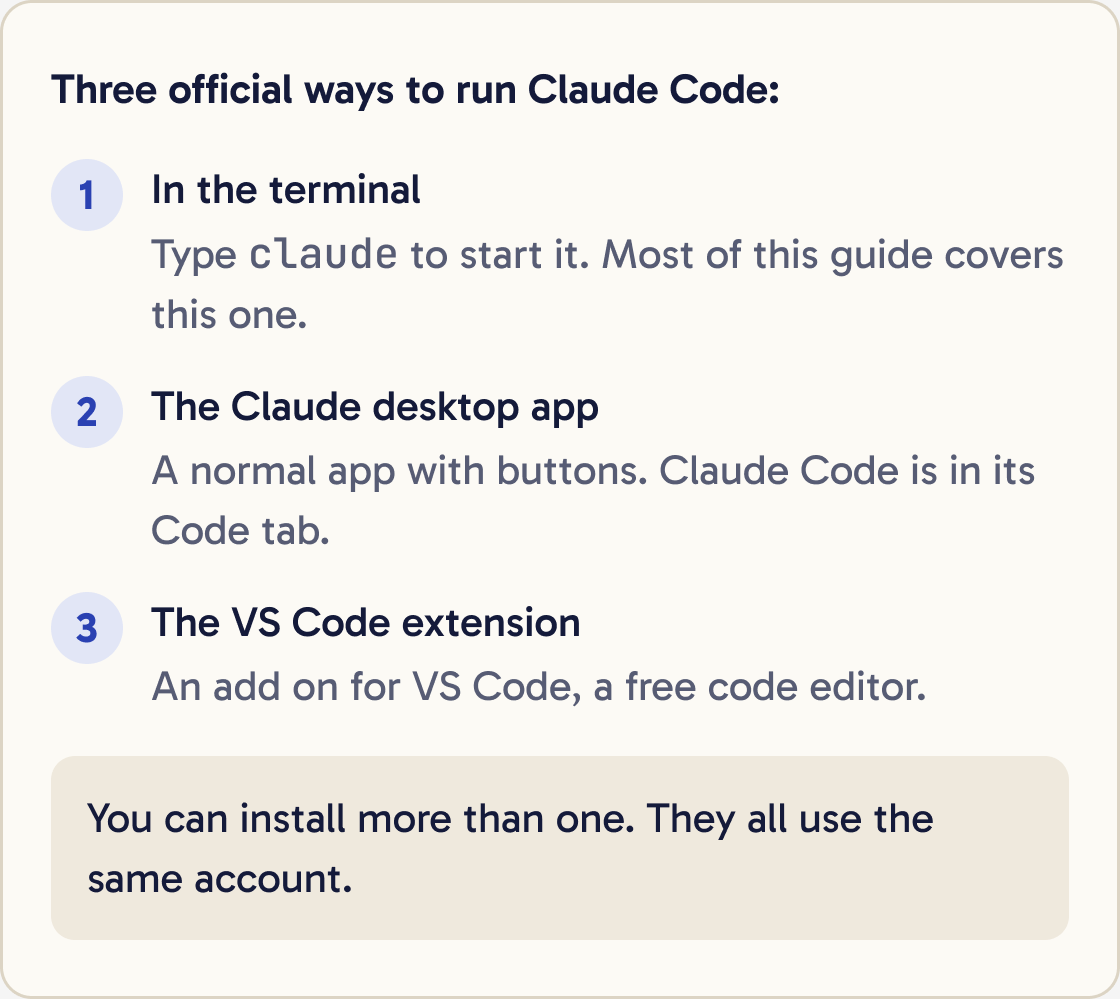
You can run Claude Code on your own computer in three official ways.
The terminal version is called the CLI (short for command line interface). A terminal is a text window where you type commands, and you start Claude Code by typing claude. Most of this guide covers this version.
The Claude desktop app is a normal app with buttons, and it includes Claude Code. See the desktop app step below.
The VS Code extension is an add on for VS Code, a free code editor. See the editor step below.
You can install more than one. They all use the same account.
Did that work?
Still stuck? Send me a DM on Instagram at @maxbuilds.ai and I'll help.
Step 2 of 17
Mac: open Terminal
Press Cmd + Space to open Spotlight. Type Terminal and press Enter.
A window opens with a blinking cursor. This is where you type commands.
Step 3 of 17
Mac: run the installer
Copy this line, paste it into Terminal with Cmd + V and press Enter:
curl -fsSL https://claude.ai/install.sh | bash
This downloads the official installer from claude.ai and runs it. It shows no progress bar, so leave the window open and wait.
When it finishes you'll see Claude Code successfully installed!
Step 4 of 17
Mac: check it worked
Close the Terminal window and open a new one. A new window picks up the new install.
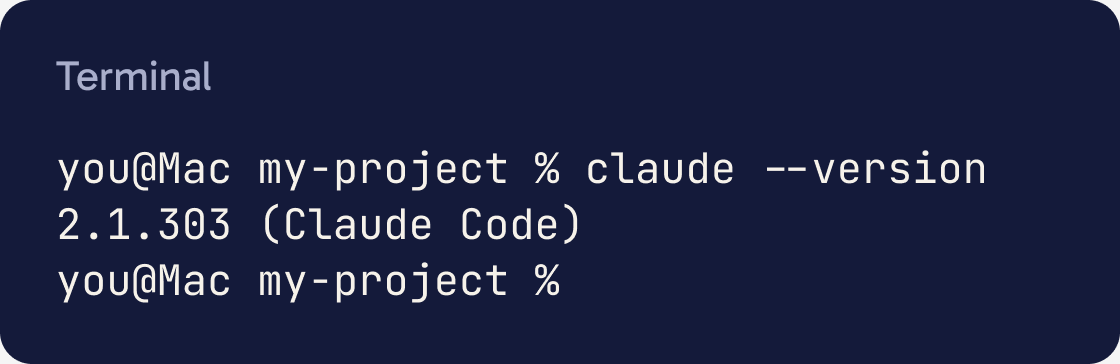
Type this and press Enter:
claude --version
You should see a version number followed by (Claude Code), for example 2.1.211 (Claude Code). Your number will be newer.
Step 5 of 17
Mac: the Homebrew option
Homebrew is a free tool for installing Mac apps from the terminal. Use this if you already have Homebrew, or if the main installer keeps failing.
brew install --cask claude-code
When it worked, the last lines say claude-code was successfully installed. Then check it with claude --version in a new window.
A Homebrew install doesn't update itself by default. To update it later, run:
brew upgrade claude-code
Step 6 of 17
Windows: install Git for Windows (optional)
Git for Windows is a free tool that gives Claude Code another way to run commands. It's optional, and Anthropic recommends it. Without it, Claude Code runs commands in PowerShell.
Go to git-scm.com/downloads/win, download the installer and run it.
Click Next on every screen to keep the defaults. When you see Adjusting your PATH environment, keep the recommended option.
Step 7 of 17
Windows: open PowerShell
PowerShell is the terminal built into Windows.
Press Win + X and choose Windows PowerShell or Terminal.
Check the start of the line. PowerShell shows PS C:\Users\YourName>. If you see C:\Users\YourName> with no PS, you're in CMD, the older Windows terminal.
Step 8 of 17
Windows: run the installer
In PowerShell, paste this line with Ctrl + V or a right click, then press Enter:
irm https://claude.ai/install.ps1 | iex
irm downloads the official installer and iex runs it. It shows no progress, so wait.
When it finishes you'll see Claude Code successfully installed!
If you're in CMD, use this line:
curl -fsSL https://claude.ai/install.cmd -o install.cmd && install.cmd && del install.cmd
Step 9 of 17
Windows: check it worked
Close PowerShell and open a new window. Then run:
claude --version
You should see a version number followed by (Claude Code).
Step 10 of 17
Windows: the WinGet option
WinGet is the app installer built into recent Windows. Use it if the main installer keeps failing.
winget install Anthropic.ClaudeCode
When it worked, WinGet says Successfully installed. Open a new PowerShell window and run claude --version.
A WinGet install doesn't update itself by default. To update it later, run:
winget upgrade Anthropic.ClaudeCode
Step 11 of 17
Run it for the first time in a project folder
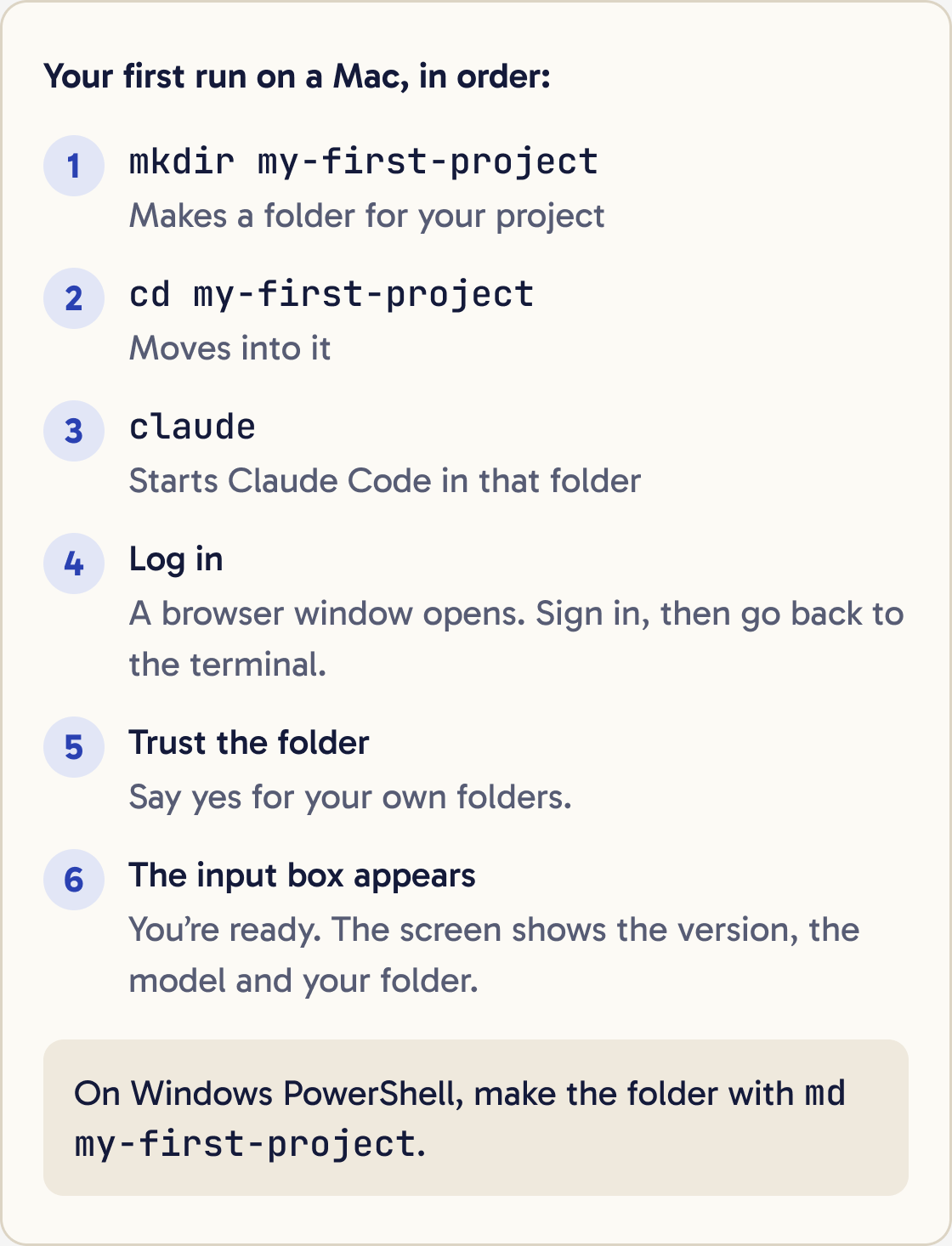
Claude Code works on the folder you start it in. Make a folder for your project and start Claude there.
Say hello and tell me which folder you're working in.On a Mac, run each line and press Enter after each:
mkdir my-first-project
cd my-first-project
claude
On Windows PowerShell, run:
md my-first-project
cd my-first-project
claude
Claude Code asks you to log in. A browser window opens. Sign in with your Claude account and follow the on screen steps. Then go back to the terminal.
Claude Code also asks whether you trust the files in this folder. Say yes for your own folders.
When the input box appears, you're ready. The screen shows the version, the model and your folder.
Step 12 of 17
Fix login problems
Most login problems go away if you log out and log in again.
Inside Claude Code type /logout and press Enter. Close Claude Code, run claude again and log in.
Step 13 of 17
Run a health check
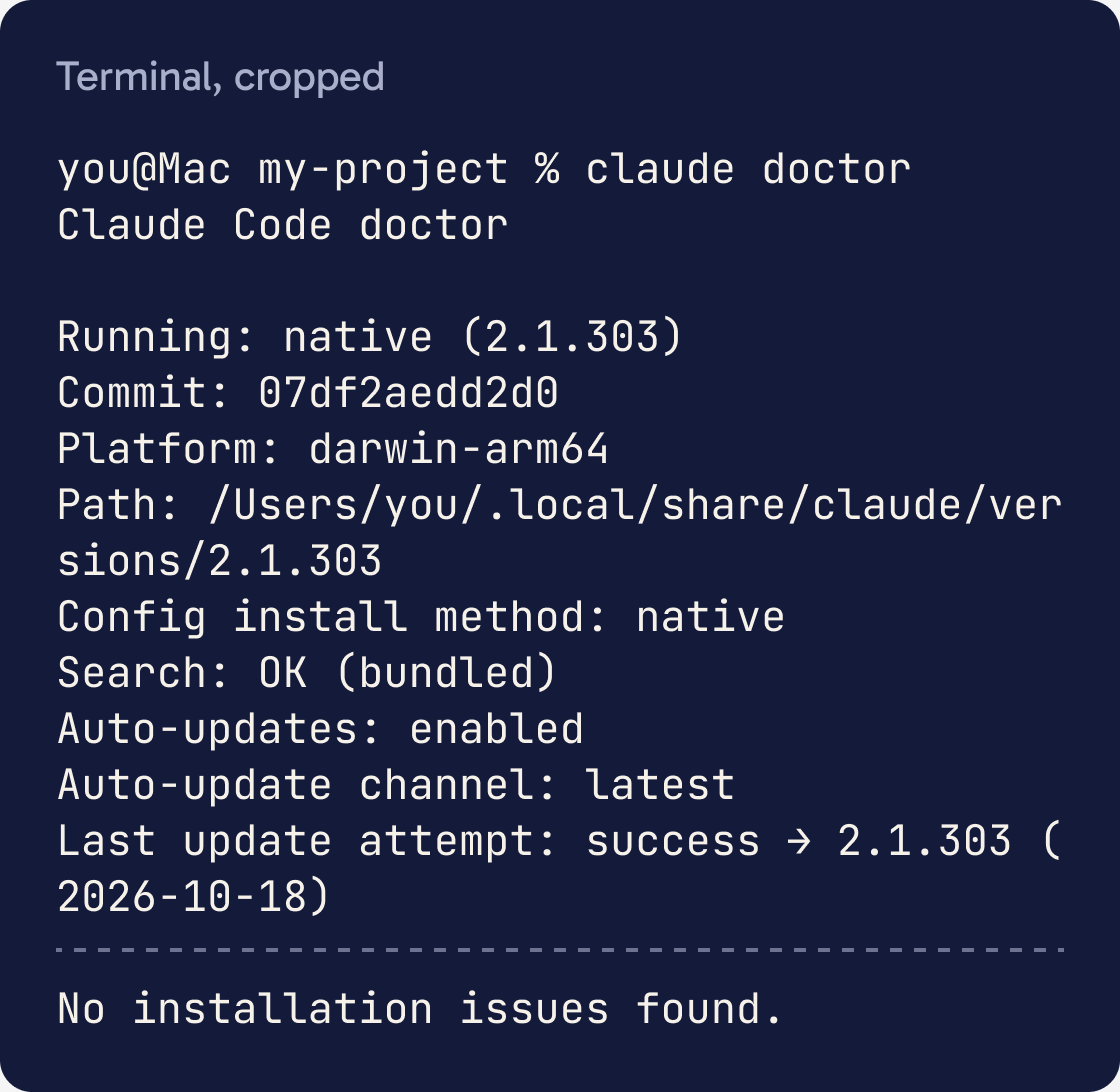
Run this to check your install and settings without starting a session:
claude doctor
It lists any problems and suggests fixes. Run it when something seems wrong.
Step 14 of 17
Keep it updated
If you used the main installer, Claude Code updates itself in the background. The new version starts the next time you open it.
To update straight away, run:
claude update
It says Successfully updated, or Claude Code is up to date.
Homebrew and WinGet installs don't update themselves by default. Use brew upgrade claude-code or winget upgrade Anthropic.ClaudeCode.
Step 15 of 17
The desktop app option
Download the Claude desktop app for Mac or Windows if you prefer buttons to typing. The download links are on the desktop quickstart page at code.claude.com/docs.
Install it, open Claude and sign in. Click the Code tab at the top.
Choose Local, click Select folder and pick your project folder. Then type what you want in the box.
The app includes Claude Code, so you don't need the terminal install for it.
Step 16 of 17
The VS Code and JetBrains options
VS Code is a free code editor. To add Claude Code, open VS Code and press Cmd + Shift + X on a Mac or Ctrl + Shift + X on Windows. Search for Claude Code and click Install.
Open a file, then click the Spark icon at the top right of the editor to open Claude.
The extension has its own copy of Claude Code. To type claude in VS Code's built in terminal, you also need the terminal install from this guide.
JetBrains editors such as PyCharm have a Claude Code plugin in the JetBrains Marketplace. It needs the terminal install too.
Step 17 of 17
Uninstall Claude Code
If you used the main installer on a Mac, run these two lines:
rm -f ~/.local/bin/claude
rm -rf ~/.local/share/claude
If you used the main installer on Windows, run these two lines in PowerShell:
Remove-Item -Path "$env:USERPROFILE\.local\bin\claude.exe" -Force
Remove-Item -Path "$env:USERPROFILE\.local\share\claude" -Recurse -Force
Homebrew: brew uninstall --cask claude-code. WinGet: winget uninstall Anthropic.ClaudeCode.
These lines remove the program. Your settings and saved conversations stay.
Did that work?
Still stuck? Send me a DM on Instagram at @maxbuilds.ai and I'll help.
Common mistakes
- Pasting the Mac command into Windows, or the PowerShell command into CMD. Check which terminal you're in first.
- Testing in the same window you installed from. Open a new terminal window before you run claude --version.
- Installing two ways at once, such as the main installer and Homebrew. Pick one method.
- Running Claude Code in your home folder. Make a project folder and start it there.
- Logging in with a free account. Subscribe to Pro or higher first.
- Leaving an old ANTHROPIC_API_KEY set on your computer. Claude Code will use it and charge that account.
Want the next guide?
I'll email you each new guide as I share it, with new tutorials and prompts too.