Reading on your phone? Send it to your laptop.
You'll get the guide and every prompt in one email.
Guide 019
Run more than one Claude at once
You need
- Claude Code installed and signed in (type `claude` in the terminal and it opens)
- A project that uses git with at least one commit (see the Git guide)
- Comfort with the basics: starting `claude`, approving prompts, making a commit
Step 1 of 14
Know why you'd run more than one
Each Claude Code session works on one conversation at a time. While it works on a long job, you wait.
With two sessions, one can build a new page while the other fixes a bug. You check in on each when it needs you.
Each session uses your plan's allowance on its own. Two sessions use it roughly twice as fast as one.
Did that work?
Still stuck? Send me a DM on Instagram at @maxbuilds.ai and I'll help.
Step 2 of 14
Understand the clash problem
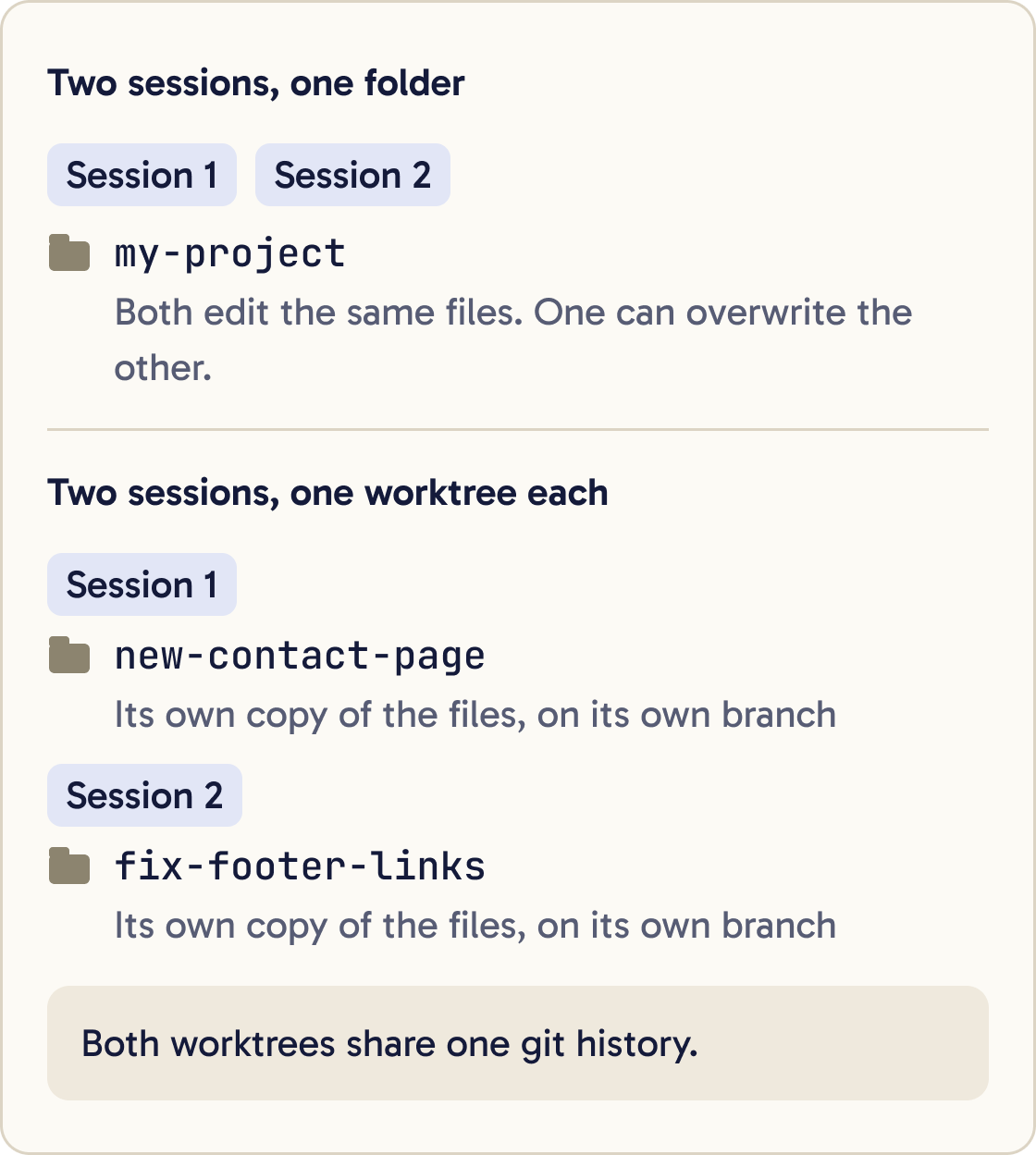
If two sessions work in the same folder, they edit the same files. One can overwrite the other's work, or break it halfway through.
Give each session its own copy of the project to stop this. Git worktrees do that for you.
Step 3 of 14
Learn what a worktree is
A worktree is a second working folder for the same git project. It has its own copy of the files and its own branch. A branch is a separate line of commits.
All your worktrees share one history. A commit made in any of them is saved in the same project.
Session one edits its folder and session two edits its folder, so neither can touch the other's files. When each job is done, you merge the branches back into main.
Step 4 of 14
Get your project ready
Your project must be a git repository with at least one commit. Check with this command:
Check this project is ready for parallel worktree sessions. Confirm it's a git repo with at least one commit. Commit any uncommitted work with a clear message. Add .claude/worktrees/ to .gitignore if it isn't there, and commit that too.git log --oneline
If you see at least one line, you're ready. Commit any open work now.
A new worktree starts from your main branch. If your project is on GitHub, it starts from the GitHub copy, so push your latest commits first.
Then run claude once in your project folder and accept the question about trusting the folder. Worktree sessions need that trust first.
Step 5 of 14
Start your first session in a worktree
In the terminal, move into your project folder. Start Claude with --worktree and a short name for the job:
Build a contact page with a name, email and message field. Match the style of the existing pages. When it works, commit it on this branch with a clear message and tell me the branch name.claude --worktree new-contact-page
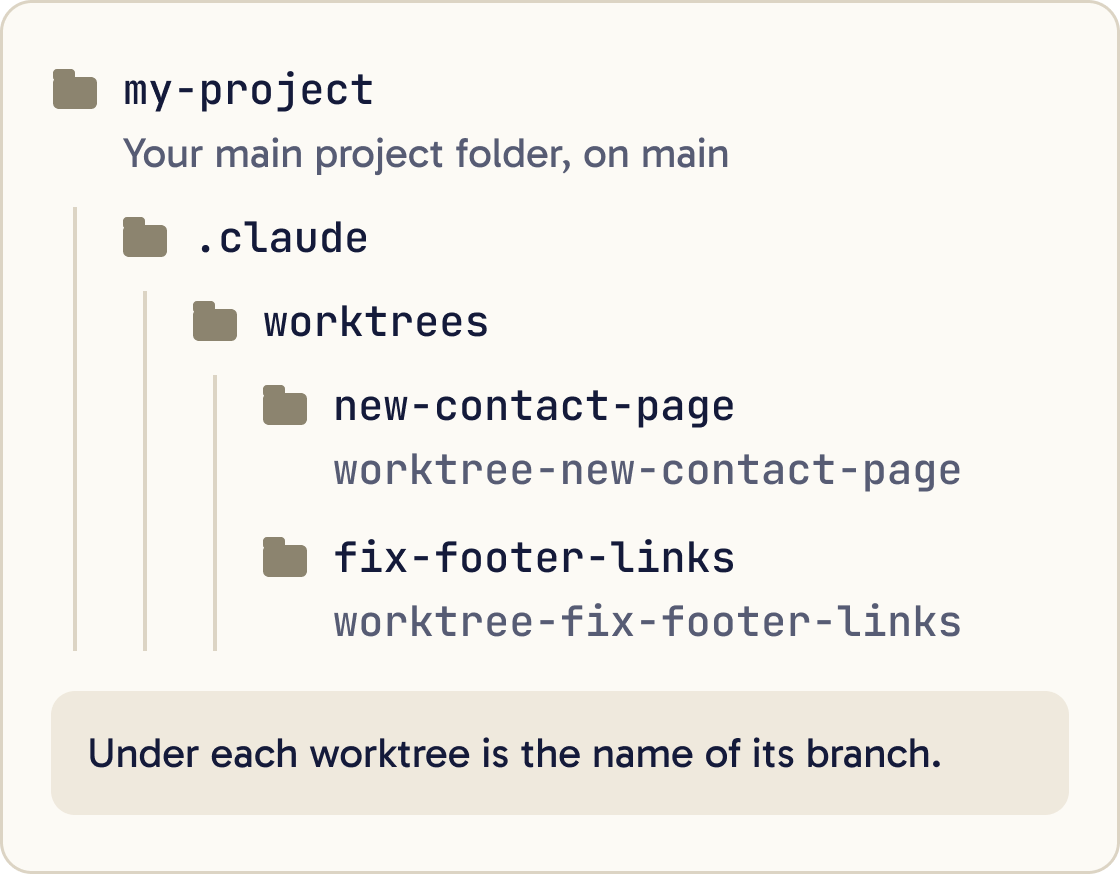
Claude Code makes a folder at .claude/worktrees/new-contact-page and a branch called worktree-new-contact-page. The session works only in that folder.
Give it its task as usual.
Step 6 of 14
Start a second session alongside it
Open a second terminal window. On a Mac, press Cmd and N in Terminal. On Windows, open another PowerShell window.
Find and fix every broken link in the footer. Don't change anything outside the footer. Commit the fix on this branch and tell me the branch name.Move into the same project folder and start a session with a different name:
claude --worktree fix-footer-links
You now have two Claudes, each in its own folder on its own branch. Switch between the windows to check on each one.
Step 7 of 14
Set up each worktree so the project runs
A worktree is a fresh copy of the files git tracks. Files git ignores, such as .env and node_modules, aren't there.
This is a fresh worktree. Install the project's dependencies and check the project starts. Tell me if any file it needs, such as .env, is missing. Don't create secret values yourself.Ask Claude in each worktree to install what the project needs, for example with npm install.
To copy .env into every new worktree for you, make a file called .worktreeinclude in your project's top folder. List the files on separate lines, such as .env and .env.local. Claude Code only copies files that git ignores.
Step 8 of 14
Bring the work back into main
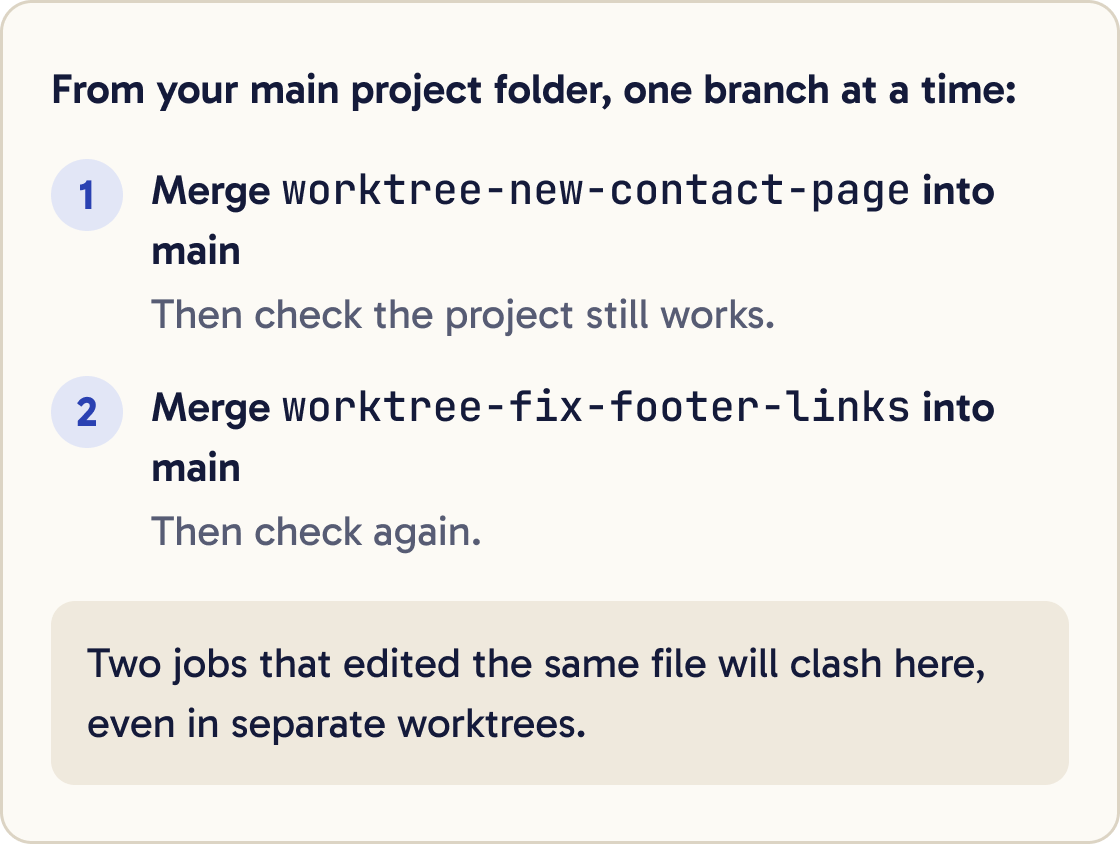
When a session has committed its work, merge its branch into main. Do one branch at a time.
Merge the branch worktree-new-contact-page into main. Check the project still works. Then merge worktree-fix-footer-links into main and check again. If git reports a conflict, stop and explain it to me in plain English before you change anything.Open the terminal in your main project folder, the one you started from, and run claude there. Ask it to merge the first branch, check the project still works, then merge the next one.
If you use GitHub, you can also ask each session to push its branch and open a pull request. A pull request is GitHub's page for reviewing a branch before it joins main.
Step 9 of 14
Clean up when you're done
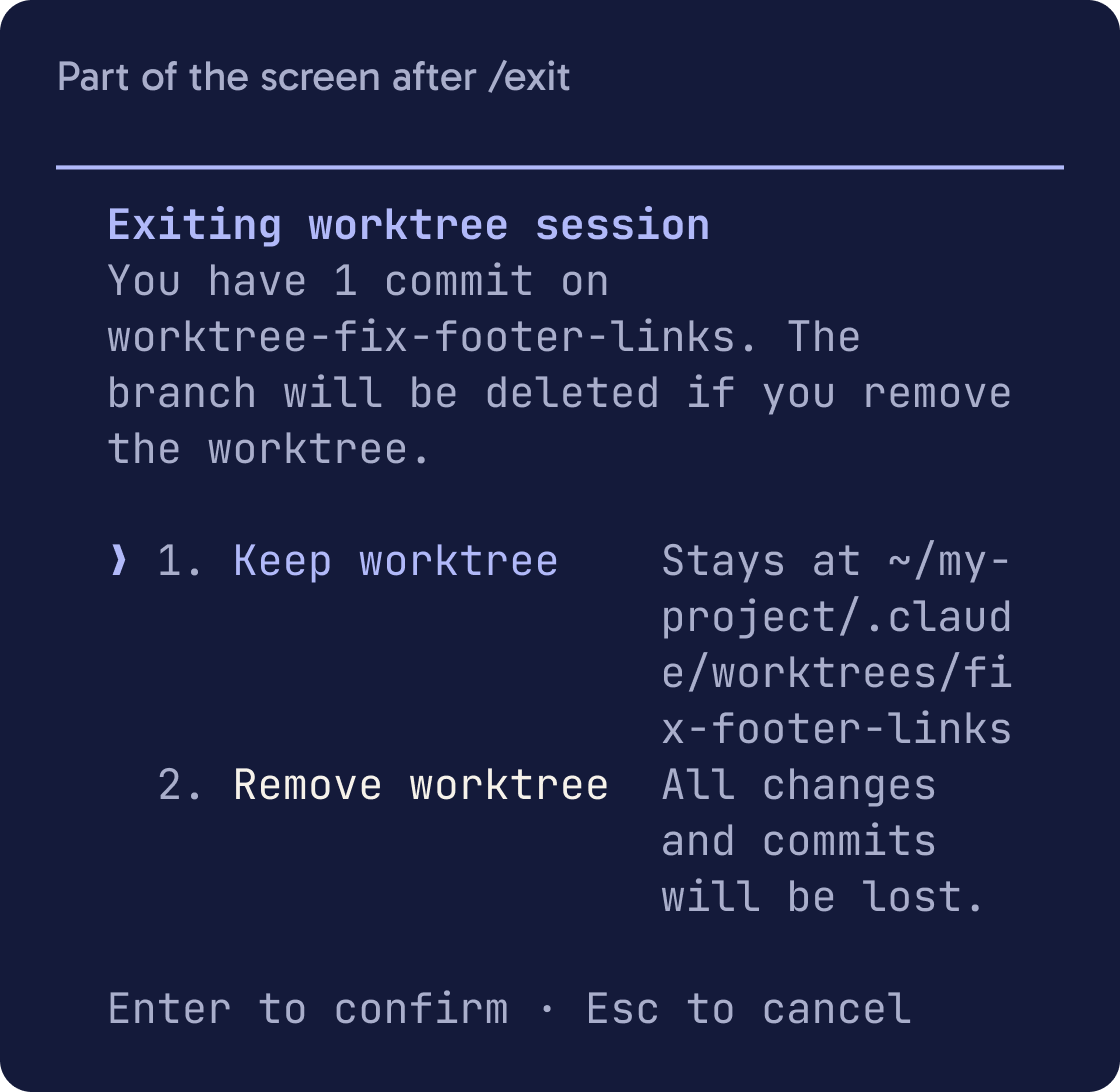
Type /exit in a worktree session. If the worktree has no changes, Claude Code removes it and its branch for you, or asks first if you gave the session a name. If it has work in it, Claude Code asks whether to keep it or remove it.
Removing deletes the folder, the branch and any work that isn't merged. Only remove it after you've merged the work.
To see every worktree you have, run this command:
git worktree list
Step 10 of 14
Do the same in the desktop app
In the Claude desktop app, open the Code tab. Click New session in the sidebar, or press Cmd and N on a Mac or Ctrl and N on Windows.
Select the worktree option next to the branch name. That session gets its own copy of the project, the same as --worktree.
Start as many sessions as you need this way. To see two side by side, hold Cmd on a Mac or Ctrl on Windows and click a session. When you're finished, hover over a session in the sidebar and click the archive icon to remove its worktree.
Step 11 of 14
Hand jobs off as background sessions
A background session runs without a terminal window open. Start one from your project folder with --bg and the task in quotes:
claude --bg "find out why the signup form doesn't send emails and fix it"
Run claude agents to see all of them. This opens agent view, one screen listing every background session and which ones need you. Agent view is a research preview, so its keys may change.
In agent view, use the arrow keys to pick a session. Press Space to see its latest output and reply. Press Enter to open the full conversation, and press the left arrow on an empty prompt to go back to the list.
To start another session, type a new task at the bottom and press Enter.
Before a background session edits files, Claude moves it into its own worktree. When it's done, it commits its work and pushes the branch if your project is on GitHub. It never pushes to main.
Step 12 of 14
Run long commands in the background of one session
Sometimes you only need one session to keep talking while a slow command runs, such as a test run or a local preview server.
Start the development server in the background and tell me the local address to open in my browser. Then keep helping me while it runs.Ask Claude to run the command in the background, or press Ctrl and B while a command is running. Claude carries on with your next message.
Type /tasks to see what's running in the background and to stop anything.
Step 13 of 14
Keep parallel sessions from clashing
Give each session a different part of the project, such as one page each. Two jobs that edit the same file will clash when you merge, even in separate worktrees.
I want to run 3 Claude sessions in parallel on this project. Suggest 3 tasks from my to-do list that touch completely separate files. For each, list the files it may change and the files it must not touch, and write a one-paragraph prompt I can paste into that session.Tell each session what it must not touch, and ask each one to commit when its part works. Merge one branch at a time and check the project after each merge.
Keep it to two or three sessions at first. More sessions means more to review and faster use of your allowance.
Step 14 of 14
Know when one session is enough
Stay with one session when you're still learning, when the job is small, or when every task touches the same few files.
Use a subagent to read through the whole project and list every place we send an email. Give me only the summary, with file names.Stay with one session when the tasks depend on each other. If task two needs task one's result, run them in order.
If a task only needs research, such as reading lots of files, ask Claude to use a subagent. A subagent is a helper that works inside your current session and reports back a summary.
Did that work?
Still stuck? Send me a DM on Instagram at @maxbuilds.ai and I'll help.
Common mistakes
- Running two sessions in the same folder without worktrees. Start each one with `claude --worktree <name>` or use the worktree option in the desktop app.
- Trying worktrees in a project with no commits. Make your first commit before you start.
- Giving two sessions jobs that edit the same file. Split the work by file or page so the merges stay clean.
- Removing a worktree before merging it. Merge the branch into `main` first, then remove the worktree.
- Forgetting `.env` in new worktrees. List it in `.worktreeinclude` so it's copied every time.
- Starting many sessions at once and running out of allowance. Begin with two and check `/usage`.
Want the next guide?
I'll email you each new guide as I share it, with new tutorials and prompts too.