Reading on your phone? Send it to your laptop.
You'll get the guide and every prompt in one email.
Guide 003
Just enough terminal to use Claude Code
You need
- A Mac or a Windows PC
- About 15 minutes
- Nothing else. You don't need to install anything for this guide
Step 1 of 17
Know what a terminal is
A terminal is a window where you control your computer by typing. You type a command, press Enter, and the computer replies with text.
A command is one typed instruction, such as ls, which lists the files in a folder.
Claude Code runs inside a terminal. You need a few commands to start it in the right folder. After that you talk to Claude in plain English.
Did that work?
Still stuck? Send me a DM on Instagram at @maxbuilds.ai and I'll help.
Step 2 of 17
Open the terminal on a Mac
The Mac terminal app is called Terminal.
Press Cmd + Space to open Spotlight. Type Terminal and press Enter. A window opens with a line of text and a blinking cursor.
You can also open Finder, go to Applications, then Utilities, and double click Terminal.
Step 3 of 17
Open the terminal on Windows
Windows has two terminals: PowerShell and the older CMD. Use PowerShell.
Press Win + X and choose Windows PowerShell or Terminal. A window opens with a blinking cursor.
Check the start of the line. PowerShell shows PS C:\Users\YourName>. CMD shows C:\Users\YourName> with no PS at the front.
PowerShell and CMD use different commands. All the Windows commands in this guide are for PowerShell.
Step 4 of 17
Read the prompt
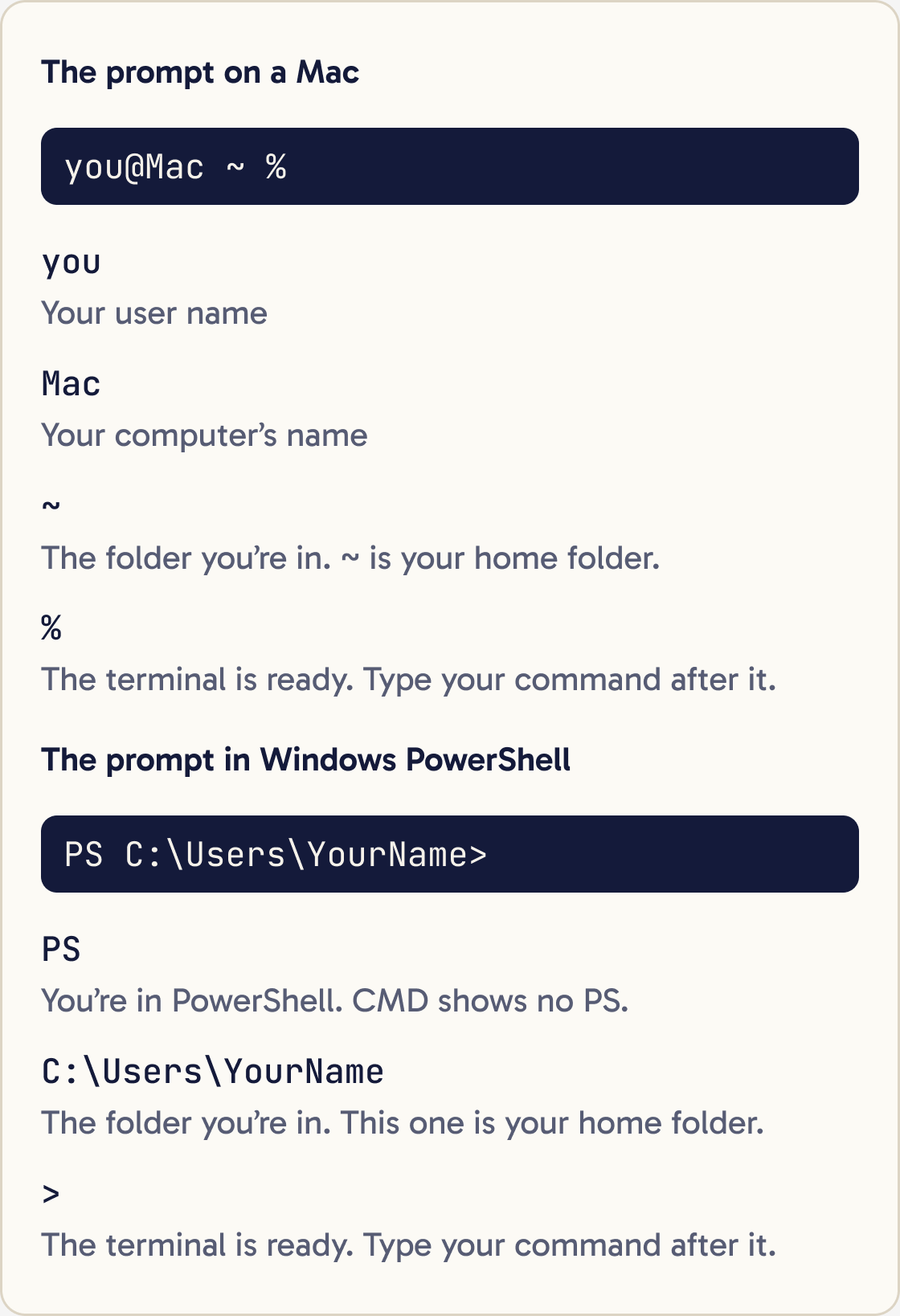
The prompt is the text at the start of the line, before the blinking cursor. It shows which folder you're in, and it means the terminal is ready for a command.
On a Mac it looks like yourname@MacBook-Pro ~ %. The ~ symbol means your home folder.
On Windows it looks like PS C:\Users\YourName>. That's also your home folder.
Your home folder is the folder named after your user account. Your Desktop and Documents folders live inside it.
Step 5 of 17
Understand folders and paths
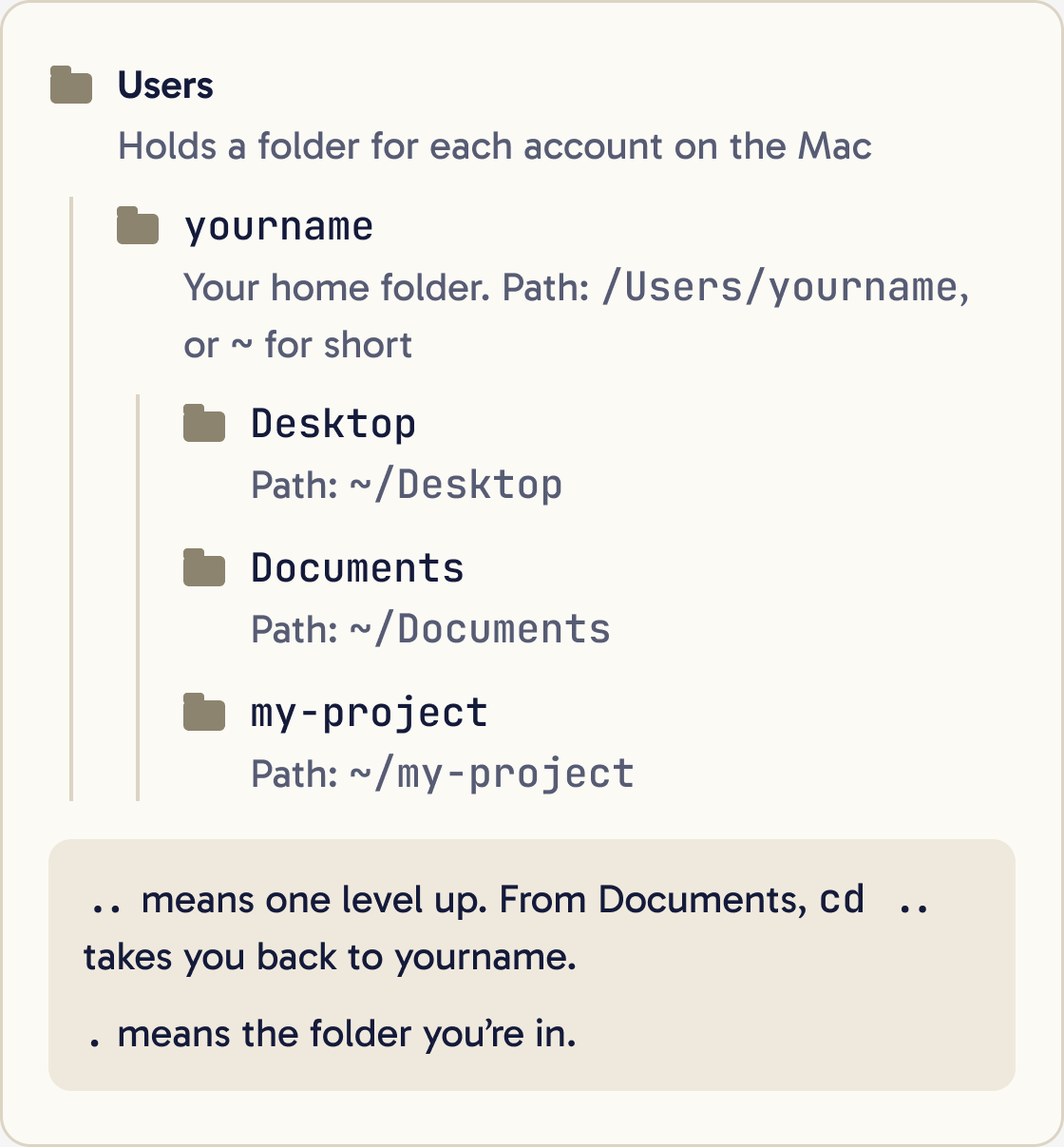
A path is the address of a file or folder. It lists each folder you go through to reach it.
On a Mac, folders in a path are split by /. Your Documents folder is /Users/yourname/Documents, or ~/Documents for short.
On Windows, folders are split by \. Your Documents folder is C:\Users\YourName\Documents.
The terminal always has a current folder, the one you're in right now. Commands work on that folder unless you give a different path.
Two dots .. mean the folder one level up. One dot . means the folder you're in.
Step 6 of 17
See where you are
Type this and press Enter. It works on Mac and in Windows PowerShell:
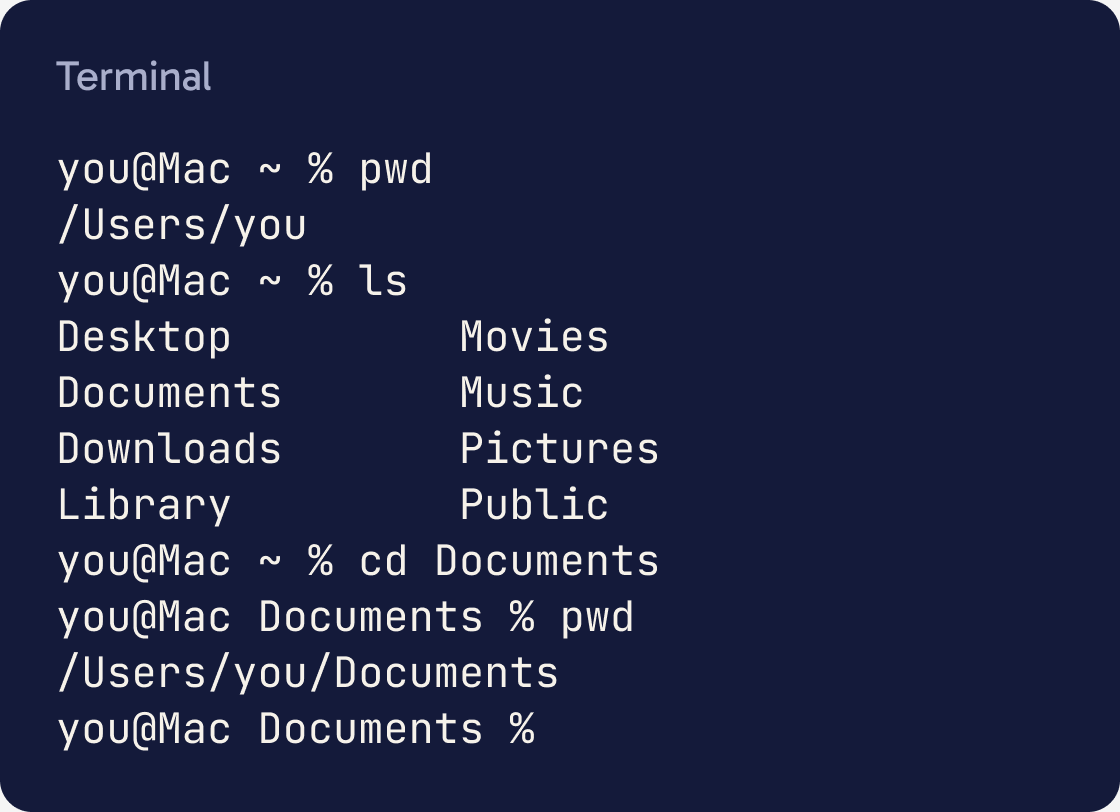
pwd
It prints the full path of the folder you're in. pwd stands for print working directory. Directory is another word for folder.
Step 7 of 17
See what is in the folder
Type this and press Enter. It works on Mac and in Windows PowerShell:
ls
It lists the files and folders inside your current folder.
On a Mac, ls -a also shows hidden files, whose names start with a dot.
Step 8 of 17
Move into a folder
Use cd to change folder. Type cd, a space, then the folder name:
cd Documents
To go up one level, back to the folder that contains this one:
cd ..
To jump back to your home folder on a Mac:
cd ~
Run pwd after each move to check where you are.
Step 9 of 17
Use drag and drop on a Mac
On a Mac you can drag a folder from Finder into the Terminal window, and its full path appears on the line. That saves typing long paths.
Type cd and a space first, then drag the folder in, then press Enter. You're now in that folder.
Step 10 of 17
Make a new folder
Give each Claude Code project its own folder.
On a Mac:
mkdir my-project
In Windows PowerShell:
md my-project
Both make a folder called my-project inside your current folder. Then move into it:
cd my-project
Step 11 of 17
Copy and paste
On a Mac, copy with Cmd + C and paste with Cmd + V, the same as in other apps.
In Windows Terminal, select text and press Ctrl + C to copy. Press Ctrl + V to paste. A right click also pastes.
After you paste a command, press Enter to run it.
Step 12 of 17
Stop a command
Press Ctrl + C to stop a command that is running. This works on Mac and Windows. On a Mac this is the Control key.
Inside Claude Code, press Esc to stop Claude mid task. Ctrl + C also stops it. With nothing running, a second Ctrl + C closes Claude Code.
Step 13 of 17
Repeat an earlier command
Press the Up arrow key to bring back the last command you typed. Keep pressing it to go further back. Press Enter to run it again.
This also works inside Claude Code for your earlier messages.
Step 14 of 17
Understand command not found
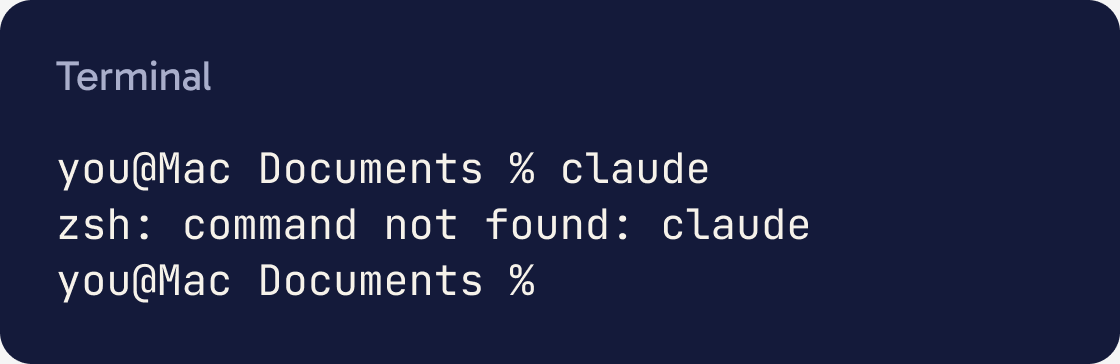
Command not found means the terminal doesn't know that word. On a Mac it looks like zsh: command not found: claude. In PowerShell it says The term 'claude' isn't recognized as the name of a cmdlet.
It usually means one of three things: a typo, a program that isn't installed, or a program the terminal can't find yet.
The terminal looks for programs in a list of folders called the PATH. A new program only works once its folder is on that list.
Step 15 of 17
Start Claude Code in the right folder
Move into your project folder first, then start Claude:
Which folder are you working in, and what files are in it? Answer in plain English.Explain in plain English what the command cd .. does, and when I would use it.cd my-project
claude
Check the folder name shown above the input box. If it is wrong, type /exit, cd into the right folder and start again.
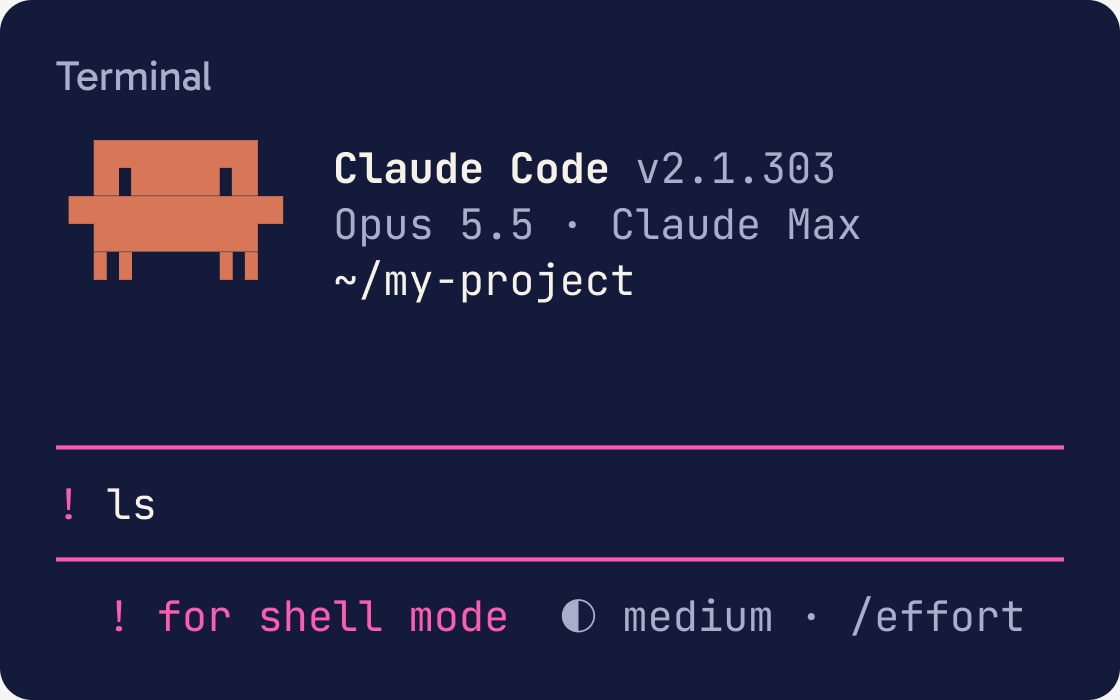
Inside Claude Code you can still run a terminal command. Type ! first, for example !ls. Claude sees the result too.
Step 16 of 17
Close the terminal
To leave Claude Code, type /exit and press Enter.
To close the terminal itself, type exit and press Enter, or close the window.
Closing the window doesn't delete your files. Your Claude Code conversation is saved, and claude -c in the same folder picks it up again.
Step 17 of 17
Keep these safe habits
Read a command before you run it. If you don't understand it, ask Claude what it does first.
Before I run this command, explain what it will do and whether it could delete or change anything: [PASTE THE COMMAND]Only paste install commands from the official source, such as code.claude.com.
Be careful with rm on a Mac and Remove-Item on Windows. They delete files straight away. The files skip the Bin, so you can't get them back from there.
Run pwd before anything that changes files, so you know which folder it will affect.
Don't paste passwords or secret keys into the terminal or into Claude unless you know why you need to.
Did that work?
Still stuck? Send me a DM on Instagram at @maxbuilds.ai and I'll help.
Common mistakes
- Typing commands in CMD on Windows. Use PowerShell, which shows PS at the start of the line.
- Starting Claude Code in the wrong folder. Run pwd first and check the folder shown in Claude Code.
- Using Cmd + C on a Mac to stop a command. That copies text. Use Control + C.
- Giving project folders names with spaces. Use names like my-project to avoid quote marks.
- Running a pasted command you don't understand. Ask Claude to explain it first.
Want the next guide?
I'll email you each new guide as I share it, with new tutorials and prompts too.